How to Clean Your ActiveCampaign List (Step by Step)
ActiveCampaign does part of list cleaning for you. It stops sending to a contact after a hard bounce, and it has tools that unsubscribe people who never open. It does not test an address before the first send, and on newer accounts a bounced or unsubscribed contact still takes up a place in your contact limit until you archive it.
List cleaning is the removal of addresses that cannot receive email or no longer want it. Every menu name below was checked against the ActiveCampaign help center on 13 November 2026, and each article is named and linked next to the step.
What are the contact statuses in ActiveCampaign?
ActiveCampaign gives every contact on an email list one of four statuses: Active, Unconfirmed, Unsubscribed or Bounced. The definitions are in ActiveCampaign's Contact list statuses explained article, and only Active contacts receive campaigns.
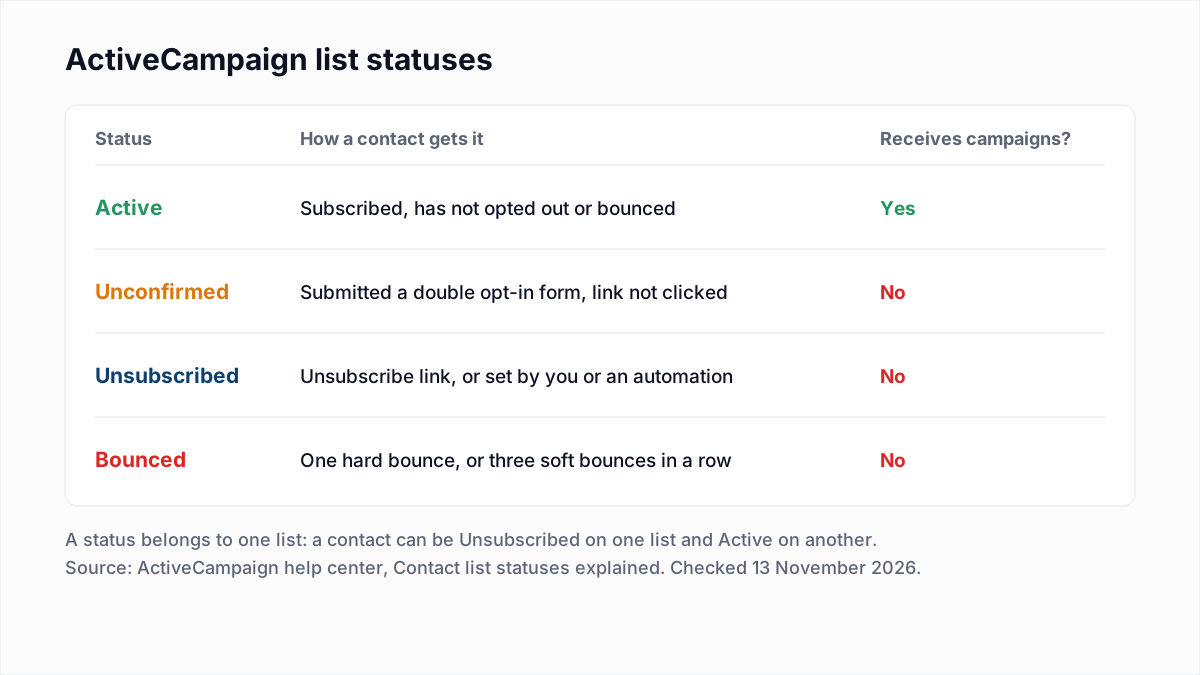
The article is careful about one word: an Active contact "is not the same as an 'Engaged' contact". Active only means subscribed and not bounced. To see the statuses, the same article says to open the Contacts Overview page, pick a list in the filter row, then click Any next to Status.
What happens to bounced contacts in ActiveCampaign?
ActiveCampaign sets a contact to Bounced after one hard bounce, or after three soft bounces in a row from three different campaigns, and then leaves that contact out of future campaigns. In the article's words, after a hard bounce the contact "is immediately given a 'Bounced' status and will no longer receive emails." For the general idea, see email suppression list.
That protects you from mailing the same dead address twice. It does not protect the first send, because ActiveCampaign learns an address is dead by bouncing off it. A list that was imported, collected at an event or left unmailed for a year will take all of its bounces in one campaign, and that is the campaign mailbox providers judge you on. What the server replies behind a hard and a soft bounce look like is covered in soft bounce vs hard bounce.
Which ActiveCampaign contacts count toward the contact limit?
Which ActiveCampaign contacts count toward the contact limit depends on when the account was created. ActiveCampaign's Do unsubscribed, unconfirmed, or bounced contacts count against my contact limit? article, updated 3 November 2026, gives two rules:
| Account created | What counts toward the contact limit |
|---|---|
| On or after 3 November 2025 | "All contacts, regardless of their list status, count towards your contact limit." Bounced and unsubscribed contacts are included. |
| On or before 2 November 2025 | "Either active contacts or all contacts may count toward your contact limit, depending on your plan." The article says to check under your Profile, then Billing & Upgrade, then Your Plan. |
| Any account, archived contacts | Archived contacts do not count toward the contact limit, according to the Archive contacts in ActiveCampaign article. |
The limit is not only a billing line. ActiveCampaign's What happens when I reach my contact limit? article says that at the limit "you will not be able to send any email campaigns until you upgrade your account", and automations skip their "Send an email" actions. On an account where every contact counts, dead addresses push you toward that wall.
What does the Engagement Management tool do in ActiveCampaign?
The Engagement Management tool unsubscribes unengaged contacts from one ActiveCampaign list. ActiveCampaign's Engagement Management tool article says it can target contacts who have never opened or clicked, or contacts who have not engaged in the last 3, 6, 12 or 24 months. It unsubscribes; it does not delete.
To run it, the article says to click Contacts, then Lists, click the down caret next to the list's Import Contacts button, choose Engagement management, then View Cleanup Options. Pick an option, type the required tag, and click Remove unengaged contacts. Read the warnings in the article first:
- The tool does not show which contacts, or how many, will be unsubscribed.
- Its actions "cannot be undone", and ActiveCampaign recommends exporting all contacts before using it.
- A contact on several lists is only unsubscribed from the list you chose.
- Contacts who are part of an open deal are skipped.
- Apple Mail Privacy Protection opens are not treated as engagement.
Two more things to know as of November 2026. First, the article opens with a notice that ActiveCampaign has updated its recommendation and now points to the Expedited List Cleanup automation, which unsubscribes contacts from all lists who have not engaged in the last 90 days. Second, the similarly named List Cleanup tool is a different thing: ActiveCampaign's List Cleanup Tool article says it deletes contacts by status and is only available on accounts created before 22 February 2022.
All of these act on engagement, which only exists for contacts you have already mailed. None of them finds a dead address on a list you have not sent to yet. How long to wait before calling someone inactive is in our email sunset policy guide.
How do you clean an ActiveCampaign list step by step?
Cleaning an ActiveCampaign list means exporting the Active contacts, verifying the file outside ActiveCampaign, importing the results into a custom field, and saving a segment for each result. Nothing in the account changes until the import.
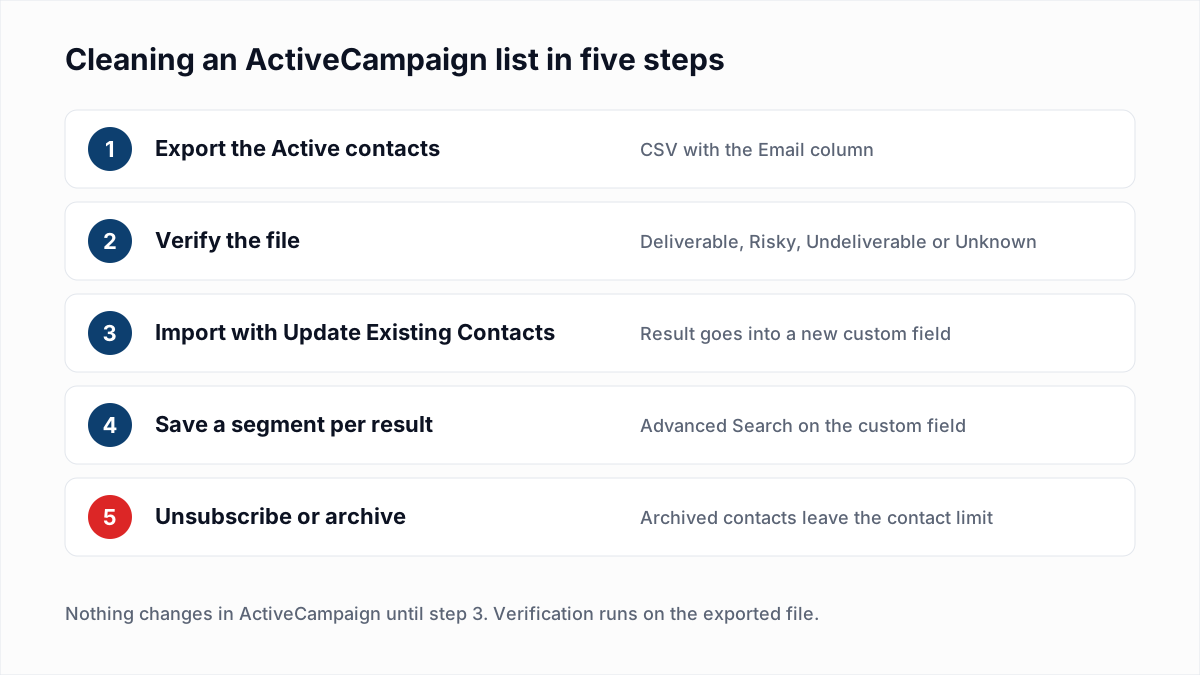
- Export the list. Following ActiveCampaign's How to export a list article: click Contacts, then Lists, click the list, leave the Status dropdown on Active (the default) and click Export. Name the export without special characters, or the article warns it will not arrive as a CSV. Download it from Contacts, then Exports; the link is valid for 7 days.
- Verify the file. Upload the CSV to a verifier such as the InboxSure bulk email verifier. InboxSure checks syntax, DNS and MX records and the mailbox itself over SMTP without sending an email, then returns a CSV with a result for every address. The Pro plan takes lists of up to 10,000 addresses each, so split a larger export into several files.
- Import the results. Trim the results file to two columns, email and result. Following ActiveCampaign's Import contacts from a CSV file article: click Contacts, then Import, then Import from File. Map the email column to Email. For the result column choose [Add New Field] and name it
Email verification result. Do not select a list, and tick Update Existing Contacts, which the article says looks for a matching email address and adds the data from your file to that contact. Under Advanced Options, turn Trigger Automations off so the update does not start any automation, then click Import Now. - Save a segment per result. Following ActiveCampaign's How to use Advanced Search article: click Contacts, click the Search Contacts field, then Advanced Search, and open Build With Segment Conditions. Add a condition on your new field with the value
Undeliverable, click Search, then Save as segment. The article says saved segments are dynamic, so the segment updates itself after the next import. - Act on each segment using the table in the next section.
A tag works in place of a custom field. The import screen's Add Tags box applies its tags to every contact in the file, so tagging needs one file per result.
What should you do with each verification result in ActiveCampaign?
Each verification result maps to one ActiveCampaign action: keep Deliverable contacts Active, unsubscribe or archive Undeliverable ones, hold Risky ones in their own segment and re-check Unknown ones.
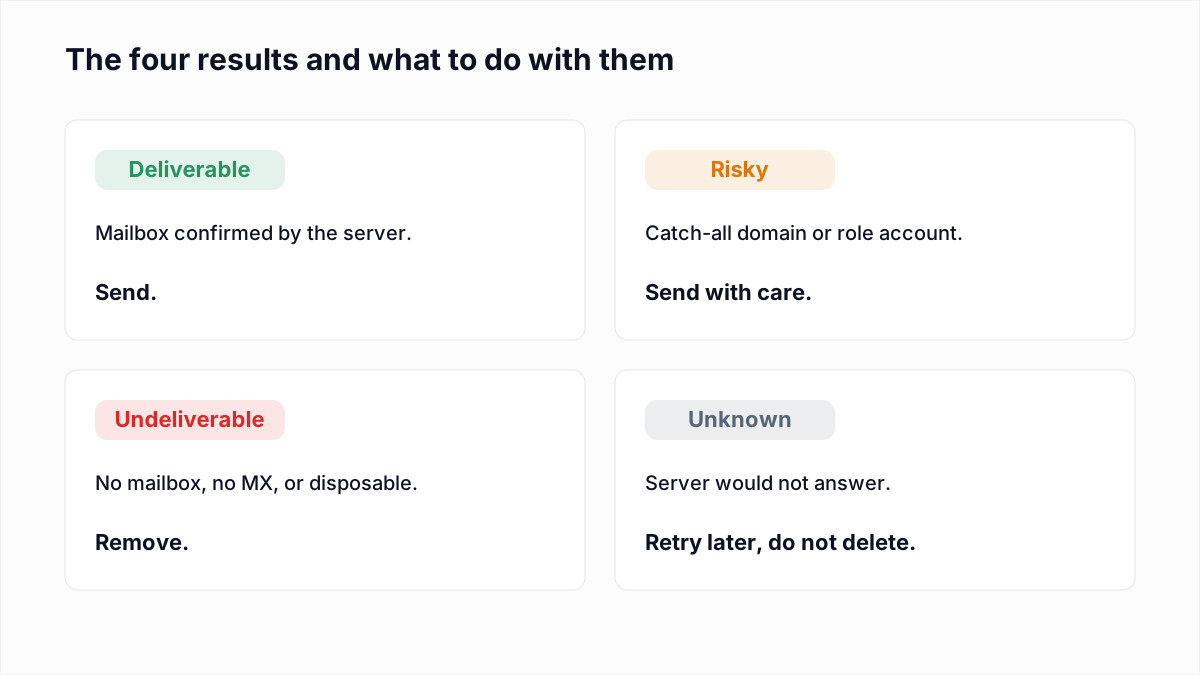
| InboxSure result | What it means | What to do in ActiveCampaign |
|---|---|---|
| Deliverable | The mail server confirmed the mailbox exists. | Keep as Active. No action. |
| Undeliverable | The mailbox does not exist, the domain has no MX record, the syntax is bad or the domain is disposable. | Unsubscribe the segment from its lists before the next campaign, then archive the contacts so they stop counting toward the contact limit. |
| Risky (catch-all) | The domain accepts every address, so the mailbox cannot be confirmed. | Keep in a saved segment. Send to contacts who have opened or clicked; hold back catch-all contacts with no engagement at all. |
| Risky (role account) | A shared mailbox such as info@ or sales@. | Keep if the address signed up itself. Remove role addresses that were imported. |
| Unknown | The server would not give a clear answer. | Keep, re-verify in a few days, and do not archive on an Unknown. |
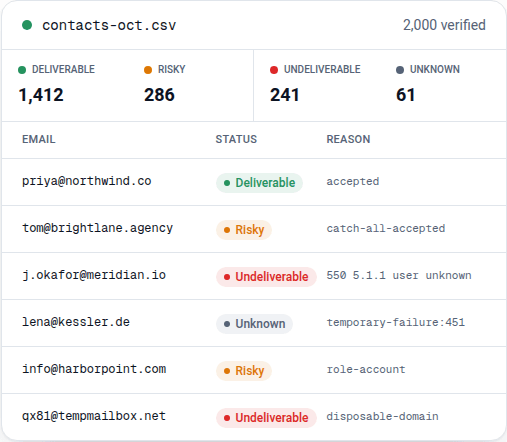
Two honest limits. Yahoo, AOL, Outlook.com and Hotmail addresses come back Unknown from InboxSure today, because in our tests on 4 November 2026 those providers refused the check before the mailbox could be tested (full results here). A consumer list will have a large Unknown group; a B2B list mostly will not, though many company domains are catch-all (see what a catch-all email is). And a Deliverable result says the mailbox exists, not that the person wants your email.
Should you unsubscribe, archive or delete contacts in ActiveCampaign?
Unsubscribe ActiveCampaign contacts to stop campaigns to them, archive contacts to remove them from the contact limit, and delete only when the record must be gone for good. The three actions are separate steps in the help center.
- Unsubscribe. ActiveCampaign's Use the Bulk Edit tool with contacts article says to run the search, click Edit All, choose Unsubscribe from a list, pick the list, click Apply and confirm. Bulk edits "cannot be canceled or undone". The contact stays in the account.
- Archive. ActiveCampaign's Archive contacts in ActiveCampaign article says to filter and select the contacts on the Contacts page, click Archive, tick I understand and confirm. Archived contacts are read-only, keep their history for one year before automatic deletion, and can only be restored after 30 days. Archiving needs an Admin user, or a user an Admin has given the Contacts Delete permission.
- Delete. ActiveCampaign's How to delete contact records article says a contact must be archived first, then deleted from the archived contacts list with Delete permanently. Deleting "is permanent and cannot be undone".
Export the segment with every field before any of the three. The file is your only backup once the year is up.
Keep the list clean
Addresses go stale as people change jobs and abandon mailboxes, so one clean is not enough. A quarterly pass suits most lists, plus a pass on any file before a large import; the schedule by list type is in how often to clean your email list.
InboxSure is a flat price, so repeat passes cost nothing extra: the Free plan verifies lists of up to 50 addresses with no card, and Pro is $49 a month for any number of lists of up to 10,000 addresses each, with no credits. The export and import steps are summarised on the ActiveCampaign integration page. There is no native sync: you export a CSV, verify it, and import the results as shown above.
Frequently asked questions
Related reading
Ready to clean your email list?
Upload a CSV or XLSX and get every address marked deliverable, risky, undeliverable or unknown, with the reason. Free for lists of up to 50, no card. Nothing is sent to your contacts.