How to Clean a HubSpot Contact List (Step by Step)
HubSpot handles part of list hygiene for you, and it is worth knowing exactly which part before you start. HubSpot stops sending to a contact after a hard bounce, and it can skip contacts who have ignored a long run of emails. It does not test an address before the first send, and it keeps charging for a marketing contact whether or not the mailbox exists.
Every menu name below was checked against the HubSpot knowledge base on 13 November 2026, and each article is linked next to the step. Note that the knowledge base now calls lists segments (CRM, then Segments).
What does HubSpot do when an email hard bounces?
HubSpot excludes a contact from future marketing emails after a hard bounce. A hard bounce in HubSpot is a delivery failure that, in the words of HubSpot's Email bounce types article, "usually indicates a permanent error, but can also be caused by a strict email security filter."
That second clause matters. HubSpot sorts hard bounces into six reasons, and only two of them mean the address is dead. The other four are filter rejections, which the same article says can be unbounced once the recipient's IT team allowlists your sending IP addresses.
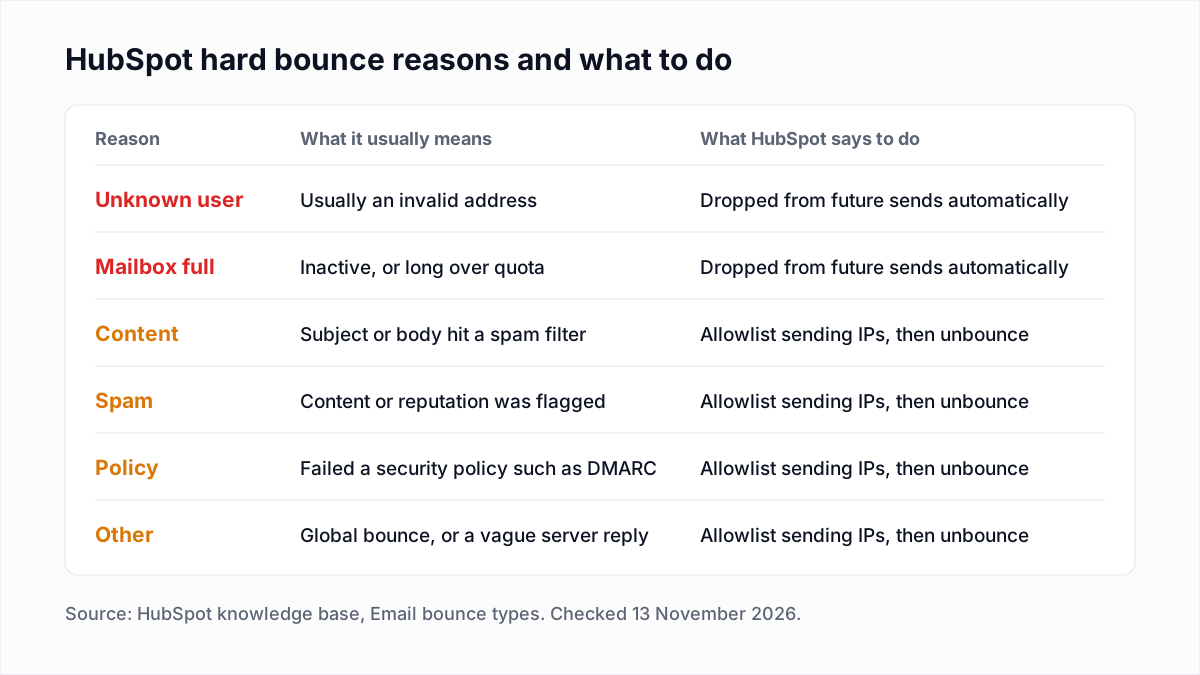
The article also defines a global bounce: a hard bounce "across three or more HubSpot accounts for a permanent reason". HubSpot drops those addresses in every account, including yours, even if you have never mailed them. Soft bounces are temporary, and those contacts stay eligible for future emails.
The catch is the same as on every sending platform: HubSpot learns an address is dead by bouncing off it. HubSpot's Resolve email sending suspensions article lists the monthly limits that can suspend marketing email: a hard bounce rate of 5%, a spam report rate of 0.1% (one per 1,000 emails sent) and an unsubscribe rate of 3%. It also says that removing the bounced contacts afterwards "is not sufficient to restore email access". Finding dead addresses before the send is the only way to stay under the first number. What the SMTP replies behind these bounces look like is covered in soft bounce vs hard bounce.
What is graymail suppression in HubSpot?
Graymail suppression is a HubSpot setting, labelled Don't send to unengaged contacts, that skips contacts who have stopped opening and clicking. HubSpot's graymail article defines graymail as email that contacts opted in to receive but do not open or click.
HubSpot treats a contact as unengaged when either of these is true:
- The contact "has never engaged with a marketing email from you and hasn't engaged with the last 11 emails you've sent them."
- The contact "previously engaged with one of your marketing emails but hasn't engaged with the last 16 emails you've sent them."
The setting can be switched per email, and the article says turning it off as the default for new emails needs a Marketing Hub Starter, Professional or Enterprise subscription. Leave it on, but note that a suppressed contact is skipped, not removed: it is still a marketing contact on your bill. And at one email a month, 11 ignored sends is nearly a year of mailing someone who is not reading. Suppression in the wider sense is covered in email suppression list.
For an earlier cut, HubSpot's Clean up contacts to improve email deliverability article builds a never-opened segment from two filters: Last marketing email open date is unknown, and Marketing emails delivered is greater than a number you choose (its example uses 10). Add that segment to the Don't send to section of an email, or run a win-back first. Timelines and win-back emails are in our email sunset policy guide.
Why does cleaning HubSpot contacts lower the bill?
Cleaning lowers a HubSpot bill because Marketing Hub is priced on marketing contacts, and a dead or silent address can be set as non-marketing or deleted. HubSpot's marketing contacts article says: "Only marketing contacts count toward your contact tier and impact the cost of your subscription."
The timing rules are strict, and they are in HubSpot's Understand marketing contacts billing article:
| Rule | What HubSpot says (November 2026) |
|---|---|
| Going over the tier | "If you exceed your current tier by even one marketing contact, you'll be upgraded to the next contact tier." |
| Coming back down | The tier does not downgrade automatically. A lower tier can only start at the subscription's next renewal. |
| When non-marketing takes effect | On the next update date: the renewal day each month for monthly subscriptions, the first day of each month for yearly subscriptions. |
| Deleting a marketing contact | "Deleting a marketing contact will free up capacity for other contacts to be set as marketing." It does not lower the tier. |
So cleaning saves money by keeping you out of the next tier and by letting you renew at a lower one, not by a refund mid-term. Clean before renewal and before any large import.
How do you clean a HubSpot contact list step by step?
Cleaning a HubSpot contact list means exporting the contacts, verifying the file outside HubSpot, importing the results into a custom property, and building segments from that property. Nothing in HubSpot changes until the import.
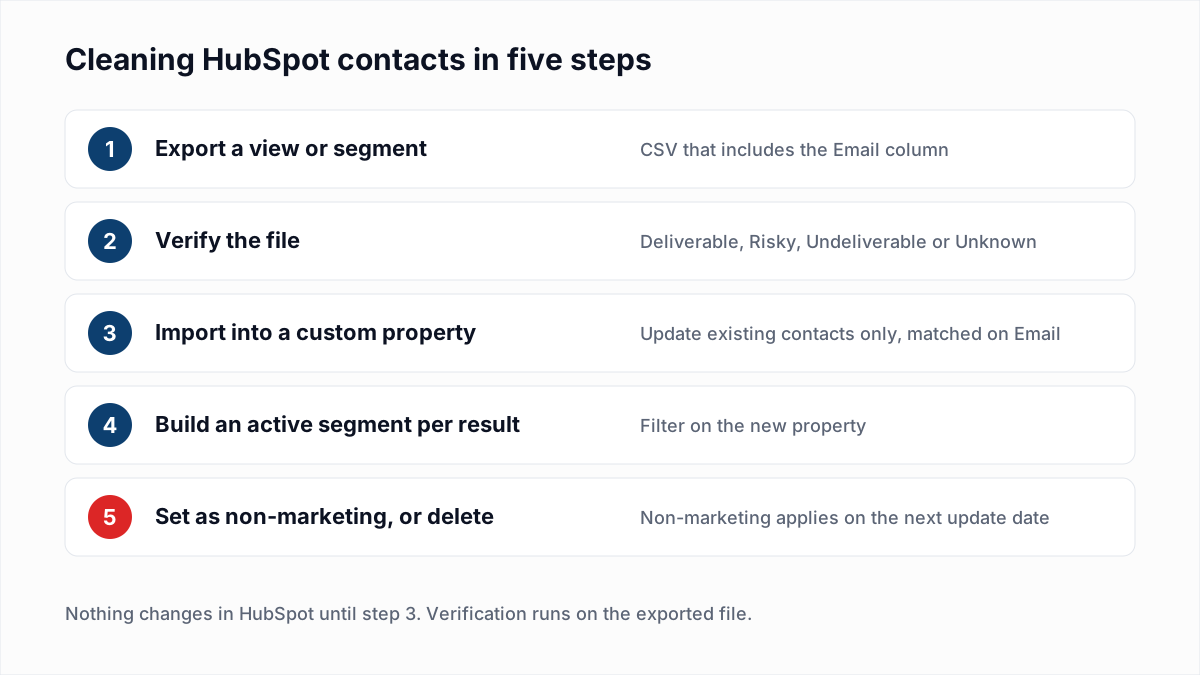
- Create the property. Following HubSpot's Create and edit properties article: click the settings icon, go to Properties, choose Contact properties in the object dropdown and click Create property. Label it
Email verification resultwith the field type Single-line text. - Export the contacts. For a saved view, HubSpot's Export your records article says to open CRM, then Contacts, open the view, and click Export at the top right of the table. For a segment, the Export segments article says to hover over the segment in CRM, then Segments, click More, then Export. Choose CSV and include the Email property. HubSpot emails a download link.
- Verify the file. Upload the CSV to a verifier such as the InboxSure bulk email verifier. InboxSure checks syntax, DNS and MX records and the mailbox itself over SMTP without sending an email, then returns a CSV with a result for every address. The Pro plan takes lists of up to 10,000 addresses each, so split a larger export into several files.
- Import the results. Trim the results file to two columns, email and result. Following HubSpot's Import records for a single object article: click Import on the contacts index page, then Import data, Advanced imports (all objects), select Contacts and click Next. In the "Choose how to import" dropdown pick Update existing contacts only, so the file cannot create new records. On the mapping screen, map the email column to Email (the article notes the right one shows a key icon, because Email is the identifier used to match contacts) and the result column to your new property. Name the import, tick the consent checkbox and click Finish import.
- Build a segment per result. Following HubSpot's Create segments article: in CRM, then Segments, click Create segment, choose Contacts, click + Add filter, pick
Email verification resultand set it to is equal toUndeliverable. Choose Active and click Save and process segment. An active segment updates itself after the next import.
What should you do with each verification result in HubSpot?
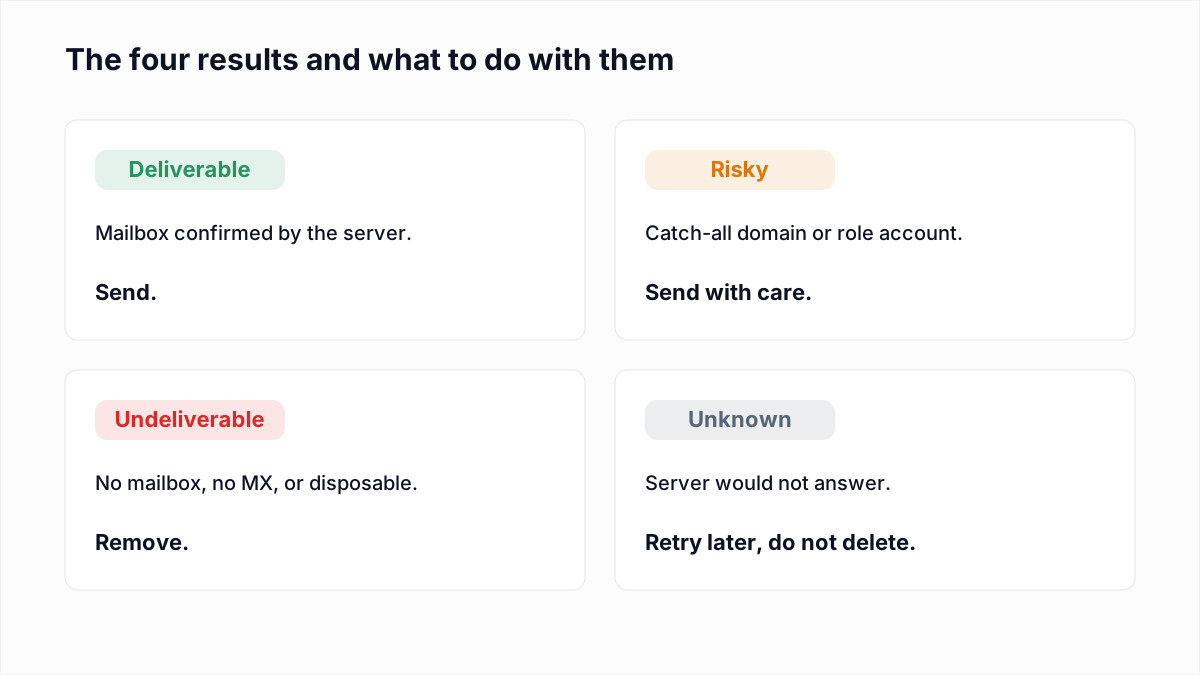
Each verification result maps to one HubSpot action: keep Deliverable contacts as marketing contacts, remove Undeliverable ones from marketing, hold Risky ones in their own segment and re-check Unknown ones.
| InboxSure result | What it means | What to do in HubSpot |
|---|---|---|
| Deliverable | The mail server confirmed the mailbox exists. | Keep as a marketing contact. No action. |
| Undeliverable | The mailbox does not exist, the domain has no MX record, the syntax is bad or the domain is disposable. | Add the segment to Don't send to on every email straight away, then set the contacts as non-marketing, or delete them if the record has no sales value. |
| Risky (catch-all) | The domain accepts every address, so the mailbox cannot be confirmed. | Keep in a separate active segment. Send to engaged contacts as normal; hold back catch-all contacts that have never opened or clicked. |
| Risky (role account) | A shared mailbox such as info@ or sales@. | Keep if the address filled in a form itself. Often worth keeping for sales and setting as non-marketing. |
| Unknown | The server would not give a clear answer. | Keep, re-verify in a few days, and do not delete on an Unknown. |
To set contacts as non-marketing, HubSpot's Set contacts as non-marketing article gives two routes. On the contacts index page, select the checkboxes, open the More dropdown above the table and choose Set as non-marketing contacts. Or use the Clean up contacts tool under Account & Billing, then Marketing Contacts, which can select by segment membership and shows unsubscribed and bounced contacts by default. Either way the change applies on the next update date.
Two honest limits. Yahoo, AOL, Outlook.com and Hotmail addresses come back Unknown from InboxSure today, because in our tests on 4 November 2026 those providers refused the check before the mailbox could be tested (full results here). Company domains mostly answer the check, though many are catch-all: see what a catch-all email is. And a Deliverable result says the mailbox exists, not that the person wants your email.
How do you remove bounced contacts in HubSpot?
Bounced contacts in HubSpot are removed by building a segment of them and deleting it. HubSpot's Delete contacts who no longer receive your marketing emails article describes a shortcut: in Marketing, then Email, click Email tools and select Create segment of hard-bounced contacts. You can also filter any segment on the contact property Email hard bounce reason is known.
Before deleting, use the Hard bounce reasons dropdown in that dialog to narrow the segment to Unknown user and Mailbox full. The other reasons can be real people behind a strict filter. The article also notes that globally bounced contacts do not appear in these segments, which is one more reason to verify the whole database and not only the contacts HubSpot has flagged.
Can you restore contacts after a bulk delete in HubSpot?
Yes, deleted HubSpot contacts can be restored for up to 90 days, but not everything comes back. HubSpot's Restore deleted records article says records can be restored "up to 90 days after they were deleted", and warns that "some of the data associated with them will still be lost".
- Export first. Export the segment with every property before deleting it. The file is your backup after day 90.
- History does not come back after 90 days. HubSpot's Delete CRM records article says that if a contact with the same email returns later, "a new record is created without historical data."
- Permanent deletes are final. Contacts permanently deleted for privacy requests never enter the recycle bin.
To restore, the article says to open CRM, then Contacts, click the three-dot icon at the upper right and select Restore records.
What does HubSpot say about purchased lists?
HubSpot tells customers not to keep or email purchased lists. HubSpot's Clean up contacts article says that "purchased lists should be deleted from HubSpot immediately or imported as an opt-out list", and lists rented, borrowed, leased and appended lists alongside them as sources to remove.
The HubSpot Anti-Spam Policy (last modified 2 February 2026) is stricter in tone. It requires that recipients have given "express, verifiable consent" and prohibits using HubSpot to contact recipients from purchased, rented, borrowed or other third-party lists, including append and enrichment lists, in violation of applicable laws or third-party terms.
Verification does not change this. A verifier can tell you that a bought address exists. It cannot make it opted in, and it cannot detect spam traps. The full argument is in buying email lists.
Keep the CRM clean
Work addresses die as people change jobs, so one clean is not enough. A quarterly pass suits most B2B databases; the schedule by list type is in how often to clean your email list.
InboxSure is a flat price, so repeat passes cost nothing extra: the Free plan verifies lists of up to 50 addresses with no card, and Pro is $49 a month for any number of lists of up to 10,000 addresses each, with no credits. The export and import steps are summarised on the HubSpot integration page. There is no native sync: you export a CSV, verify it, and import the results as shown above.
Frequently asked questions
Related reading
Ready to clean your email list?
Upload a CSV or XLSX and get every address marked deliverable, risky, undeliverable or unknown, with the reason. Free for lists of up to 50, no card. Nothing is sent to your contacts.