What Is DKIM? How It Works, Setup and Fixing DKIM Failures
DKIM (DomainKeys Identified Mail) is a digital signature added to every email you send. Your mail server signs selected headers and the body with a private key, and publishes the matching public key in DNS at selector._domainkey.yourdomain.com. The receiving server fetches that key and checks the signature. If it matches, the message passes DKIM: it was signed by someone holding your key and the signed parts were not changed on the way. DKIM fails when the key cannot be found, the content was altered, or the signature was made with a key that no longer matches DNS.
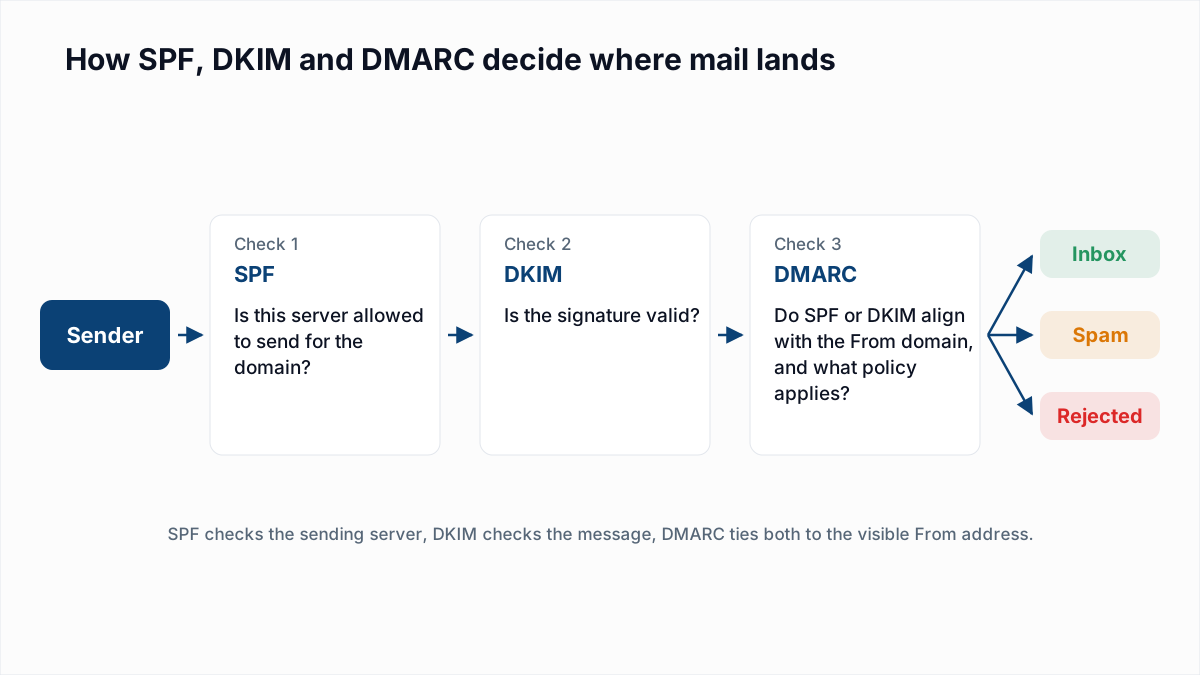
This guide goes one level below our SPF, DKIM and DMARC overview: what each part of a signature means, how to find and look up a selector, how to set DKIM up in Google Workspace and Microsoft 365, and how to fix the failures you actually see.
How DKIM works
There are three steps, and only the first one happens on your side.
- Signing. The sending server canonicalizes the message (normalizes it, explained below), hashes the body, then signs that hash together with a list of headers using the private key. The result goes into a
DKIM-Signatureheader. - Publishing. The public key half sits in a DNS TXT record. Its name is built from two tags in the signature: the selector
s=and the domaind=, joined by._domainkey. - Verifying. The receiver reads
s=andd=, fetches the key, recomputes the body hash, compares it withbh=, then checks the signature inb=. Both must match fordkim=pass.
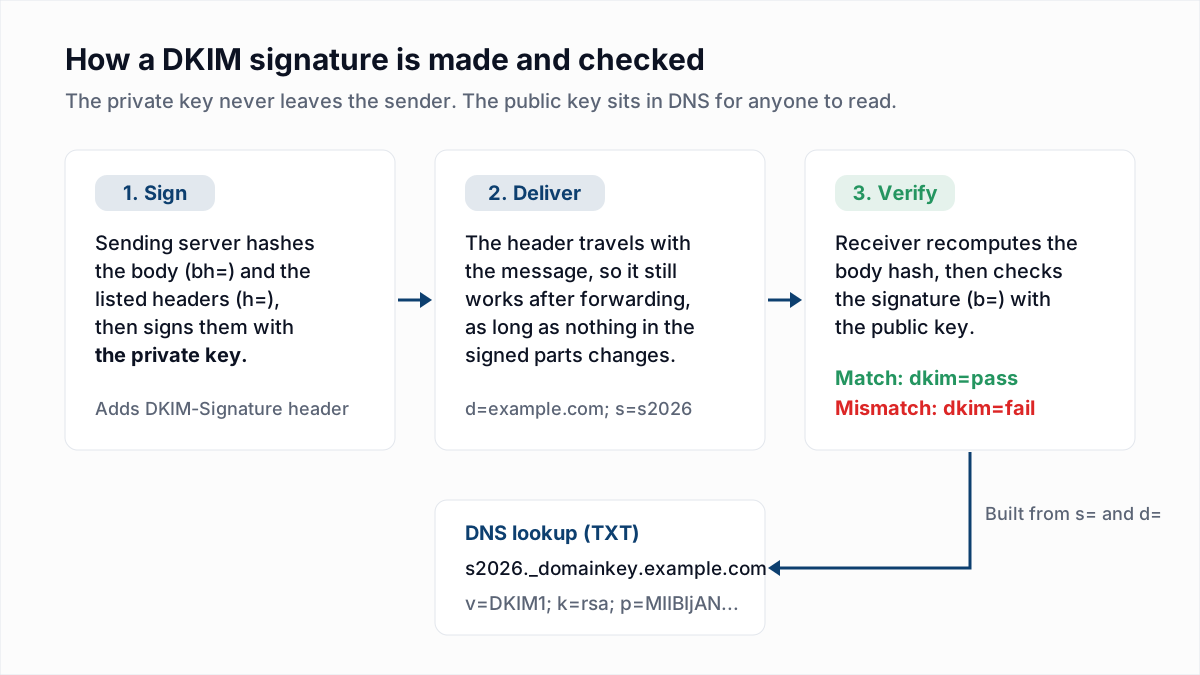
Because the signature travels inside the message, DKIM survives forwarding, which SPF does not. That is why DKIM usually carries DMARC for forwarded mail, as explained in why email forwarding breaks SPF and DMARC.
A DKIM-Signature header, tag by tag
Here is a signature as it appears in the raw headers of a received message. The values are placeholders for example.com; the hashes are shortened.
DKIM-Signature: v=1; a=rsa-sha256; c=relaxed/relaxed;
        d=example.com; s=s2026; t=1794441600;
        h=from:to:subject:date:message-id:mime-version:content-type;
        bh=2jUSOH9NhtVGCQWNr9BrIAPreKQjO6Sn7XIkfJVOzv8=;
b=Kx9fQ0vR1mZb...p3XyW7tQ==| Tag | Meaning | What to check |
|---|---|---|
v=1 | Signature version. Always 1. | Nothing. |
a=rsa-sha256 | Signing algorithm. | rsa-sha1 is no longer valid (see key length below). |
c=relaxed/relaxed | Canonicalization for headers / body. | Relaxed tolerates harmless whitespace changes. Default if absent is simple/simple. |
d=example.com | Signing domain. The domain that takes responsibility. | Must be your domain (or a subdomain) for DMARC alignment. |
s=s2026 | Selector. Names which key was used. | The DNS record must exist at s2026._domainkey.example.com. |
t= | Signing time, in Unix seconds. | Optional. x=, if present, is an expiry time. |
h= | Headers covered by the signature, in order. | Must include from. Changing any listed header breaks the signature. |
bh= | Hash of the canonicalized body. | If the body changes in transit, this no longer matches. |
b= | The signature itself, over the headers and the bh= value. | Fails if the key in DNS is not the pair of the signing key. |
All of these are defined in RFC 6376. You may also see i= (the identity, usually @example.com) and l= (body length). Avoid l=: it lets anyone append content after the signed length, and Google's DKIM troubleshooting page also advises against it.
What a DKIM record looks like
The public key record is a TXT record at the selector name:
s2026._domainkey.example.com. 3600 IN TXT "v=DKIM1; k=rsa; p=MIIBIjANBgkqhkiG9w0BAQEFAAOCAQ8AMIIBCgKCAQEA..."v=DKIM1: record version. Recommended, and must come first if present.k=rsa: key type. RSA is the default and what almost every provider uses.p=: the base64 public key. An emptyp=means the key has been revoked, and any signature that points to it fails.
Many email platforms ask you to publish a CNAME instead of a TXT record. The CNAME at your selector points to a TXT record the platform hosts, which lets it rotate keys without asking you to edit DNS. Receivers follow the CNAME, so both work the same way.
Key length: 1024 or 2048 bits
RFC 8301 updated DKIM's crypto rules. Signers must use RSA keys of at least 1024 bits and should use at least 2048. Verifiers must accept keys from 1024 to 4096 bits and must treat anything under 1024 as invalid. It also bans rsa-sha1 for signing and verifying. Use 2048 unless your DNS host cannot store the longer record, which is the problem covered next.
Relaxed versus simple canonicalization
Canonicalization decides how strictly the content must survive transit. Simple allows almost no change: a rewrapped header line or extra whitespace breaks it. Relaxed lowercases header names, collapses runs of whitespace and ignores trailing whitespace, so it survives the small reformatting that relays do. Neither survives real edits such as an added footer. Use c=relaxed/relaxed if your signer lets you choose.
How to check DKIM and find your selector
You cannot list a domain's selectors from DNS. You have to know the name, and the easiest place to find it is a message you sent.
- Send a message from the system you want to check to a Gmail address you control.
- Open it, click the three-dot menu and choose Show original. Gmail shows a summary such as
DKIM: 'PASS' with domain example.com. - In the raw headers, find
DKIM-Signatureand reads=andd=. Then findAuthentication-Results, which gives the verdict and the reason, for exampledkim=pass header.i=@example.com header.s=s2026. The email header analyzer pulls both out of a pasted header.
Then look the key up directly:
$ dig +short TXT s2026._domainkey.example.com
"v=DKIM1; k=rsa; p=MIIBIjANBgkqhkiG9w0BAQEFAAOCAQ8AMIIBCgKCAQEAu3Rk9cQ1x..." "...h7LwV0aZ8e2QIDAQAB"
The two quoted strings are normal for a 2048-bit key: receivers join them with no space. On Windows, nslookup -type=txt s2026._domainkey.example.com does the same. An empty answer, or status: NXDOMAIN in the full dig output, means no key is published at that name. The free DKIM checker runs the same selector lookup in the browser and flags a weak or revoked key.
Common selector names give you a starting guess if you have no message to read: google for Google Workspace, selector1 and selector2 for Microsoft 365, and platform names such as s1, k1 or mte1 for email platforms. A guess that returns nothing proves nothing, so prefer the header.
How to set up DKIM in Google Workspace
From Google's Set up DKIM page, as a super administrator:
- In the Admin console go to Menu > Apps > Google Workspace > Gmail > Authenticate email, pick the domain and click Generate new record.
- Choose a 2048-bit key if your DNS host supports it, otherwise 1024. Keep the default selector prefix
googleunless another key already uses it. - At your DNS host, add a TXT record with host
google._domainkeyand thev=DKIM1; k=rsa; p=...value shown. - Wait for DNS (Google says up to 48 hours), return to Authenticate email and click Start authentication. The status should read "Authenticating email with DKIM".
Until you do this, Workspace mail is still signed, but with a Google-owned domain (you will typically see d= ending in gappssmtp.com). That signature passes DKIM and does nothing for DMARC on your domain. For the SPF and DMARC records that go with it, see SPF, DKIM and DMARC for Google Workspace.
How to set up DKIM in Microsoft 365
Microsoft 365 signs mail from your onmicrosoft.com domain automatically. For your own domain, Microsoft's DKIM guide uses two CNAME records so it can rotate keys for you:
- In the Defender portal go to Email & collaboration > Policies & rules > Threat policies > Email authentication settings and open the DKIM tab.
- Open your domain. The details pane lists the two CNAME values under Publish CNAMEs.
- Create both at your DNS host. The host names are always
selector1._domainkeyandselector2._domainkey; the targets are specific to your tenant, in a form likeselector1-contoso-com._domainkey.contoso.n-v1.dkim.mail.microsoft(older tenants see targets ending inonmicrosoft.com). Copy them exactly. - After a few minutes, turn on Sign messages for this domain with DKIM signatures. The status should change to "Signing DKIM signatures for this domain".
Only one selector is active at a time; the other waits for the next rotation. The PowerShell route defaults to 1024-bit keys, so choose 2048 when you create or rotate. For the SPF and DMARC records that go with it, see SPF, DKIM and DMARC for Microsoft 365.
Email platforms that sign with their own domain
Newsletter tools, CRMs and transactional services sign every message, but out of the box many sign with their own domain in d=. DKIM passes, and DMARC still fails for you, because DMARC needs the signing domain to match the From domain.
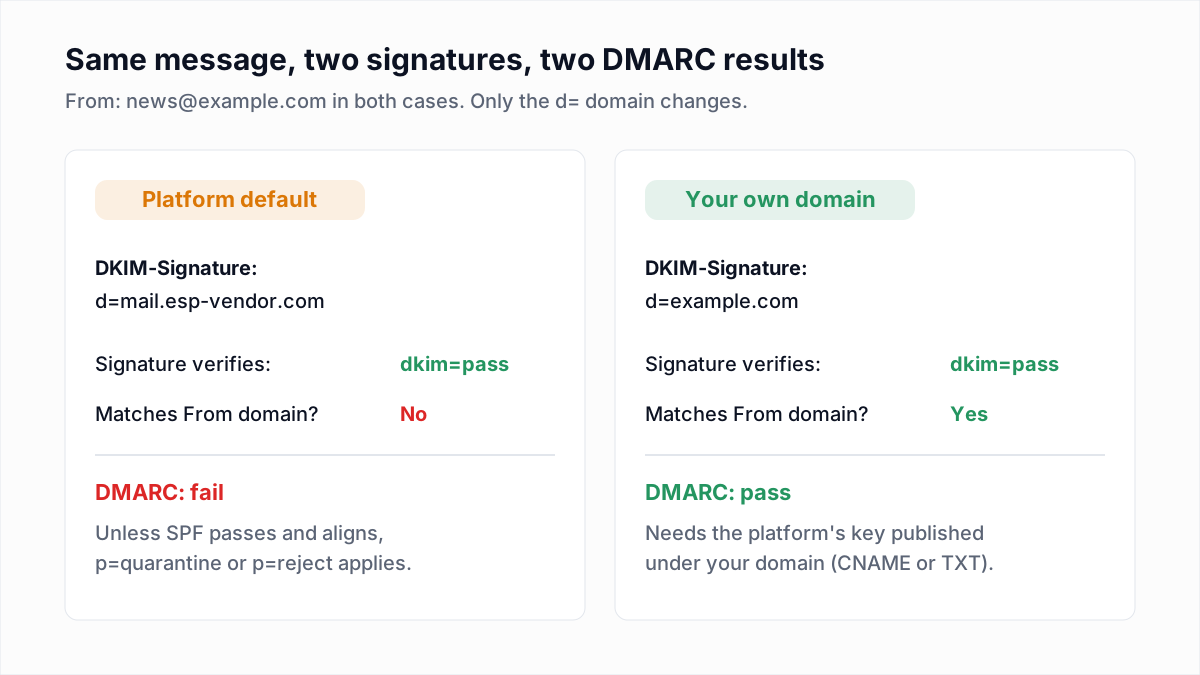
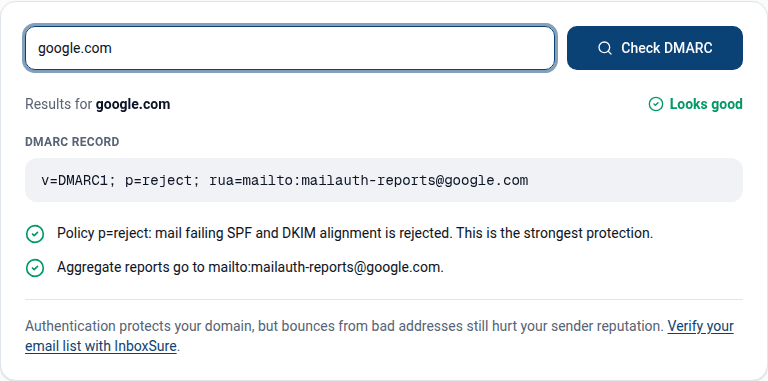
The fix is the platform's domain authentication page: it gives you CNAME or TXT records to publish under your domain, after which it signs with d=yourdomain.com. If Gmail is already rejecting the mail for this reason, the walkthrough is in SMTP error 550 5.7.26. To confirm your DMARC record and policy, use the free DMARC checker.
Why DKIM fails: causes and fixes
The text in brackets after dkim= in Authentication-Results tells you which case you are in. Gmail often reports a broken body hash as dkim=neutral (body hash did not verify) rather than dkim=fail. Each case has more detail in DKIM fail: causes and fixes.
| What you see | Cause | Fix |
|---|---|---|
body hash did not verify | Something changed the body after signing: a mailing list footer, a security gateway rewriting links, a disclaimer added by an outbound relay. | Sign after the last step that edits content, or stop that step editing. For lists, this is expected; DMARC relies on the list re-signing. |
signature did not verify | Body is fine but the signature does not match: a signed header was changed, or DNS holds a different key than the one signing. | Compare the p= value in DNS with the one your provider shows. Republish it if they differ. |
No key / NXDOMAIN at the selector | Record missing, wrong host name (some DNS panels append your domain, creating s1._domainkey.example.com.example.com), or wrong selector. | Look up the exact s= name with dig. Enter only s1._domainkey in panels that add the domain. |
| Key syntax error, or record cut off | A 2048-bit key is longer than 255 characters, the maximum for one DNS string (RFC 1035). Some panels truncate it or add spaces when splitting. | Split the value into quoted chunks of 255 or fewer with no characters lost, as in the dig output above, or use a CNAME from your provider. |
| Pass, but with the wrong domain | The platform signs with its own d=. | Complete its domain authentication so it signs as you. |
| Failures start right after a key change | Old key removed from DNS while mail signed with it was still queued or being re-checked. | Republish the old selector and follow the rotation order below. |
| Duplicate TXT records at one selector | Two keys at the same name. RFC 6376 says the result is undefined. | Keep exactly one record per selector. |
Gmail also checks only the first five DKIM signatures on a message, per the Google page above, so a valid signature added late by a relay can be ignored.
How to rotate DKIM keys
M3AAWG's key rotation guidance recommends rotating at least every six months. Microsoft 365 and most platforms that use CNAMEs do it for you. If you manage keys yourself, use a new selector each time so the old and new keys can coexist:
- Generate a new key pair and publish it under a new selector, such as
s2027. - Wait at least the record's TTL, then confirm it with
dig. - Switch the signer to the new selector and check a test message shows it in
s=. - Leave the old record in place for several days so delayed and queued mail still verifies. Microsoft itself waits four days (96 hours) before a rotated key starts signing.
- Revoke the old key by publishing it with an empty
p=, then delete it later.
What DKIM does not do
DKIM proves who signed a message and that it was not altered. It says nothing about whether the recipient wants it, and nothing about whether the address exists. A perfectly signed campaign to a list full of dead mailboxes still produces hard bounces, and bounce rate is one of the signals providers weigh alongside authentication. To remove those before you send, run the list through the InboxSure bulk email verifier: it checks syntax, MX records and each mailbox over SMTP without sending anything, and flags catch-all, role and disposable addresses.
Frequently asked questions
Related reading
Ready to clean your email list?
Upload a CSV or XLSX and get every address marked deliverable, risky, undeliverable or unknown, with the reason. Free for lists of up to 50, no card. Nothing is sent to your contacts.