How to Set Up SPF, DKIM and DMARC for Microsoft 365
Microsoft 365 splits the work between two places. SPF and DMARC for your own domain are created only at your DNS host: Microsoft's documentation says there are no admin portals or PowerShell cmdlets for them. For DKIM you copy two CNAME values out of the Defender portal, publish them at your DNS host, then go back and switch signing on.
Email authentication is the set of DNS records (SPF, DKIM and DMARC) that lets a receiving server confirm a message really came from your domain. This guide is the setup only. The theory is in what an SPF record is, what DKIM is and DMARC policies none, quarantine and reject. Every portal path, record name and value below comes from Microsoft Learn as read on 13 November 2026, linked where each is used.
What SPF record does Microsoft 365 need?
Microsoft 365 needs the SPF record v=spf1 include:spf.protection.outlook.com -all when Microsoft 365 is the only source of mail for the domain. That is the value in Microsoft's Set up SPF article for Microsoft 365 and GCC tenants.
v=spf1 include:spf.protection.outlook.com -all- Sign in to your domain registrar or DNS hosting service.
- Look for an existing TXT record starting with
v=spf1. Microsoft notes that enrolling a custom domain already required one, so you may be editing, not creating. - Create or edit a TXT record at the root of the domain (most hosts show the host as
@) with the value above. - Set the TTL to at least 3600 seconds. Microsoft recommends one hour as a minimum "to avoid DNS lookup timeouts".
The same article gives include:spf.protection.office365.us for GCC High and DoD tenants. It also says each subdomain you send from needs its own SPF record, and that the record on your onmicrosoft.com domain is maintained by Microsoft.
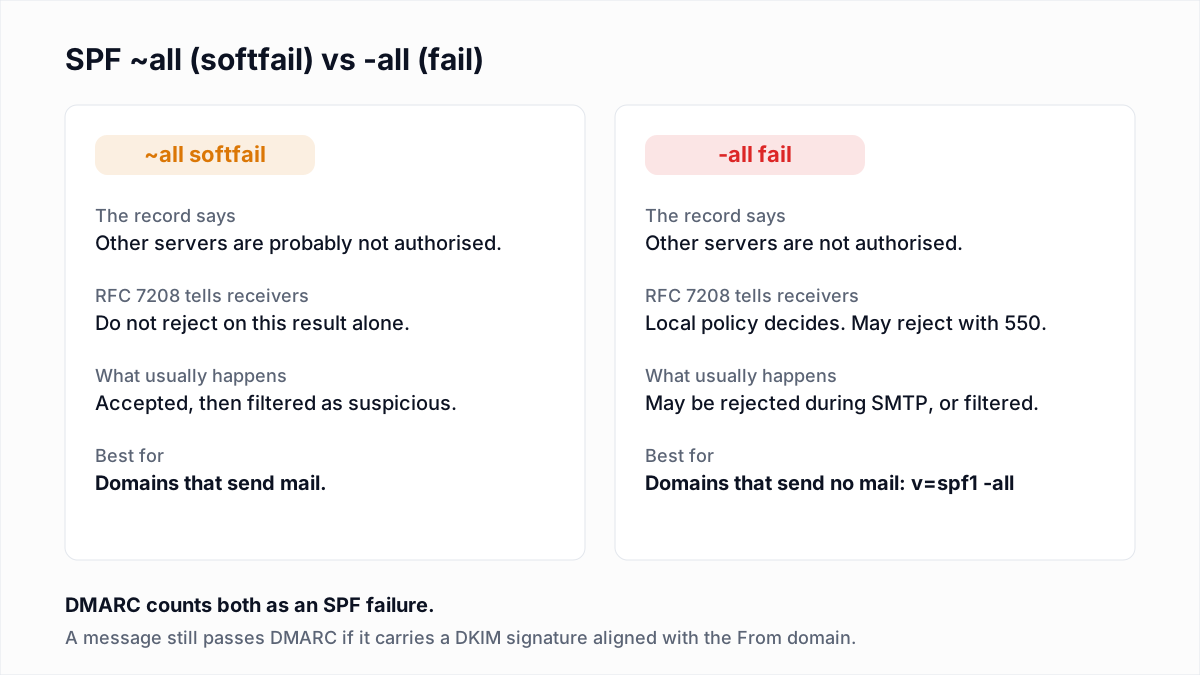
Should a Microsoft 365 SPF record end in -all or ~all?
Microsoft recommends -all for Microsoft 365 domains, while the industry group M3AAWG recommends ~all for domains that send mail. Microsoft's Set up SPF article says: "we recommend -all (hard fail) because we also recommend DKIM and DMARC for the domain."
M3AAWG's Email Authentication Recommended Best Practices (September 2020) says "SPF records should end in ~all." The two sources conflict, and both endings are valid. If you are not yet sure you have listed every sender, ~all is the safer starting point. The trade-off is worked through in SPF softfail vs hardfail.
How do you add other senders to a Microsoft 365 SPF record?
You add other senders to the same SPF record, because Microsoft states that "only one SPF record is allowed per domain or subdomain" and that multiple records make SPF return permerror. Microsoft's example for an on-premises server plus Microsoft 365 is:
v=spf1 ip4:192.168.0.10 include:spf.protection.outlook.com -allFor bulk services you do not control, Microsoft recommends a subdomain such as marketing.contoso.com with its own SPF record (see sending subdomains). Two warnings from the same article: SPF fails with a permanent error above 10 DNS lookups, and you should not flatten include:spf.protection.outlook.com into IP addresses because Microsoft's sending IPs change frequently. Counting lookups is covered in SPF PermError: too many DNS lookups. The SPF generator writes a merged record and the SPF checker counts its lookups.
How do you enable DKIM in Microsoft 365?
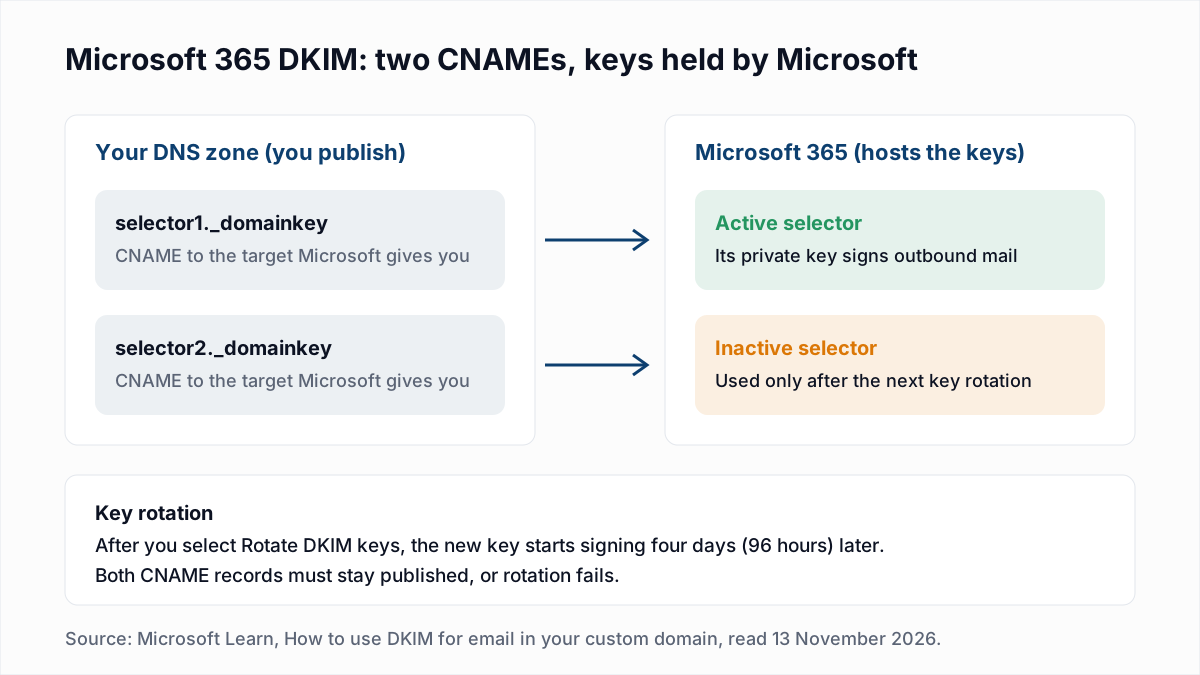
You enable DKIM in Microsoft 365 by publishing two CNAME records, selector1._domainkey and selector2._domainkey, and then turning on signing for the domain in the Defender portal. Microsoft's How to use DKIM for email in your custom domain article states that until you do, "no DKIM signing occurs for outbound mail from custom domains."
- In the Defender portal at security.microsoft.com go to Email & collaboration > Policies & rules > Threat policies > Email authentication settings and select the DKIM tab.
- In the row for your domain, slide the Toggle from Disabled to Enabled. A Client error dialog opens, which is expected at this point. Select OK.
- The domain's Status now reads CnameMissing. Click the row to open the details flyout and copy both values from the Publish CNAMEs section.
- At your DNS host, create two CNAME records with those values (the format is in the next section).
- Wait. Microsoft says it takes "a few minutes (or possibly longer)" to detect the new records.
- Back in the flyout, turn on Sign messages for this domain with DKIM signatures. When the CNAMEs are detected the status changes to Signing DKIM signatures for this domain and Rotate DKIM keys becomes available.
The same thing in Exchange Online PowerShell, using the commands from that article:
Get-DkimSigningConfig -Identity contoso.com | Format-List Name,Enabled,Status,Selector1CNAME,Selector2CNAME
New-DkimSigningConfig -DomainName contoso.com -Enabled $false -KeySize 2048   # only if the domain is not listed
Set-DkimSigningConfig -Identity contoso.com -Enabled $true                    # after the CNAMEs are published
Microsoft documents the default KeySize for New-DkimSigningConfig as 1024, so pass 2048 explicitly. When signing is on, the first command shows Status: Valid.
What do the Microsoft 365 DKIM CNAME records look like?
The Microsoft 365 DKIM CNAME host names are the same for every tenant, selector1._domainkey and selector2._domainkey, but the targets are unique to your domain and tenant. Microsoft's article documents two target formats as of November 2026.
| Format | Applies to | Target for selector1 (Microsoft's example) |
|---|---|---|
| Updated format | New custom domains, introduced in May 2025 | selector1-contoso-com._domainkey.contoso.n-v1.dkim.mail.microsoft |
| Old format | Existing custom domains and initial domains, which keep using it | selector1-contoso-com._domainkey.contoso.onmicrosoft.com |
In both, contoso-com is your domain with dots turned into dashes and contoso is your onmicrosoft.com prefix. In the updated format the single letter before -v1 (for example n or r) is a partition character that Microsoft assigns, and Microsoft says the two formats "can't coexist for the same selector." Do not build the target by hand: Microsoft calls its own examples "for illustration only" and tells you to copy the values from the Defender portal or Get-DkimSigningConfig.
How does DKIM key rotation work in Microsoft 365?
DKIM key rotation in Microsoft 365 swaps signing from the active selector to the inactive one, and it takes four days (96 hours) after you request it. Microsoft says only one selector is active at a time and the other is used only after a rotation, which is why both CNAMEs must exist.
To rotate, open the domain on the DKIM tab and select Rotate DKIM keys, or run Rotate-DkimSigningConfig -Identity contoso.com -KeySize 2048. You cannot start another rotation until the new key takes over. If you change 1024 to 2048, Microsoft notes the new size applies to one selector per rotation, so two rotations are needed to upgrade both.
How do you add a DMARC record for Microsoft 365?
You add a DMARC record for a Microsoft 365 custom domain as a TXT record with the host name _dmarc at your DNS host, after SPF and DKIM are in place. Microsoft's Set up DMARC article recommends a gradual rollout that ends at p=reject:
- Start with
p=noneand monitor. Microsoft's example value isv=DMARC1; p=none; pct=100; rua=mailto:rua@marketing.contoso.com(its example also carries arufaddress). - Move to
p=quarantine. Microsoft suggests raisingpctin increments of 10, 25, 50, 75 and 100. - Move to
p=reject, again usingpctif you want to go gradually. - Begin with a low-volume domain or subdomain and repeat for the rest, "saving the parent domain for last."
Microsoft gives no number of days for each stage, only "after enough time monitoring". It advises sending rua reports to a dedicated mailbox or Microsoft 365 Group, not a personal mailbox. Build the record with the DMARC generator and learn to read what comes back in how to read DMARC reports.
The onmicrosoft.com domain needs a DMARC record too
Microsoft sets up SPF and DKIM for your *.onmicrosoft.com domain but not DMARC, and says to publish one even if you do not send from that domain. This is the one record you create inside Microsoft 365:
- In the Microsoft 365 admin center at admin.microsoft.com, select Show all > Settings > Domains.
- Select the
onmicrosoft.comdomain, open the DNS records tab and select Add record. - Set Type to TXT (Text), TXT name to
_dmarc, TXT value tov=DMARC1; p=rejectand TTL to 1 hour, then select Save.
Which DNS records does Microsoft 365 need in total?
A Microsoft 365 custom domain needs four authentication records: one SPF TXT, two DKIM CNAMEs and one DMARC TXT.
| Record | Type | Host | Value |
|---|---|---|---|
| SPF | TXT | @ | v=spf1 include:spf.protection.outlook.com -all |
| DKIM selector 1 | CNAME | selector1._domainkey | The Selector1CNAME value shown for your domain in the Defender portal |
| DKIM selector 2 | CNAME | selector2._domainkey | The Selector2CNAME value shown for your domain in the Defender portal |
| DMARC | TXT | _dmarc | v=DMARC1; p=none; rua=mailto:dmarc@yourdomain to start |
How do you verify Microsoft 365 is signing your mail?
You verify Microsoft 365 DKIM signing by sending a test message to a mailbox outside your organisation and reading its headers. Microsoft suggests outlook.com or gmail.com, advises against AOL, and warns that mail between addresses in the same organisation carries no DKIM signature at all.
In the received message, find the DKIM-Signature header: d= should be your domain and s= should begin with selector1 or selector2. Then find Authentication-Results. Microsoft's example of a passing result at Gmail, shortened:
Authentication-Results: mx.google.com;
  dkim=pass header.i=@contoso.com header.s=selector1 header.b=NaHRSJOb;
  spf=pass (google.com: domain of michelle@contoso.com designates ... as permitted sender) smtp.mailfrom=michelle@contoso.com
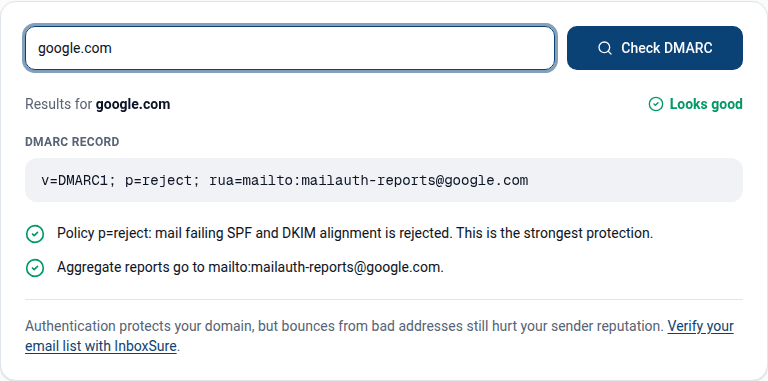
The email header analyzer makes the header easier to read. Then check the published records with the SPF checker, the DKIM checker (selectors selector1 and selector2) and the DMARC checker.
What goes wrong most often, and how do you fix it?
Most failed Microsoft 365 DKIM setups stop at the status CnameMissing, and Microsoft's troubleshooting section lists the DNS mistakes behind it.
| If you see | Cause | Fix |
|---|---|---|
| A Client error when enabling, or Status stays CnameMissing | Microsoft 365 cannot find the CNAMEs: not published yet, the host entered as selector1._domainkey.contoso.com at a host that appends the domain, a TXT record created instead of a CNAME, or a hand-built target. | Enter only selector1._domainkey as the host, use CNAME type, copy the exact target, then retry. Microsoft says propagation can take a few minutes to 48 hours. |
| The CNAME exists but is still not detected | Per Microsoft: the Cloudflare proxy is on for the record, or Route 53 was given a target without the trailing dot it requires. | Set the Cloudflare record to DNS only. Add the trailing dot in Route 53. Check with nslookup -type=CNAME selector1._domainkey.yourdomain. |
header.d shows an onmicrosoft.com domain, or dkim=none | Signing with the custom domain is not enabled. Microsoft lists contoso.onmicrosoft.com as failing DMARC alignment for a contoso.com From address. | Finish the enable steps until Status is Valid, and confirm the test went to an outside mailbox. |
Bounce 550 5.7.509 from Microsoft recipients | Your domain publishes p=reject and the message failed DMARC. | Fix alignment before enforcing. See 550 5.7.509. |
Bounce 550 5.7.515 from Outlook.com, Hotmail or Live | The message did not meet Outlook.com's sender authentication requirements. | Complete all three records. See 550 5.7.515. |
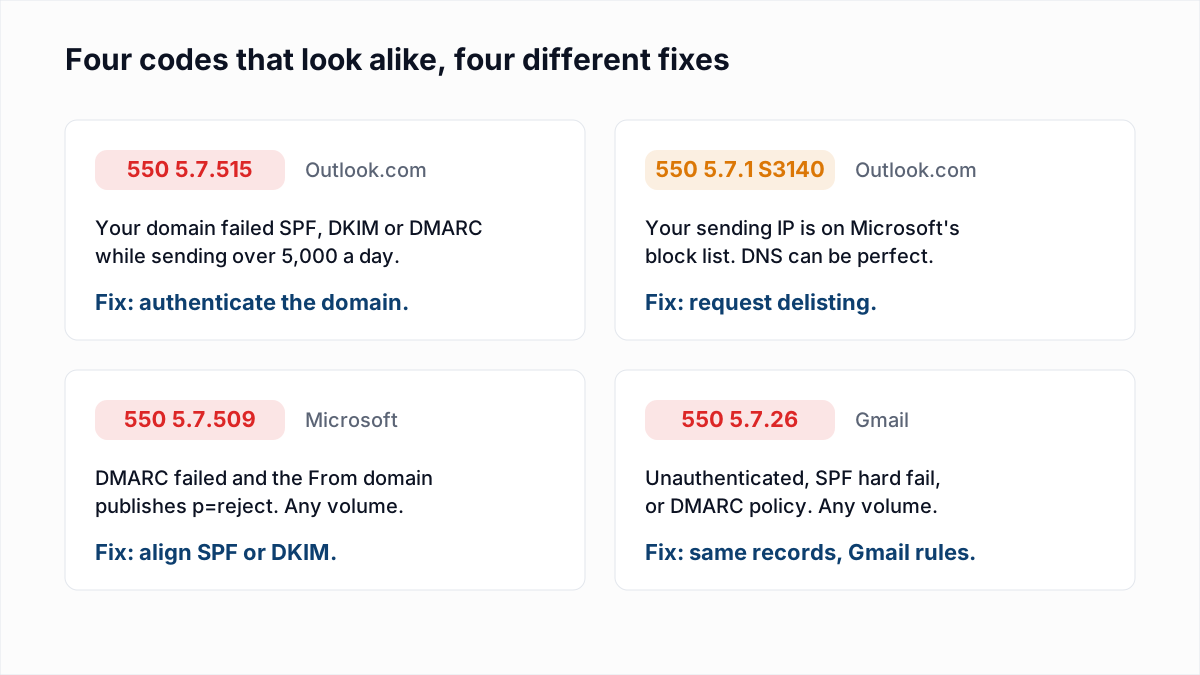
For a signature that is present but fails, see DKIM fail causes and fixes; for Gmail's rejection, see 550 5.7.26.
What does authentication not fix?
SPF, DKIM and DMARC prove who sent a message. They do not tell you whether the addresses on your list still exist, and hard bounces from a stale list count against the same domain you just authenticated.
InboxSure covers that part. It checks each address for syntax, MX records and a mailbox answer over SMTP without sending anything, and returns Deliverable, Risky, Undeliverable or Unknown. It does not test authentication or inbox placement, and as of November 2026 Outlook.com and Hotmail consumer addresses come back Unknown. Once your four records pass, run the list through the bulk email verifier before the next send. The Free plan takes lists of up to 50 addresses with no card.
Frequently asked questions
Related reading
Ready to clean your email list?
Upload a CSV or XLSX and get every address marked deliverable, risky, undeliverable or unknown, with the reason. Free for lists of up to 50, no card. Nothing is sent to your contacts.