550 5.7.515 Access Denied: Fixing Outlook's Authentication Error
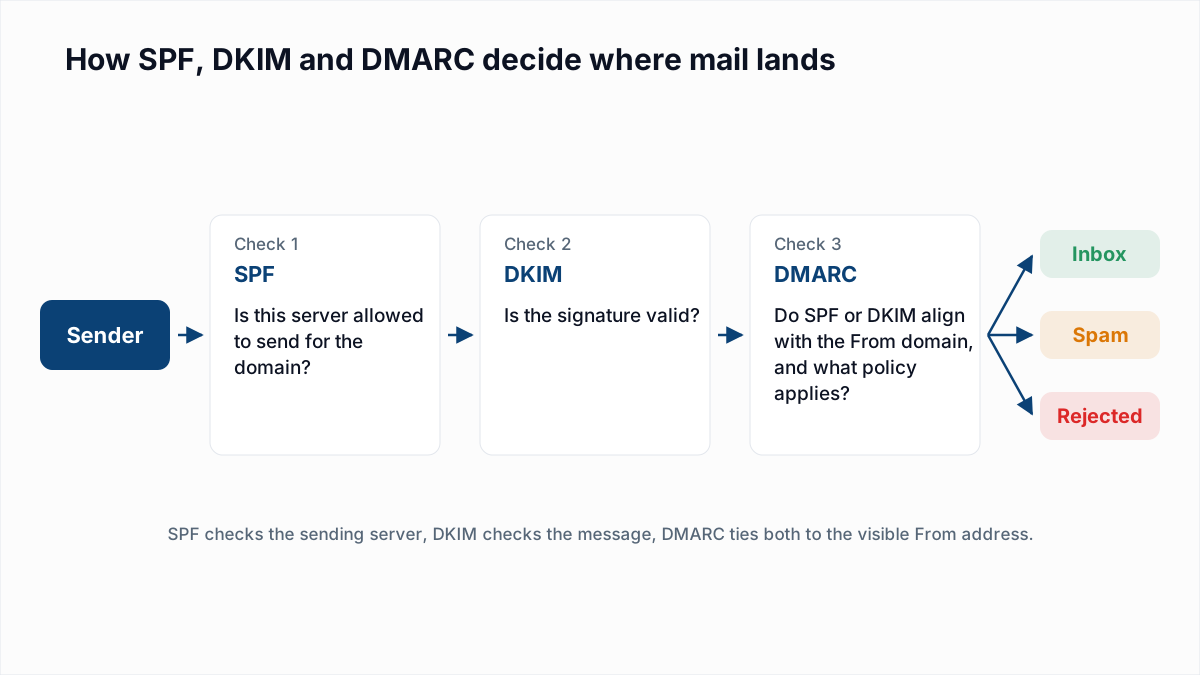
550 5.7.515 Access denied, sending domain [SendingDomain] does not meet the required authentication level is Outlook.com refusing your message because your domain did not pass the authentication Microsoft now requires from high-volume senders: SPF must pass, DKIM must pass, and the domain must publish a DMARC record of at least p=none that aligns with SPF or DKIM. It applies to outlook.com, hotmail.com and live.com recipients and to domains sending more than 5,000 messages a day. The recipient address is fine. The fix is in your DNS and your sending platform's settings.
This guide quotes Microsoft's own wording, explains what is and is not documented about when the rejection applies, shows how to find which check failed, and gives the fix for each common sending setup. The broader rules for Gmail, Yahoo and Outlook.com together are in Gmail, Yahoo and Outlook sender requirements; this page stays on the Outlook.com error.
What the 550 5.7.515 error says
Microsoft gives the rejection text in its April 2025 announcement, Strengthening Email Ecosystem: Outlook's New Requirements for High-Volume Senders:
550; 5.7.515 Access denied, sending domain [SendingDomain] does not meet the required authentication level.In a real bounce, [SendingDomain] is replaced with your domain, and your mail server or platform usually wraps the line in its own notice, for example Remote server returned '550 5.7.515 ...'. Read it piece by piece:
- 550 is a permanent failure. Your server will not retry it, and resending the same message unchanged will fail again.
- 5.7.515 is in class 5.7, which covers security and policy. The 515 detail is Microsoft's own number for this rule; it is not one of the standard enhanced status codes.
- Sending domain means the problem is your domain's authentication, not your IP address and not the recipient.
We did not find 5.7.515 on Microsoft's Outlook.com postmaster site when we checked on 12 November 2026. Its announcements box says only that "Outlook.com is enforcing stricter email authentication standards (SPF, DKIM, DMARC)" and that "Shortly we will reject the messages until the DNS records are corrected", and links back to the same post. The Tech Community post is the primary source.
Who the requirement applies to
The post sets out the scope and the three requirements:
- Service: "Outlook.com - our consumer service", meaning addresses at outlook.com, hotmail.com and live.com. Microsoft 365 business mailboxes are filtered separately and are not covered by this announcement.
- Volume: domains sending "more than 5,000 emails per day". Microsoft does not say how it counts subdomains, so treat it as your total daily mail to Outlook.com consumer addresses.
- SPF: "Must Pass for the sending domain."
- DKIM: "Must Pass to validate email integrity and authenticity."
- DMARC: "At least p=none and align with either SPF or DKIM (preferably both)."
Note the difference from DMARC itself. DMARC passes when either SPF or DKIM passes and aligns. Microsoft asks for more: both SPF and DKIM must pass, and at least one of them must align with the From domain. A domain that relies on DKIM alone, with no working SPF for its envelope sender, passes DMARC but does not meet this rule.
The post also lists recommended practices that are not part of the 5.7.515 check: a valid From or Reply-To address that accepts replies, a visible unsubscribe link, regular removal of invalid addresses, and honest subject lines and headers.
Junk folder or rejection: what is documented
This is the part most guides get wrong, because Microsoft's post changed after it was published. The original version of 2 April 2025 said rejection would start in May. An "April 29th Update" changed the action, and the current version (marked updated 30 April 2025) says:
- "After May 5th, 2025, Outlook will begin routing messages from high volume non-compliant domains to the Junk folder."
- "in the future (date to be announced), non-compliant messages will be rejected."
The same page still carries a sentence saying the change takes effect "on May 5th as originally stated", which reads like a leftover from the first version. We found no later Microsoft post announcing the rejection date. Yet senders do receive 5.7.515 bounces, and the rejection text is the one Microsoft published. The honest summary: Microsoft documents Junk routing from 5 May 2025 and a rejection whose start date it never announced. If you are reading a 5.7.515 bounce, rejection is happening for your mail now, whatever the timeline says.
One more recent event is easy to confuse with this. EasyDMARC reported that from 5 November 2026 some Outlook.com mail from domains without DMARC was rejected with 550 5.7.1 Message rejected: Message lacks SPF/DKIM/DMARC Auth Records, at any volume. Their update says Microsoft attributed it to a faulty spam rule that was rolled back, and that it was a false positive, not a new requirement. That was a 5.7.1, not a 5.7.515.
5.7.515 compared with similar codes
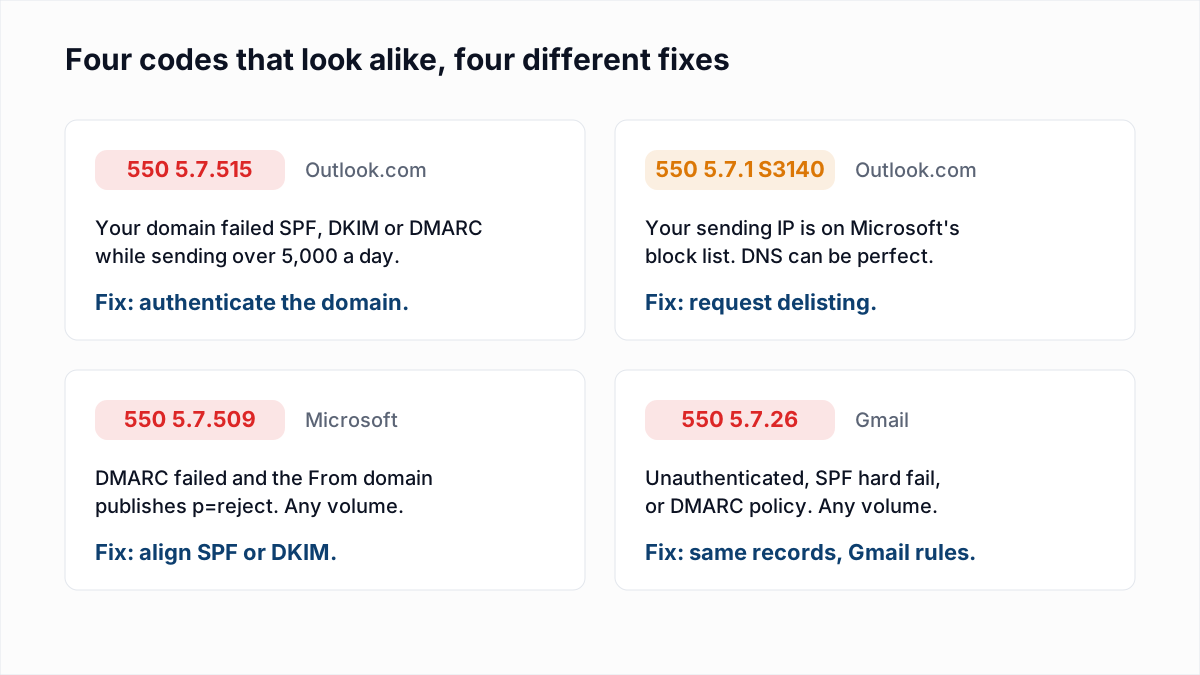
| Code | Who sends it | What failed | Where to start |
|---|---|---|---|
550 5.7.515 | Outlook.com | Domain authentication for a sender over 5,000 a day | SPF, DKIM and DMARC records, this guide |
550 5.7.1 with S3140 | Outlook.com | Your sending IP is on Microsoft's block list | Outlook 550 5.7.1 delisting |
550 5.7.509 | Outlook.com and Microsoft 365 | DMARC failed and the From domain publishes p=reject | Alignment; see DMARC policies |
550 5.7.26 | Gmail | Unauthenticated, SPF hard fail, or DMARC policy | Gmail 550 5.7.26 fix |
The 5.7.509 text comes from Microsoft's 2023 DMARC handling announcement: 550 5.7.509: Access denied, sending domain contoso.com does not pass DMARC verification and has a DMARC policy of reject. The two are related but not the same. 5.7.509 can hit a domain of any size that publishes p=reject; 5.7.515 can hit a large sender whose DMARC policy is only p=none, because the rule is about meeting the bar, not about the policy you chose.
How to diagnose which check failed
Step 1: read the bounce
Get the full non-delivery report, not just the summary line. Confirm the code really is 5.7.515 and note which domain it names. If it names a domain you did not expect, such as a subdomain or your platform's domain, that already tells you what the receiver evaluated.
Step 2: read Authentication-Results from an Outlook.com mailbox
Create a free Outlook.com address if you do not have one and send a test from the exact platform that bounced. If it lands, even in Junk, open it and view the message source (in Outlook on the web: the three-dot menu, then View, then View message source). Find the Authentication-Results header. Microsoft's DMARC documentation uses this example of a message that passes SPF and DKIM but fails DMARC:
Authentication-Results: spf=pass (sender IP is 198.51.100.10)
  smtp.mailfrom=bounces.adatum.com; dkim=pass (signature was verified)
  header.d=adatum.com; dmarc=fail action=oreject
  header.from=contoso.com;compauth=fail reason=000
Check four things. spf= must be pass. dkim= must be pass. dmarc= must be pass, which needs smtp.mailfrom or header.d to share the organisational domain of header.from. And dmarc=bestguesspass means you have no DMARC record at all; Microsoft guessed, and you do not meet the rule. In the example both domains are adatum.com while the From is contoso.com, so nothing aligns. The email header analyzer reads these results out of a pasted header.
Step 3: check SPF and DMARC records
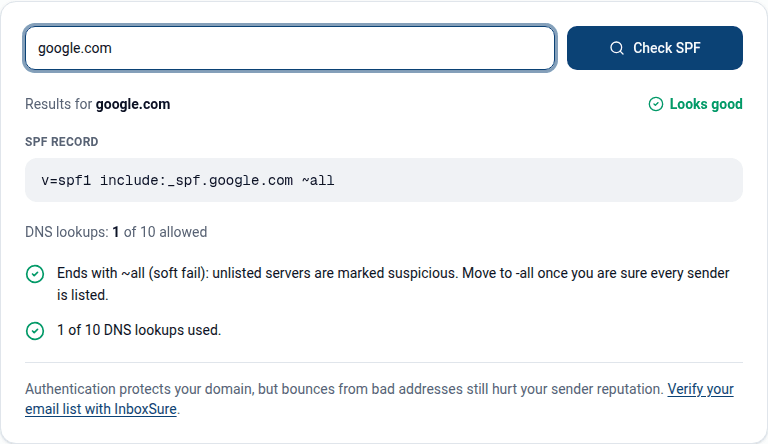
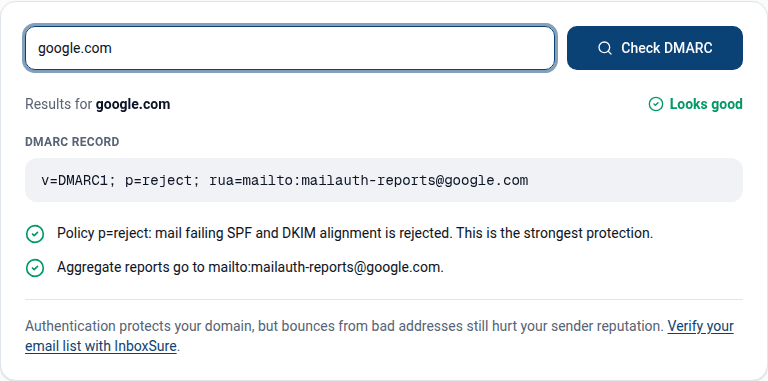
Run your domain, and the envelope sender domain from the header, through the SPF checker. Look for a missing include: for the platform that sent the test, more than one SPF record, or more than 10 DNS lookups, which turns SPF into a permanent error (see SPF PermError). Then run the From domain through the DMARC checker to confirm a record exists at _dmarc, starts with v=DMARC1, and has a p= tag. If DKIM was the failing check, look the selector up with the DKIM checker.
Step 4: check the DKIM selector
Find the DKIM-Signature header in the test message and note the d= (signing domain) and s= (selector) values. The public key lives at selector._domainkey.domain. You can query it directly:
dig +short TXT s1._domainkey.example.com
dig +short CNAME selector1._domainkey.example.com
No answer means the key is not published, so DKIM fails. An answer with a d= that is not your domain means DKIM passes for the platform but does not align. More on how keys and selectors work is in what is DKIM.
How to fix 550 5.7.515 for your setup
Your own mail server
- Add the server's public IP to your SPF record with
ip4:orip6:, keeping one record that ends in~allor-all(see SPF softfail vs hardfail). - Install DKIM signing (for example OpenDKIM or rspamd with Postfix), generate a 2048-bit key, publish the TXT record at your selector, and sign with
d=set to your From domain. - Use an envelope sender (Return-Path) on the same domain or a subdomain, so SPF aligns too.
- Publish
v=DMARC1; p=none; rua=mailto:dmarc@yourdomainif you have no record.
An email service provider or marketing platform
- Complete the platform's domain authentication (often called "authenticate your domain" or "sender authentication"). It gives you CNAME or TXT records for DKIM and, usually, a custom return-path subdomain.
- Until you do this, most platforms sign with their own domain and use their own bounce domain. Both SPF and DKIM pass, but neither aligns with your From address, so DMARC fails.
- Add the platform's
include:to SPF only if it uses your domain in the envelope sender. If it uses its own return-path domain, the include in your root record does nothing for SPF alignment. - Send a new test to Outlook.com and confirm all three say pass.
Microsoft 365 sending to Outlook.com
Being on Microsoft 365 does not exempt you. Microsoft's DKIM configuration guide states that for custom domains "no DKIM signing occurs for outbound mail" until you configure it. Publish the two CNAMEs (selector1._domainkey and selector2._domainkey) shown for your domain, then enable signing on the DKIM tab of the Email authentication settings page in the Defender portal. Your SPF record needs include:spf.protection.outlook.com. Add a DMARC record at your DNS host; Microsoft 365 does not create one for custom domains.
Google Workspace
In the Admin console, go to Apps, Google Workspace, Gmail, Authenticate email, generate a DKIM record for your domain, publish it as a TXT record, and click Start authentication, as described in Google's DKIM setup guide. Make sure SPF includes include:_spf.google.com and that a DMARC record exists. Workspace users rarely reach 5,000 messages a day to Outlook.com from staff mail, but a shared domain with a newsletter or app traffic can.
After the fix: SNDS and JMRP
Microsoft offers two free sender programs. Smart Network Data Services (SNDS) shows how Outlook.com sees the IPs you control: volume, filter results and complaint data. The Junk Mail Reporting Program (JMRP) sends you a report when an Outlook.com user marks your mail as junk. SNDS moved to substrate.office.com/ip-domain-management-snds/snds; the old sendersupport.olc.protection.outlook.com SNDS and JMRP addresses now redirect there. Al Iverson's June 2026 write-up describes the relaunch and some access problems after it. Both programs work on IP addresses, so they help if you run your own servers or have dedicated IPs; on a shared ESP pool, ask the provider.
Fixing authentication stops 5.7.515. It does not fix complaints or bounces, which Microsoft lists as recommended practice and which feed the reputation behind other blocks. Removing invalid addresses before a send is something InboxSure does: it checks syntax, MX and the mailbox over SMTP without sending, and flags catch-all, role and disposable addresses. It does not touch your SPF, DKIM or DMARC. For those, the checkers above are the tools.
What not to do
- Do not remove the recipients. The addresses are fine. Once your domain passes, the same people can receive your mail.
- Do not jump to p=reject to "fix" it. The rule only needs
p=none. Tightening policy before every sender aligns turns 5.7.515 into 5.7.509. - Do not open a delisting request. The Outlook.com delist form is for IP blocks like S3140. A 5.7.515 is fixed in DNS.
- Do not ask recipients to whitelist you. Microsoft's post mentions no exception for contacts or Safe Senders, and a contact entry does not change whether your domain authenticates. What a contact entry does do is covered in how to whitelist an email address.
If you are cleaning a list before resending to Outlook.com and Hotmail addresses, the free email verifier checks single addresses, and the free plan covers lists of up to 50 with no card. Pro is a flat $49 a month for lists up to 10,000. Authenticate first, verify second, then send.
Frequently asked questions
Related reading
Ready to clean your email list?
Upload a CSV or XLSX and get every address marked deliverable, risky, undeliverable or unknown, with the reason. Free for lists of up to 50, no card. Nothing is sent to your contacts.