How to Set Up SPF, DKIM and DMARC for Google Workspace
You need two things before you start: a super administrator account in the Google Admin console, and a login for the DNS host of your domain. Two of the three records are created only at the DNS host. DKIM is the one that also needs a step in the Admin console, and it is the step people most often leave half finished.
Email authentication is the set of DNS records (SPF, DKIM and DMARC) that lets a receiving server confirm a message really came from your domain. This guide is the setup only. For how the checks work, read what an SPF record is, what DKIM is and DMARC policies none, quarantine and reject. Every menu path, record name and value below comes from Google Workspace Admin Help as read on 13 November 2026, and each page is linked where it is used.
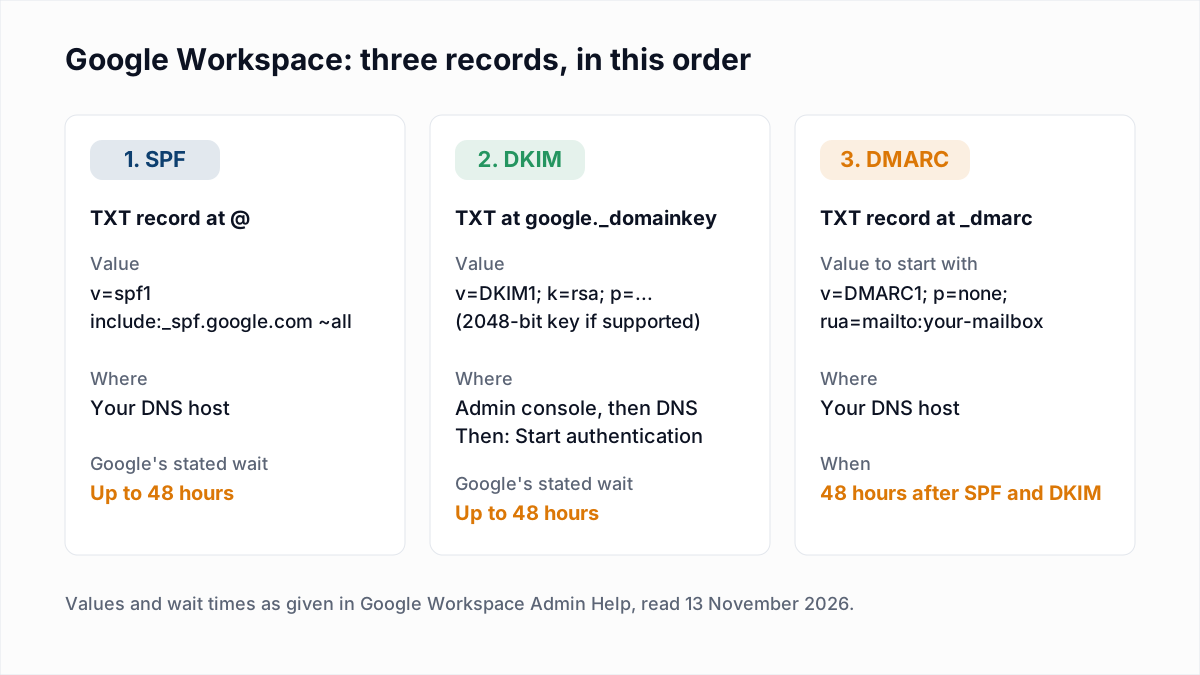
What SPF record does Google Workspace need?
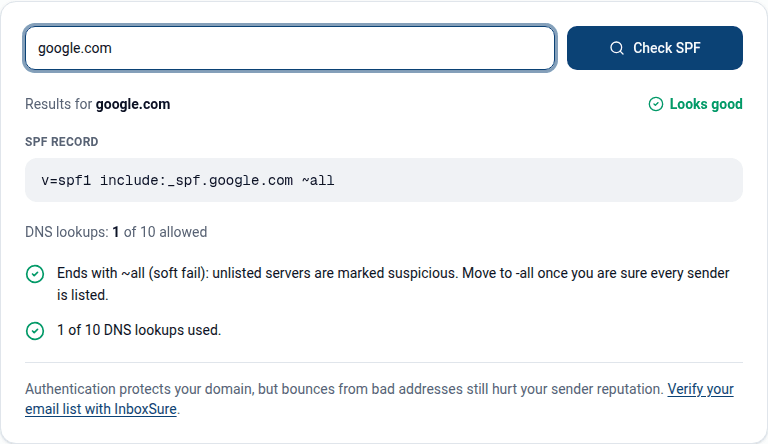
Google Workspace needs the SPF record v=spf1 include:_spf.google.com ~all when Google is the only service that sends mail for the domain. That is the value on Google's Set up SPF page, which also says Google recommends the ~all ending.
v=spf1 include:_spf.google.com ~allGoogle's steps for adding it are:
- Sign in to your domain host, usually the company you bought the domain from.
- Open the page where DNS TXT records are managed.
- Add a TXT record. In the Host field (some hosts call it Name, Hostname or Alias) enter
@for the root domain. In the Value field paste the SPF record. Google notes that some hosts want the value in quotes. - Repeat for every subdomain that sends mail, entering the subdomain name as the host. Each one needs its own SPF record.
Google says it can take up to 48 hours for SPF authentication to start working. Nothing has to be switched on in the Admin console for SPF.
How do you add Google Workspace to an SPF record you already have?
You add include:_spf.google.com to the existing SPF record instead of creating a second one. Google's Troubleshoot SPF issues page says "each domain can have only one SPF record" and that other sending services must be listed in that same record.
Google's Set up SPF page gives ready-made combinations. Two of them, exactly as printed there:
v=spf1 include:_spf.google.com include:servers.mcsv.net ~all        (Workspace and Mailchimp)
v=spf1 include:_spf.google.com include:mail.zendesk.com ~all        (Workspace and Zendesk)
The pattern is always the same: one v=spf1 at the start, one include: per service, one ~all at the end. Take each service's include value from that service's own help page, not from memory. Google's troubleshooting page also repeats the limit from the SPF standard, a "maximum of 10 DNS lookups", and nested includes count towards it. If you are close to the limit, see SPF PermError: too many DNS lookups. Bulk and marketing platforms are often better placed on a sending subdomain with its own record.
The SPF generator builds a merged record from the services you tick, and the SPF checker shows the published record and its lookup count.
How do you set up DKIM in Google Workspace?
You set up DKIM in Google Workspace in three stages: generate a key in the Admin console, publish it as a TXT record at google._domainkey, then return to the Admin console and click Start authentication. The steps are on Google's Set up DKIM page.
- Sign in to the Admin console as a super administrator and go to Apps > Google Workspace > Gmail, then click Authenticate email.
- In the Selected domain menu choose the domain, then click Generate New Record.
- Choose the key bit length. Google says to pick 2048 if your domain provider supports it and 1024 if it does not.
- Leave the prefix selector as
google, which is the default Google recommends. Change it only if the domain already uses that prefix for another key. - Click Generate and copy the DNS host name and the TXT record value. Google's page is explicit at this point: "Do not click Start Authentication yet."
- At your DNS host, add a TXT record. The host is the prefix followed by
._domainkey, sogoogle._domainkeywith the default prefix. The value is the key string in the formv=DKIM1; k=rsa; p=.... - Back in the Admin console, on the same Authenticate email page, click Start authentication. When it is working the status reads "Authenticating email with DKIM".
Google states two wait times. On a brand new account, Google says you must wait 24 to 72 hours after turning on Gmail before you can get your DKIM key. After the record is published, Google says it can take up to 48 hours for DKIM authentication to start working. Each domain you send from needs its own key generated from the Admin console.
Skipping step 7 is the classic mistake. The record is in DNS, the DKIM checker finds it, and mail still is not signed with your domain because signing was never switched on.
How do you add a DMARC record for Google Workspace?
You add a DMARC record for Google Workspace as a TXT record at _dmarc.yourdomain at your DNS host, starting with p=none and a rua reporting address. Google's Set up DMARC page says nothing needs to change in the Admin console.
The same page says to "allow 48 hours after setting up SPF and/or DKIM before setting up DMARC." Then:
- Create a group or a dedicated mailbox for reports. Google advises against a personal address because report volume can be high.
- Check that every other service sending as your domain passes SPF or DKIM first (the merged SPF record above, and each service's own DKIM setup).
- Add a TXT record with the host name
_dmarc.example.com, using your own domain. Google warns that some hosts add the domain automatically, in which case you enter only_dmarc. - Paste the record as the value and save.
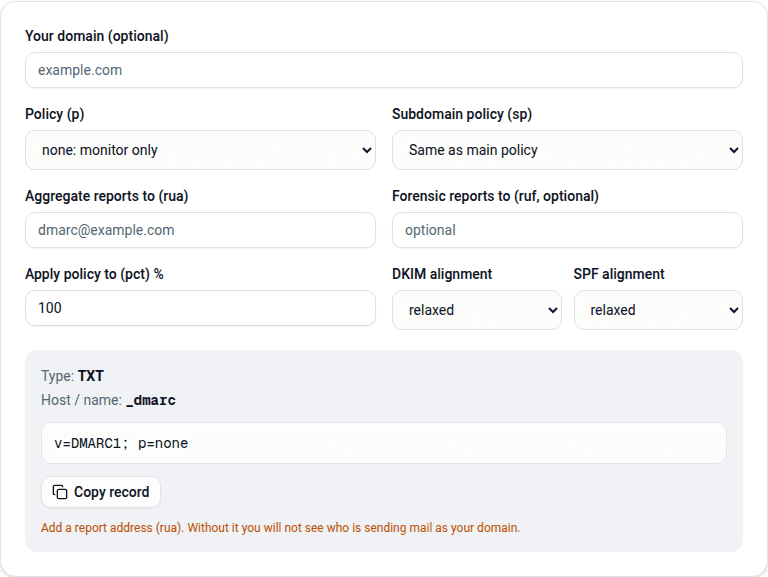
v=DMARC1; p=none; rua=mailto:dmarc@example.comGoogle says it recommends always including rua, and notes that Gmail does not support ruf failure reports. If the reporting address is on a different domain, that other domain needs an extra DNS record. The DMARC generator writes the record for you.
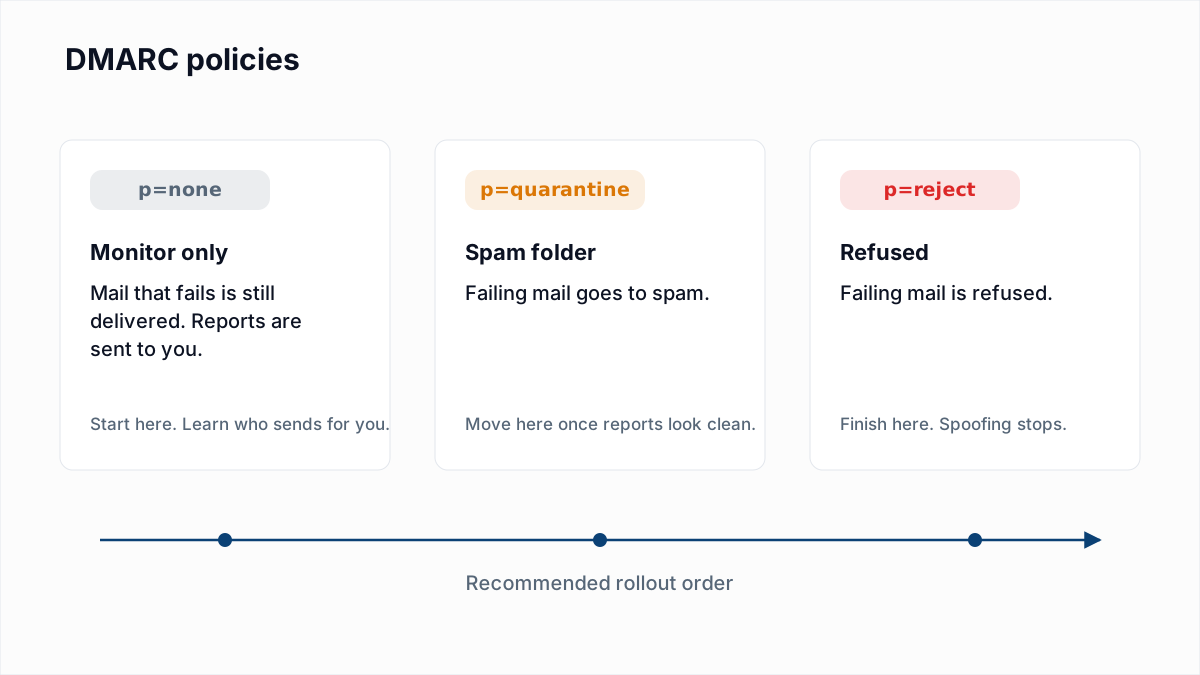
What DMARC rollout does Google recommend?
Google's Recommended DMARC rollout page recommends three stages: p=none while you read reports, then p=quarantine on a small percentage of mail, then optionally p=reject.
| Stage | Google's example record | What Google says about timing |
|---|---|---|
| 1. Monitor | v=DMARC1; p=none; rua=mailto:dmarc@example.com | Monitor the reports for at least a week before moving on. |
| 2. Quarantine | v=DMARC1; p=quarantine; pct=5; rua=mailto:dmarc@example.com | Start with a small share (Google suggests 10% for a small organisation, 1% for a large one) and raise it over time to 100%. No fixed interval is given. |
| 3. Reject (optional) | v=DMARC1; p=reject; rua=mailto:postmaster@example.com,dmarc@example.com | Raise gradually in the same way. Google warns that rejected mail is never delivered. |
Reading the XML that arrives at the rua address is covered in how to read DMARC reports.
Which DNS records does Google Workspace need in total?
Google Workspace needs three TXT records for authentication: one SPF, one DKIM and one DMARC. All three are published at your DNS host.
| Record | Host | Value | Where the value comes from |
|---|---|---|---|
| SPF (TXT) | @ | v=spf1 include:_spf.google.com ~all | Google's Set up SPF page. Add one include per extra sender. |
| DKIM (TXT) | google._domainkey | v=DKIM1; k=rsa; p= followed by your key | Admin console: Apps > Google Workspace > Gmail > Authenticate email > Generate New Record. The key is unique to your domain. |
| DMARC (TXT) | _dmarc | v=DMARC1; p=none; rua=mailto:dmarc@example.com | You write it. Google's Set up DMARC page lists the tags. |
How do you confirm SPF, DKIM and DMARC are working?
You confirm SPF, DKIM and DMARC by sending a test message to a different Gmail or Google Workspace account and reading its headers. Google's Set up DKIM page notes that you cannot verify by sending a message to yourself.
- Send a message from your domain to a Gmail address you control.
- In that inbox, open the message, click More next to Reply, then Show original (the steps on Gmail's full headers help page).
- Find the
Authentication-Resultsheader. Google says the DKIM result should look something likeDKIM=passorDKIM=OK. If there is no DKIM line, the message was not signed.
A healthy result looks like this example, with your domain in place of example.com:
Authentication-Results: mx.google.com;
  dkim=pass header.i=@example.com header.s=google;
  spf=pass smtp.mailfrom=you@example.com;
  dmarc=pass header.from=example.com
Check two details. header.s=google shows your own key signed the message, and the domain after header.i=@ must be your domain, not a Google-owned one. Then confirm the published records with the SPF checker, the DKIM checker (selector google) and the DMARC checker. If the header is hard to read, see how to read email headers.
What goes wrong most often, and how do you fix it?
Most failed Google Workspace setups come down to one of five mistakes, and each one is covered on Google's Troubleshoot DKIM issues and Troubleshoot SPF issues pages.
| If you see | Cause | Fix |
|---|---|---|
| The DKIM key is cut off or fails after you paste a 2048-bit key | Google says "most DKIM TXT records can have up to 255 characters", and a 2048-bit key is longer than that. | Split the key into several quoted strings entered one after another in the value field, ask your host whether longer TXT records are supported, or generate a 1024-bit key instead. All three are Google's suggestions. |
| The DKIM record is not found, or Start authentication does not succeed | The record is not published yet, the host name is wrong (often the domain appended twice), or the value does not match the Admin console. | Look up google._domainkey.yourdomain and compare the answer with the value in the Admin console. Allow up to 48 hours, then click Start authentication again. |
| The record is found but the test message has no DKIM line | Start authentication was never clicked. | Return to Authenticate email and click Start authentication until the status reads "Authenticating email with DKIM". |
| SPF returns permerror and the domain has two v=spf1 records | A second SPF record was added for another service. | Merge them into one record with one include per service. See what an SPF record is. |
| Mail from a CRM, helpdesk or newsletter tool fails SPF or DMARC | The third-party sender was left out of SPF and has no DKIM for your domain. | Add its include to the one SPF record and turn on its custom-domain DKIM. See DMARC fail causes and fixes. |
If Gmail is already bouncing your mail with an authentication error, the bounce text tells you which check failed: 550 5.7.26 covers the Gmail wording, and DKIM fail causes and fixes covers a signature that is present but does not verify.
What does authentication not fix?
SPF, DKIM and DMARC prove who sent a message. They say nothing about whether the addresses you send to exist. A fully authenticated domain that mails a stale list still collects hard bounces, and those count against the same domain reputation you just protected. The wider list of what Gmail expects is in Gmail, Yahoo and Outlook sender requirements.
That second half is what InboxSure does. It checks each address for syntax, MX records and a mailbox answer over SMTP without sending anything, and returns Deliverable, Risky, Undeliverable or Unknown. It does not test authentication or inbox placement, and some providers refuse the check, which is reported as Unknown. Once your three records pass, run your list through the bulk email verifier before the next send. The Free plan takes lists of up to 50 addresses with no card.
Frequently asked questions
Related reading
Ready to clean your email list?
Upload a CSV or XLSX and get every address marked deliverable, risky, undeliverable or unknown, with the reason. Free for lists of up to 50, no card. Nothing is sent to your contacts.