How to Read Email Headers: Received, SPF, DKIM and DMARC
An email header is the block of technical lines at the top of every message that records who sent it, which servers handled it, and what the receiving server decided about it. Mail apps hide almost all of it. Once you open the full version, four things answer most questions: the Received lines, Authentication-Results, Return-Path and Message-ID.
One caveat before you start: a header shows what happened to a message that arrived. A message that was rejected never reached a mailbox, so there is no header to read. For those, you read the bounce instead, which is covered in what MAILER-DAEMON is.
How do I view the full email header?
Every major mail app can show the full email header, but each one hides the option under a different menu. These are the paths the providers document, as of November 2026.
| Mail app | Steps to open the full header |
|---|---|
| Gmail (web) | Open the message, click More (three dots) next to Reply, then Show original. |
| Outlook.com, Outlook on the web, new Outlook for Windows | Open the message, select More actions, then View, then View message details. |
| Classic Outlook for Windows | Double-click the message to open it in its own window, click File, then Properties, and read the Internet headers box. |
| Apple Mail (Mac) | Select the message, then choose View, Message, All Headers. |
| Yahoo Mail (web) | Open the message, click the More icon, then View Raw Message. |
The Gmail and Apple Mail steps are from Google's help page on tracing an email with its full header, which lists other mail clients too. The Outlook steps are from Microsoft's support article on internet message headers. The Yahoo steps are from Yahoo's help page, which Yahoo labels as written for the older desktop version of Yahoo Mail, so the menu wording may differ slightly in the current one. Phone apps generally do not show full headers; use a browser or a desktop app.
What is in an email header?
An email header contains two kinds of lines: lines the sender wrote, and lines that receiving servers added on the way. The difference matters because the sender can write anything, while the lines your own provider added record what that provider actually saw.
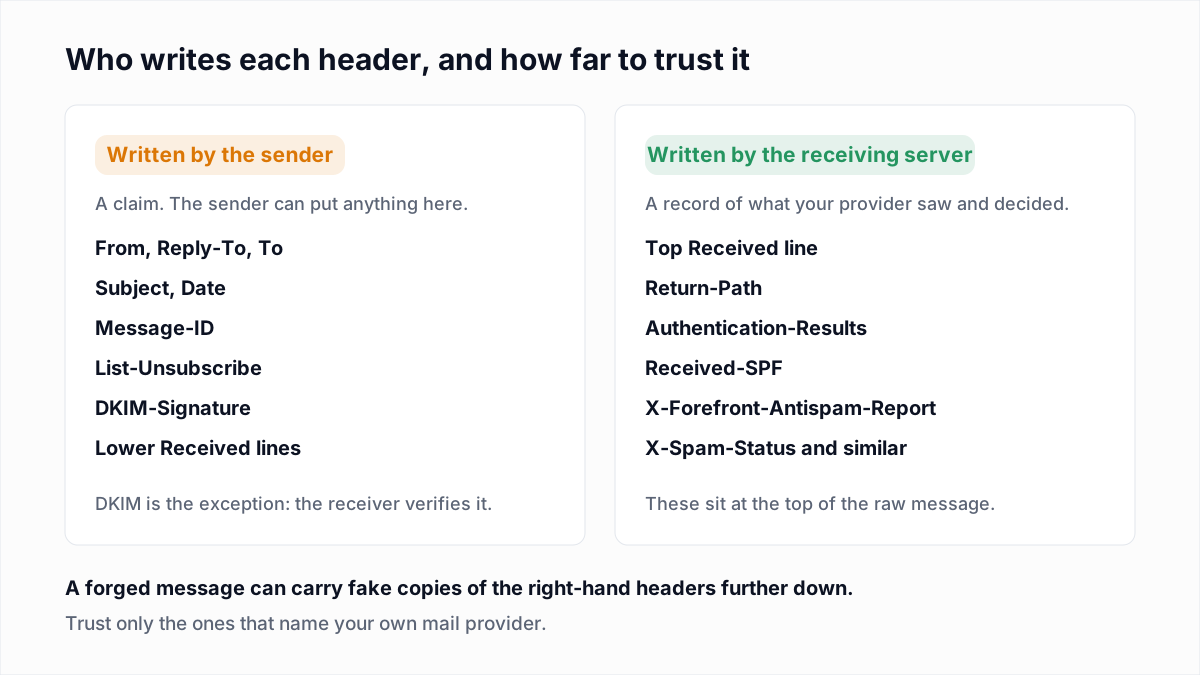
Here is a full header for a newsletter sent through an email platform and delivered to a Google mailbox. It is an illustrative example with placeholder domains, laid out the way Gmail writes it.
Delivered-To: jane@recipient.example
Received: by 2002:a05:6402:1a2b:0:0:0:0 with SMTP id x11csp412345edb;
        Thu, 12 Nov 2026 06:14:09 -0800 (PST)
Return-Path: <bounce-7f3a@mail.esp-vendor.com>
Received: from out12.mail.esp-vendor.com (out12.mail.esp-vendor.com. [198.51.100.24])
        by mx.google.com with ESMTPS id d9si1234567qkg.201
        for <jane@recipient.example>
        (version=TLS1_3 cipher=TLS_AES_256_GCM_SHA384 bits=256/256);
        Thu, 12 Nov 2026 06:14:08 -0800 (PST)
Received-SPF: pass (google.com: domain of bounce-7f3a@mail.esp-vendor.com
        designates 198.51.100.24 as permitted sender) client-ip=198.51.100.24;
Authentication-Results: mx.google.com;
        dkim=pass header.i=@example.com header.s=s1 header.b=AbCdEf12;
        spf=pass (google.com: domain of bounce-7f3a@mail.esp-vendor.com
        designates 198.51.100.24 as permitted sender)
        smtp.mailfrom=bounce-7f3a@mail.esp-vendor.com;
        dmarc=pass (p=QUARANTINE sp=QUARANTINE dis=NONE) header.from=example.com
Received: from app-3.internal.esp-vendor.com (10.20.4.17)
        by out12.mail.esp-vendor.com with ESMTP id 4XkP2z1Qm7;
        Thu, 12 Nov 2026 14:14:06 +0000 (UTC)
DKIM-Signature: v=1; a=rsa-sha256; c=relaxed/relaxed; d=example.com; s=s1;
        h=from:to:subject:date:message-id; bh=...; b=AbCdEf12...
Date: Thu, 12 Nov 2026 14:14:05 +0000
From: Acme News <news@example.com>
Reply-To: support@example.com
To: jane@recipient.example
Message-ID: <20261112141405.7f3a9c21@mail.esp-vendor.com>
Subject: Your November update
List-Unsubscribe: <https://example.com/u/7f3a>, <mailto:unsub@example.com>
List-Unsubscribe-Post: List-Unsubscribe=One-Click
The sections below walk through this example in the order worth reading it.
How do you read Received headers?
Read Received headers from the bottom up: the lowest Received line is the first server that handled the message, and the top one is the last. Each server adds its own line above the existing ones.
That order comes from the SMTP standard. RFC 5321 section 4.4 says a server that accepts a message must insert its trace line "at the beginning of the message content" and must not change or delete a Received line that was already there.
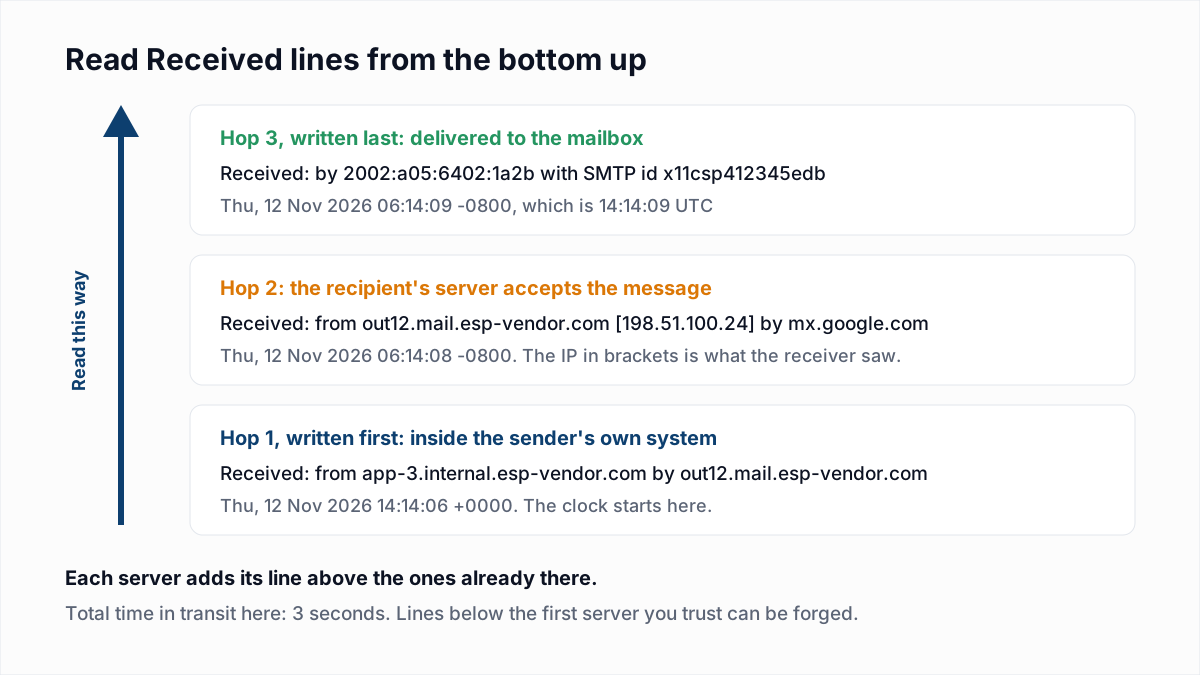
Each line has the same shape, and three parts carry the information:
- from names the server that handed the message over. The name before the parentheses is what that server called itself in
EHLO. The name and IP inside the parentheses are what the receiving server observed, so trust the IP in brackets over the name outside them. - by names the server that accepted it and wrote the line.
- The timestamp after the semicolon is when that server took the message. Convert each one to the same time zone and subtract to find where a delay happened. In the example, 14:14:06 UTC to 06:14:09 -0800 is three seconds end to end.
Two cautions. Server clocks drift, so a gap of a few seconds means nothing. And a spammer can paste invented Received lines at the bottom of a message before sending it. The first line you can believe is the one where your own provider names the connecting IP: in the example, 198.51.100.24, recorded by mx.google.com.
A large gap between two hops usually means the message was deferred and retried. The receiving server answered with a temporary 4xx code, as happens with greylisting or a 421 4.7.0 rate limit, and the sender came back later.
What does Authentication-Results mean?
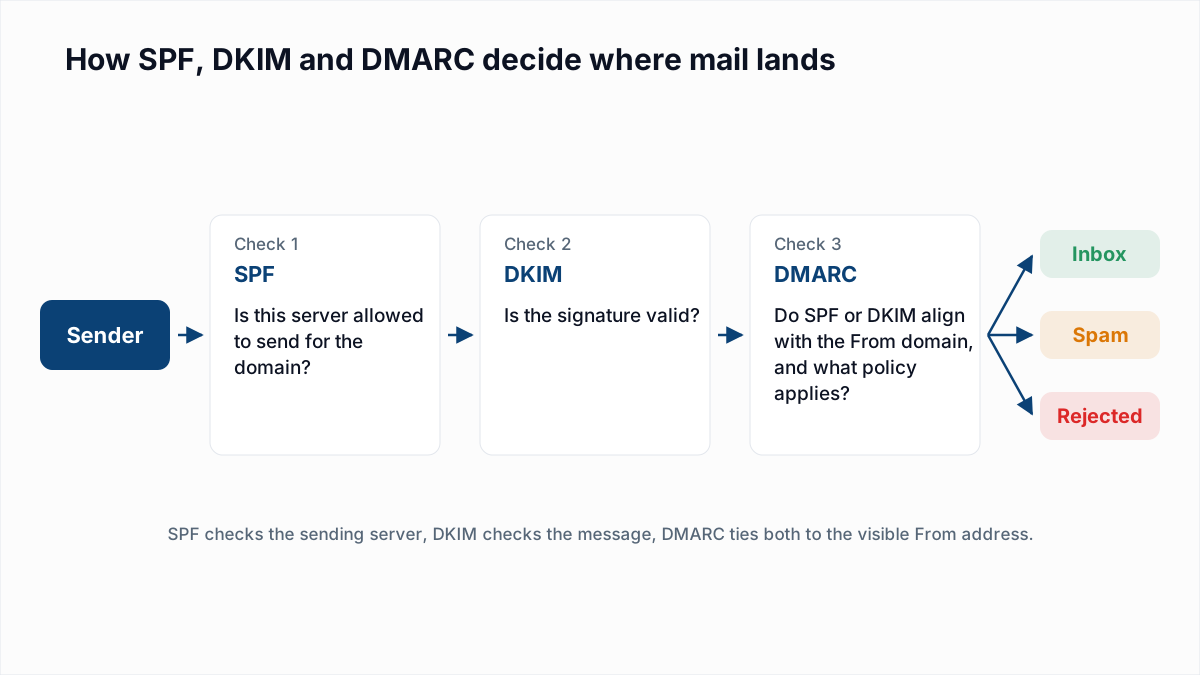
The Authentication-Results header is the receiving server's record of whether the message passed SPF, DKIM and DMARC. It is defined in RFC 8601, and it is the fastest way to see why a message was trusted or sent to spam.
The first item is the name of the server that ran the checks (mx.google.com in the example). Only read the copy written by your own provider. RFC 8601 tells receiving servers to delete forged copies that claim to be theirs, but a copy naming some other server proves nothing.
| Result | What it tells you | What to do |
|---|---|---|
spf=fail or spf=softfail | The sending IP is not listed in the Return-Path domain's SPF record. | Add the sending service to the SPF record, or check with the SPF checker. |
spf=permerror | The SPF record is broken, often because it needs more than 10 DNS lookups. | See fixing SPF PermError. |
dkim=pass header.d= or header.i= | The signature is valid for the domain shown, and the signed parts were not altered. | Check that the domain matches the From domain, or DMARC cannot use it. |
dkim=fail or dkim=none | The signature did not verify, or the message was not signed at all. | Turn on DKIM signing at your sending service; see what DKIM is and DKIM fail: causes and fixes. |
dmarc=fail | Neither SPF nor DKIM passed with a domain aligned to the From domain. | Fix alignment; see 550 5.7.26 for the cases. |
A pass on all three needs no action. In the example, SPF passed for mail.esp-vendor.com, which is the platform's domain and not the sender's. DMARC still passed because the DKIM signature uses d=example.com, matching the From address. This pattern is normal for mail sent through a platform.
Microsoft 365 adds its own fields. Microsoft's anti-spam message headers reference describes compauth as a composite result that combines SPF, DKIM, DMARC and other signals, with a three-digit reason code, and dmarc=bestguesspass as meaning the domain has no DMARC record but the message would have passed if it had one.
What do Return-Path and Message-ID tell you?
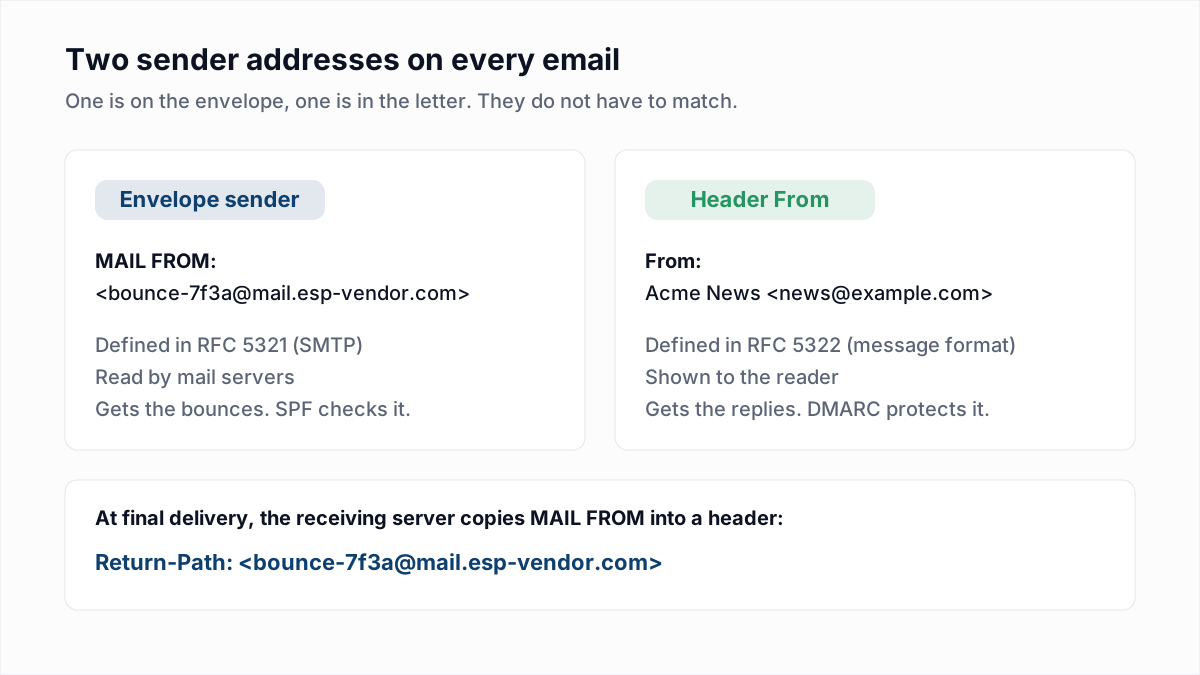
The Return-Path header shows the address that receives bounces, and the Message-ID header is the unique identifier the sending system gave the message. Neither is shown in a normal mail view, and both are useful for tracing.
- Return-Path is the envelope sender from the SMTP
MAIL FROMcommand, written into the header by the final server. SPF is checked against this domain, not the From domain. When it belongs to an email platform, that is expected. The details are in Return-Path explained. - Message-ID is what you give a mail administrator or a support desk when asking "what happened to this message?". It is the key they search their logs by. The part after the
@often reveals which system created the message.
What do X-Forefront-Antispam-Report and SCL mean in Outlook headers?
X-Forefront-Antispam-Report is the header Microsoft 365 adds to record how its spam filtering handled a message, as a list of field:value pairs separated by semicolons. A typical fragment looks like this:
X-Forefront-Antispam-Report: CIP:198.51.100.24;CTRY:US;LANG:en;SCL:5;SRV:;IPV:NLI;
        SFV:SPM;H:out12.mail.esp-vendor.com;PTR:out12.mail.esp-vendor.com;CAT:SPM;DIR:INB;
X-Microsoft-Antispam: BCL:6;
The meanings below are Microsoft's own, from the same reference page (last updated August 2026).
| Field | What it tells you | What to do |
|---|---|---|
CIP, PTR, H | The connecting IP address, its reverse DNS name, and the HELO or EHLO name the server announced. | Check that the PTR and HELO names match; see reverse DNS errors. |
SFV:SPM | Spam filtering marked the message as spam. | Look at CAT and the authentication results for the reason. |
CAT | The category of protection policy applied, for example SPM (spam), HSPM (high confidence spam), BULK, PHSH (phishing) or SPOOF. | Fix the cause the category names: content, volume or authentication. |
BCL (in X-Microsoft-Antispam) | The bulk complaint level. A higher value means bulk mail more likely to generate complaints. | Reduce complaints; see spam complaint rate. |
SCL | The spam confidence level, from -1 to 9. A value of 5 or higher generally indicates the message is considered bad, and -1 means filtering was bypassed. | Use it as a hint only, for the reason below. |
SCL needs a warning. Many guides still treat it as the verdict. Microsoft's SCL documentation now says that in cloud organizations the value does not determine whether a message is identified as spam or what action is taken, and tells you to read CAT and DIR instead. The separate X-MS-Exchange-Organization-SCL header is the SCL stamp that Microsoft documents for Exchange Server, where 0 is an extremely low probability of spam, 9 is extremely high, and -1 means the message bypassed antispam scanning. There the value does drive the junk folder thresholds.
Other filters leave similar marks. SpamAssassin writes X-Spam-Status with a score and the names of the rules that fired. Headers beginning with X- are not standardised, so rely only on the meaning published by the software that wrote them.
Which email headers matter, and what should I do with each?
A handful of email headers answer nearly every deliverability question, and each points to a specific action. Use this table as the checklist when you open a header.
| Header | What it tells you | What to do |
|---|---|---|
Received | Each server that handled the message, with the time it took over. | Read bottom to top; compare timestamps to find the hop that caused a delay. |
Authentication-Results | Whether SPF, DKIM and DMARC passed, according to the receiving server. | Fix whichever shows fail, none or permerror before changing anything else. |
Return-Path | The envelope sender: where bounces go, and the domain SPF was checked against. | Confirm it belongs to you or your email platform. |
DKIM-Signature | The signing domain (d=) and selector (s=) the sender used. | Check that d= matches the From domain so DMARC can align. |
Message-ID | The unique identifier the sending system gave the message. | Quote it when asking a provider or administrator to search their logs. |
List-Unsubscribe | Whether the sender offers a one-click unsubscribe to mail apps. | Bulk senders need it; see the List-Unsubscribe header. |
X-Forefront-Antispam-Report, X-Spam-Status | The verdict of the recipient's spam filter and some of its reasons. | Read the category or rule names, then work through why emails go to spam. |
Is there a tool that analyses email headers?
Yes, Google and Microsoft both offer free email header analysis tools that turn a pasted header into a readable table of hops, delays and authentication results. Use them once you know what the lines mean, so you can check their output. InboxSure's own email header analyzer does the same from a pasted header.
- Google Admin Toolbox Messageheader is the tool Google's help page recommends for finding delivery delays.
- Message Header Analyzer is the tool Microsoft's reference page links for parsing Microsoft 365 headers.
A header can contain email addresses, internal server names and IP addresses. Paste it only into a tool you trust, and remove recipient addresses first if the message is not yours to share.
What a header cannot tell you
A header is a delivery record, not a full diagnosis. It does not show whether the message was opened, it says nothing about messages that bounced, and it cannot tell you whether the other addresses on your list exist.
That last question is a separate check. If headers from your test sends look clean but campaigns still bounce, the problem is usually the list. InboxSure's bulk email verifier checks syntax, DNS and the mailbox over SMTP without sending a message, and returns each address as Deliverable, Risky, Undeliverable or Unknown. It does not read headers or test inbox placement, and consumer Yahoo and Outlook.com addresses currently come back Unknown because those providers refuse the check. For a single address, the free email verifier checks one at a time.
Frequently asked questions
Related reading
Ready to clean your email list?
Upload a CSV or XLSX and get every address marked deliverable, risky, undeliverable or unknown, with the reason. Free for lists of up to 50, no card. Nothing is sent to your contacts.