Spam Complaint Rate: The 0.1% and 0.3% Limits Explained
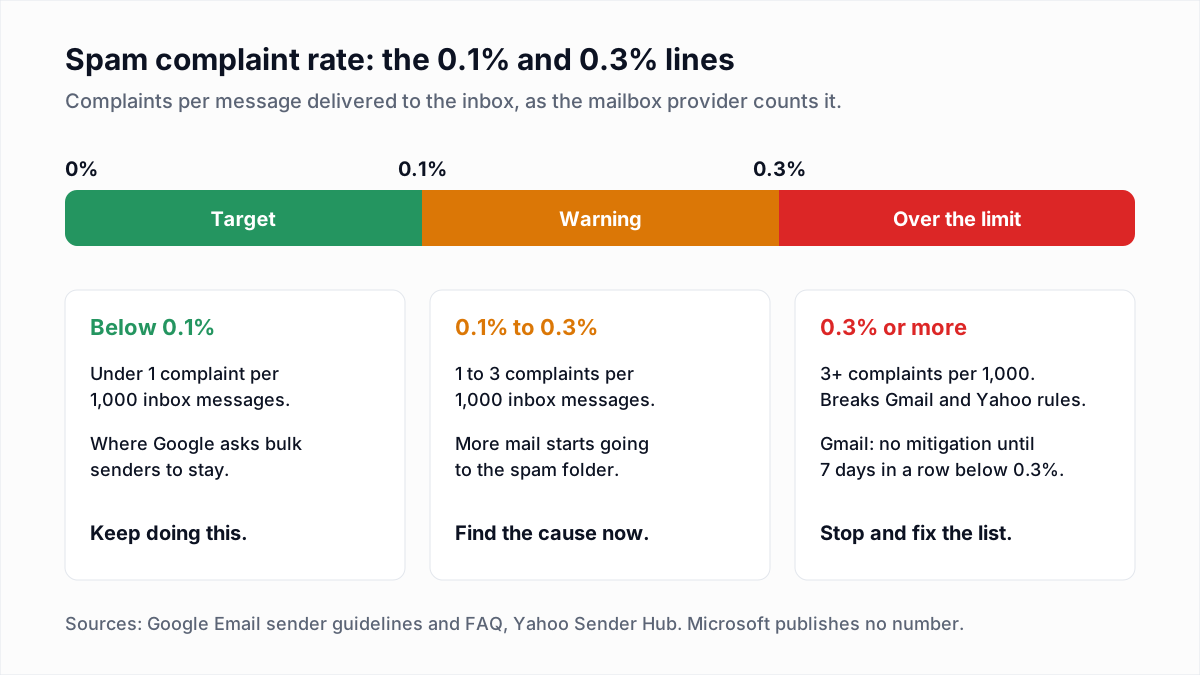
Spam complaint rate is the share of your delivered emails that recipients mark as spam. A good rate is below 0.1%, which is fewer than one complaint per 1,000 messages. Google tells senders to stay below 0.1% and never reach 0.3%, Yahoo sets its limit at 0.3%, and Microsoft publishes no number. The rate that matters is the one the mailbox provider calculates, and it is usually higher than the figure in your sending platform, because providers divide by the mail that reached the inbox, not by everything you sent.
The provider facts below come from Google, Yahoo and Microsoft pages, linked inline, as they read on 12 November 2026.
What is a spam complaint rate?
A complaint is recorded when a person opens or selects your message and presses "Report spam", "Mark as spam" or "Junk" in their mail app. The complaint rate is complaints divided by messages, shown as a percentage:
complaint rate = spam complaints / messages delivered x 100It is not the same as the unsubscribe rate or the bounce rate. An unsubscribe is a polite exit that costs you nothing. A bounce is a server refusing the message. A complaint is a person telling their provider that your mail is unwanted, and providers weigh that signal heavily because it comes straight from their own users.
How Gmail, Yahoo and Outlook calculate it
The formula looks simple. What changes between providers, and between a provider and your sending platform, is what goes on the bottom of the fraction.
| Who is counting | Complaints counted | Divided by |
|---|---|---|
| Gmail (Postmaster Tools) | Messages a Gmail recipient manually marks as spam | Your messages delivered to the inbox of engaged recipients |
| Yahoo | Messages a Yahoo or AOL user marks as spam | Mail delivered to the inbox |
| Outlook.com | Messages a user marks as junk | Not published |
| Your sending platform | Only the complaints providers send back through feedback loops | Usually everything delivered, to every provider |
Google's Postmaster Tools dashboards help describes spam rate as the percentage of your messages delivered to the inbox of engaged recipients that the recipient then marks as spam. Only DKIM-signed mail is counted. Google adds a warning that follows from this definition: if Gmail is already filing much of your mail in the spam folder, fewer messages reach the inbox to be reported, so the rate can look low while delivery is poor. Google does not define "engaged". Its sender guidelines FAQ says only that "Spam rate is calculated daily."
Yahoo's Sender Hub best practices says the same thing in one line: "Spam rate is calculated in our system based on mail delivered to the inbox", and tells you to keep that in mind when you compare your own numbers.
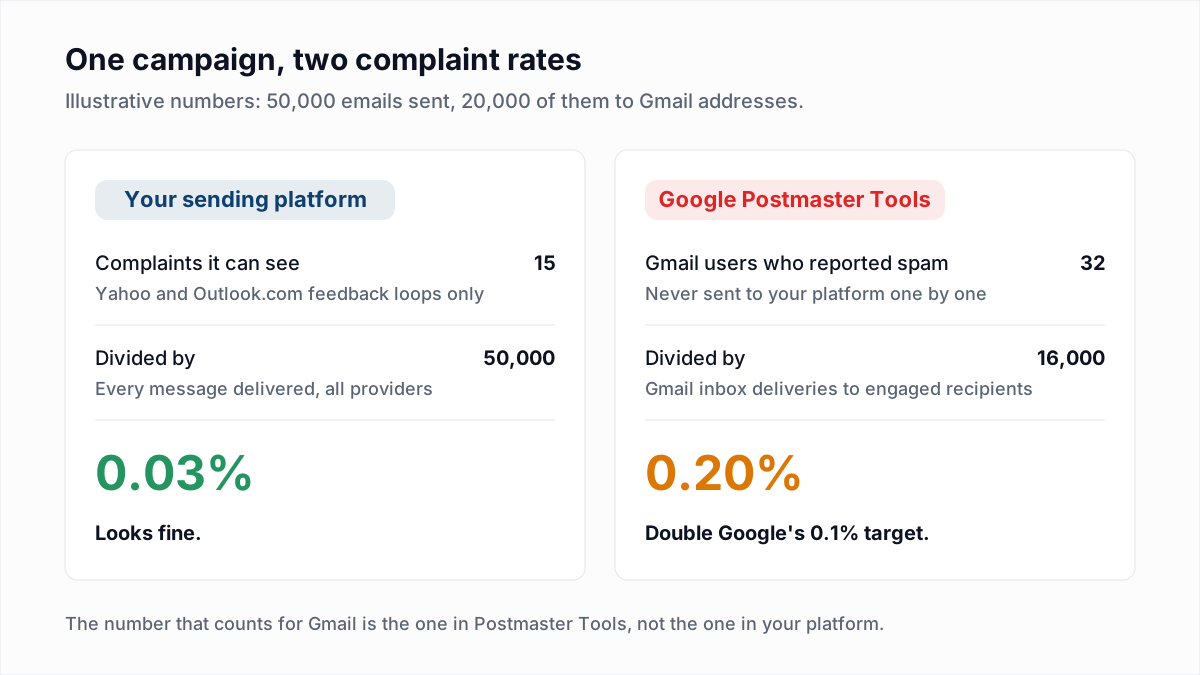
Your email platform cannot reproduce either figure. It does not know which messages landed in the inbox, and it never receives individual complaints from Gmail at all. So a platform showing 0.03% and Google showing 0.2% for the same campaign can both be correct.
What is a good spam complaint rate? The 0.1% and 0.3% limits
| Provider | Published limit | Source |
|---|---|---|
| Gmail | Below 0.3% for all senders; bulk senders below 0.10% and never 0.30% or higher | Email sender guidelines |
| Yahoo and AOL | "Keep your spam rate below 0.3%" | Sender Hub best practices |
| Outlook.com | No number published | High-volume sender requirements |
Treat 0.1% as the working target and 0.3% as the line you must not touch. Google's guidelines explain why the lower number matters: "Maintaining a low spam rate helps senders be more resilient to occasional spikes in user feedback." A sender who normally sits at 0.02% can absorb one bad campaign. A sender who normally sits at 0.25% cannot.
What happens at 0.3%
Google's FAQ is specific about one consequence. Bulk senders with a user-reported spam rate above 0.3% are ineligible for mitigation, and they become eligible again only "when their spam rates remain below 0.3% for 7 consecutive days." Mitigation is Google's term for the help it can give a compliant bulk sender with a delivery problem. Above 0.3% you lose that route until the rate has stayed down for a week.
The filtering consequence is described more loosely. The guidelines say that "Maintaining a high spam rate leads to increased spam classification", and the FAQ says mail from senders who miss the requirements may be rejected or delivered to spam. Google gives no table of "at X% this happens". In practice the first symptoms are more mail in the spam folder and temporary 421 4.7.x rate limits, which we cover in 421 4.7.0 try again later. The full list of what each provider demands is in Gmail, Yahoo and Outlook sender requirements.
How to calculate your spam complaint rate: a worked example
You send a newsletter to 50,000 addresses. 20,000 of them are Gmail addresses. The numbers below are made up to show the arithmetic.
- Platform view. Your platform received 15 complaints through the Yahoo and Outlook.com feedback loops. 15 / 50,000 = 0.03%.
- Gmail view. Of the 20,000 Gmail messages, 16,000 reached the inbox of recipients Google counts and 32 people pressed "Report spam". 32 / 16,000 = 0.2%. That is the figure Postmaster Tools shows for the day.
- Per-provider view. Divide each provider's complaints by the mail you delivered to that provider only. If 10 of the 15 visible complaints came from 6,000 Yahoo addresses, the Yahoo rate is 10 / 6,000 = 0.17%, not 0.03%.
Two habits follow. Never judge complaints on the blended, all-provider number. And never assume a low platform number means Gmail is happy, because Gmail's complaints are not in it.
Where spam complaint data comes from
| Provider | Tool | What you get |
|---|---|---|
| Gmail | Postmaster Tools spam rate dashboard | A daily percentage for your domain. No list of who complained. |
| Gmail | Feedback Loop with a Feedback-ID header | Spam rate per campaign or customer identifier, in aggregate |
| Yahoo and AOL | Complaint Feedback Loop (CFL) | One report per complaint in ARF format, so you can suppress the address |
| Outlook.com | JMRP and SNDS | Reports on messages marked as junk, and complaint data for your IPs |
Gmail does not send per-message complaint reports. You see a rate, not names. The Gmail Feedback Loop is aimed at large senders and is, in Google's words, particularly useful to email service providers. You add a header such as Feedback-ID: campaign:customer:type:SenderId, sign the mail with a DKIM domain verified in Postmaster Tools, and Google reports identifiers with an unusual spam rate. It is aggregate data and appears only once an identifier has enough volume and enough distinct reports. Setting up the dashboards is covered in our Google Postmaster Tools guide.
Yahoo runs a Complaint Feedback Loop that "only supports DKIM-signed email and is a domain based service." You create a Sender Hub profile, add and verify the DKIM domain, and enrol it. After that you receive a report each time a recipient marks your mail as spam, which lets you remove that person.
Microsoft offers two free services for Outlook.com, described on its postmaster services page. The Junk Email Reporting Program (JMRP) returns reports on mail that Outlook.com users marked as junk. Smart Network Data Services (SNDS) shows how users rate mail from your IP space, including how many complained. Enrolment for JMRP runs through SNDS, which is organised by IP address, so on a shared IP it is normally your email platform that enrols, not you.
If you send through a platform, it has almost certainly enrolled in the Yahoo and Microsoft loops already and suppresses complainers for you. That is where its complaint number comes from, and why Gmail is missing from it. How to enrol in each programme yourself is in email feedback loops.
Why low volume makes the rate volatile
A rate is only stable when the bottom number is large. Send 200 messages to Gmail inboxes in a day and a single complaint is 1 / 200 = 0.5%, well over the limit. Send 20,000 and the same complaint is 0.005%. Because Google calculates the rate daily, a small sender can show 0% for weeks and then a frightening spike from one person.
Two things soften this. Postmaster Tools leaves out data on days when your volume is too low, so very small senders often see no spam rate at all. And the 7 consecutive days in Google's mitigation rule point at a sustained pattern, not one bad day. If you send little, look at the trend over 30 days and at the raw count of complaints, and do not react to one day's percentage.
How to reduce spam complaints
People press the spam button for a short list of reasons. Each has a direct fix.
| Cause | Why it produces complaints | Fix |
|---|---|---|
| Unsubscribing is hard | The spam button is easier to find than your link | Add one-click unsubscribe headers and a visible link; honour requests within 2 days |
| The mail was not expected | The person does not remember signing up | Send a welcome email at once, use a recognisable From name, and consider double opt-in |
| Too many emails | Daily mail to someone who wanted a monthly update | Offer a frequency choice; slow down for people who stop clicking |
| Bought or scraped lists | Nobody on the list asked to hear from you | Do not mail them. No setting repairs missing consent. |
| Misleading subject line | The reader feels tricked after opening | Make the subject describe the content; no fake "Re:" or "Fwd:" |
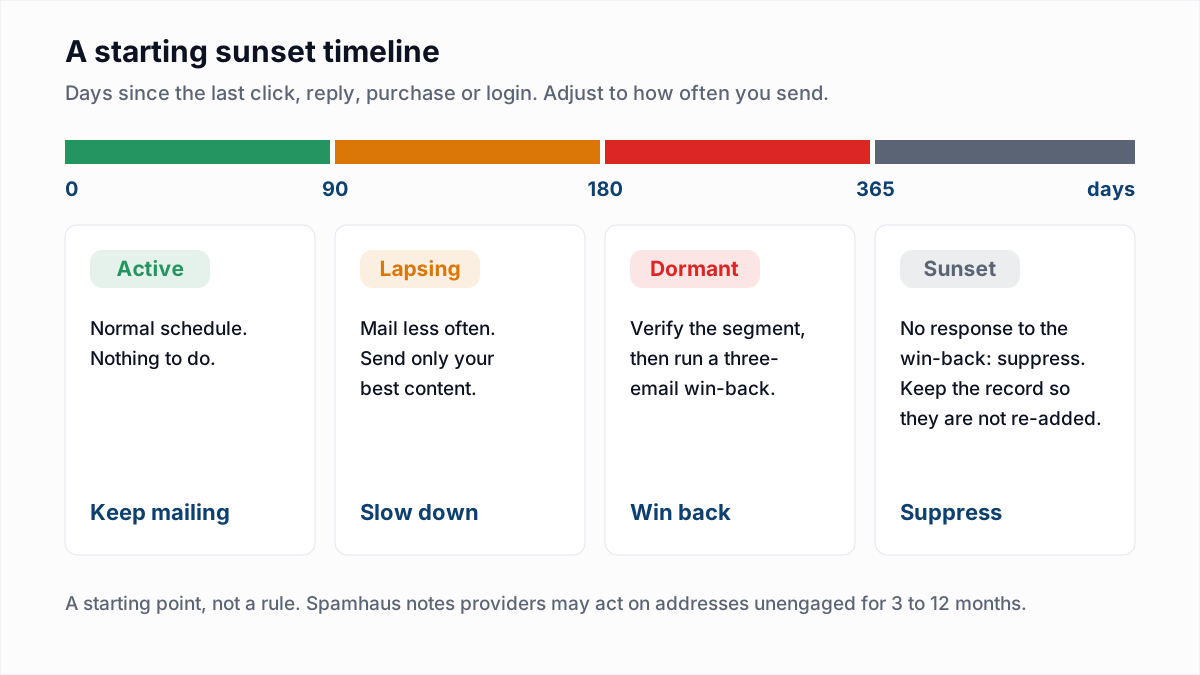
| Stale contacts | People who lost interest a year ago and are still being mailed | Run an email sunset policy and suppress the unengaged |
One-click unsubscribe is the cheapest of these. Gmail and Yahoo both require it from bulk senders, and it lets the mail app show its own unsubscribe control at the top of the message, close to the spam button. A person who wants out then leaves without filing a complaint.
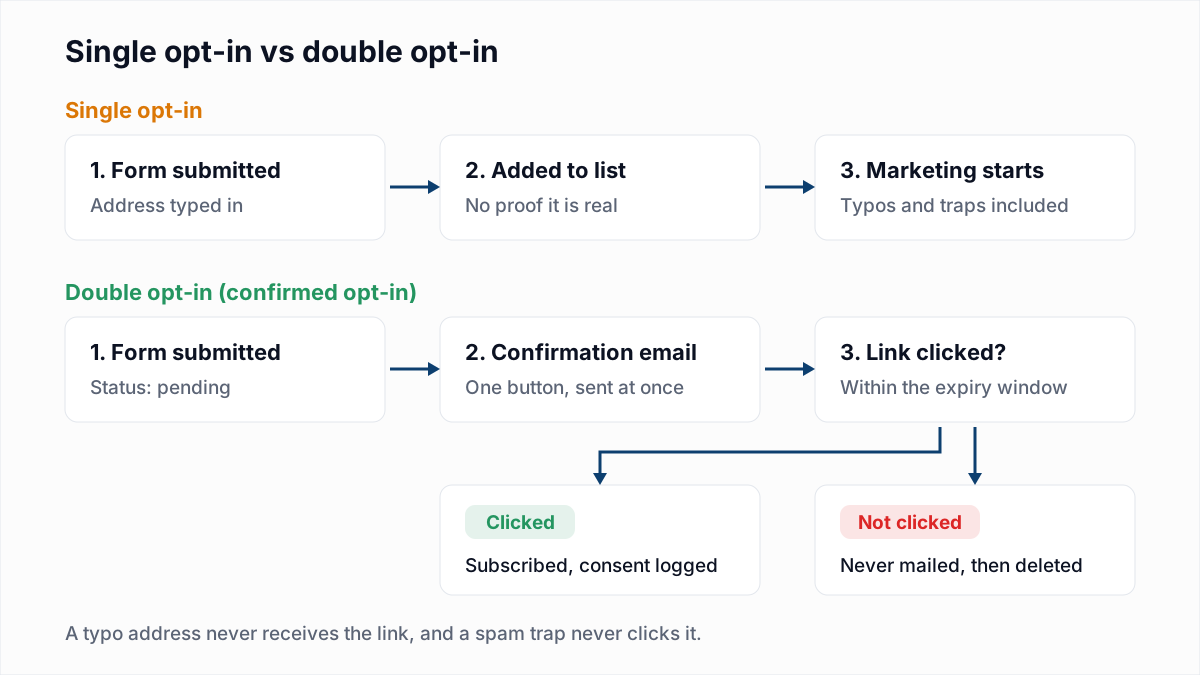
Stale contacts are the cause most senders underestimate. Someone who has ignored forty emails is not neutral; they are one irritated moment away from the spam button. A sunset policy mails them less, tries a short win-back, then stops.
If the rate is already high, work in this order:
- Pause the segment or campaign that caused the spike. Postmaster Tools shows the day; your send log shows what went out.
- Send only to people who clicked, replied or bought in the last 30 to 90 days until the rate has been under 0.1% for a week.
- Check that the one-click unsubscribe headers are present in a real message and that unsubscribes are applied.
- Bring older segments back gradually, as you would in a warm-up, and drop any that push the rate up again.
What email verification does and does not do for complaints
Verification and complaints are separate problems. A verifier such as InboxSure checks syntax, MX records and the mailbox itself over SMTP without sending an email, and marks each address Deliverable, Risky, Undeliverable or Unknown. That removes dead addresses and lowers your bounce rate. It does not reduce complaints from real people, because a mailbox that exists and belongs to someone who is tired of your emails verifies as Deliverable.
There is one indirect link. Clearing out invalid addresses changes neither the complaint count nor Gmail's inbox-based denominator, but it keeps bounces from stacking on top of complaints as a second reputation problem. And the role-account flag is worth a look, since shared mailboxes such as info@ are read by several people, any one of whom can report you. Consent, expectations, frequency and an easy exit are what move the complaint rate.
If bounces are also part of your picture, the bulk email verifier checks lists of up to 50 addresses on the free plan and up to 10,000 per list on Pro, at a flat $49 a month with no credits. Fix the complaints with the table above, and the bounces with a clean list.
Frequently asked questions
Related reading
Ready to clean your email list?
Upload a CSV or XLSX and get every address marked deliverable, risky, undeliverable or unknown, with the reason. Free for lists of up to 50, no card. Nothing is sent to your contacts.