Google Postmaster Tools: Setup and How to Read Every Dashboard
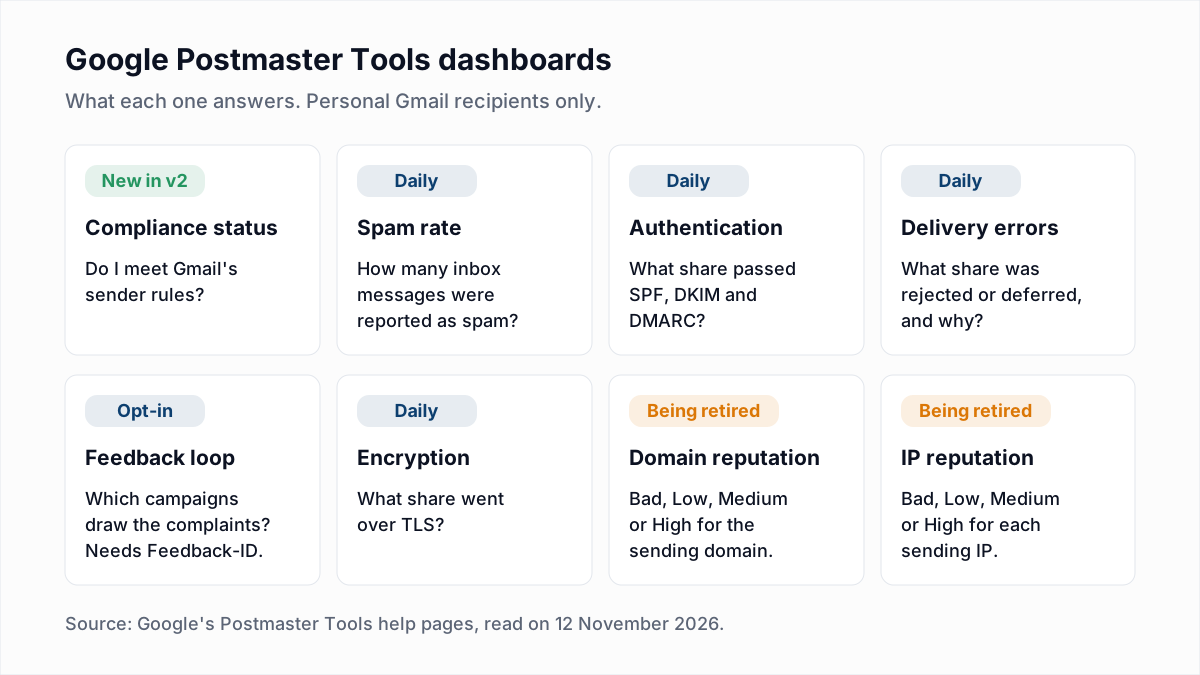
Google Postmaster Tools is a free Google service that shows how Gmail treats the mail you send: whether you meet its sender rules, what share of your messages recipients report as spam, how much passes SPF, DKIM and DMARC, and how much Gmail rejects or defers. To set it up, sign in at postmaster.google.com, add the domain that signs your mail, publish the TXT or CNAME record Google gives you, and click Verify. Data appears once you send enough mail to personal Gmail accounts.
This guide follows Google's own help pages as they read on 12 November 2026. Google is partway through replacing the original interface, and its pages do not fully agree with each other. We point out where.
What Google Postmaster Tools is, and what it is not
Google's setup page says Postmaster Tools lets you monitor outgoing email sent to personal Gmail accounts, meaning addresses ending in @gmail.com or @googlemail.com. All you need is a Google account and access to your domain's DNS.
It is not an inbox placement test, and it shows nothing per message or per recipient. Everything is an aggregate for a domain and a day.
What changed in Postmaster Tools v2
Google launched a new Postmaster Tools, called v2, in 2024. Its deprecation notice for the old interface states the plan:
- The legacy web interface (v1) is to be replaced by v2, and users will be redirected with no action needed.
- Every v1 dashboard is available in v2 "with the exception of the Domain and IP Reputation dashboards, which will be retired."
- Google's reasons: reputation data "is not easily actionable for most senders", it reacts slowly, and reputation is only one of many delivery factors.
- A "new, more intuitive version" of the reputation dashboard is promised, along with new dashboards. The Compliance status dashboard is the first.
- A v2 API is available and the v1 API will be retired, so anyone pulling data by API has to migrate. The v2 API does not include domain or IP reputation.
Here the sources conflict. The same notice says Google is "postponing the deprecation of the legacy Postmaster Tools web interface" after sender feedback, and gives no new date. Google's dashboards help page still lists IP Reputation and Domain Reputation next to the other dashboards and still explains their Bad, Low, Medium and High ratings, with no note that they are going away. Outside Google, some deliverability vendors write that v1 was switched off in late 2025 and others that the shutdown was postponed. We could not find a Google page that settles it.
The sign-in link on Google's setup page already points at the v2 address, so expect v2. If you can still open reputation charts, use them, but build your routine on compliance status, spam rate, authentication and delivery errors, which are staying.
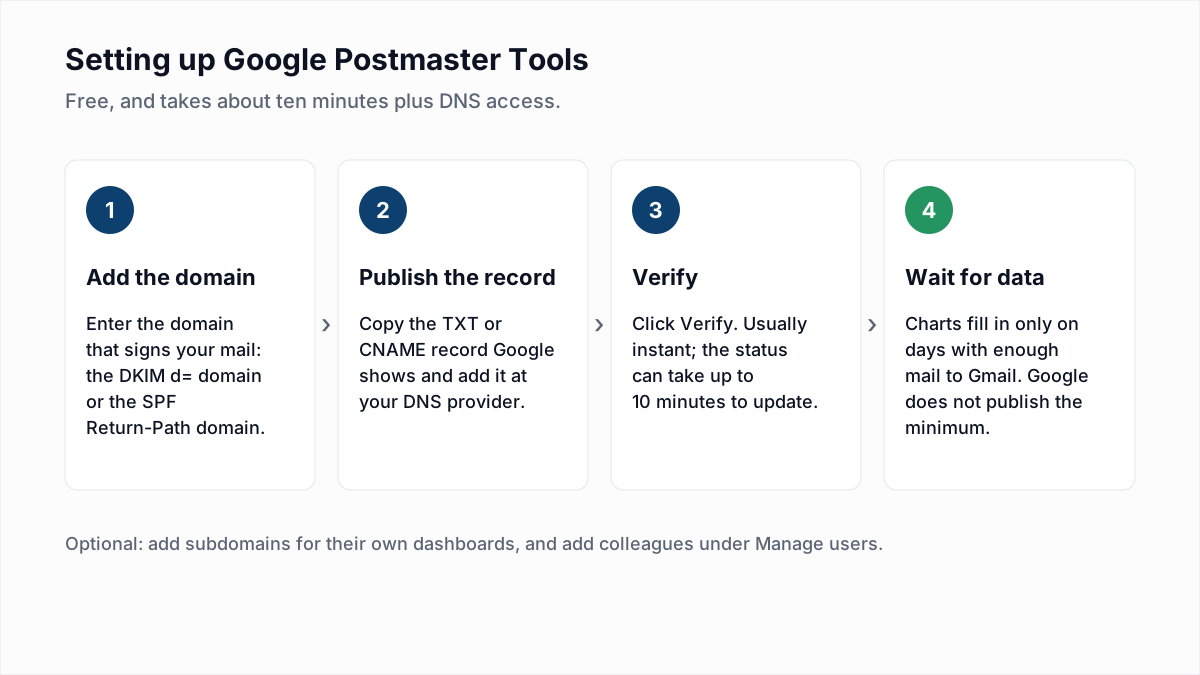
How to set up Google Postmaster Tools
- Sign in at postmaster.google.com with the Google account that should own the domain.
- Add the domain. Choose to add a new domain and enter the domain you authenticate with. Google's instruction is: "Add either the DKIM (d=) domain or the SPF (Return-Path) domain."
- Copy the verification record. Google shows a TXT record and a CNAME alternative. Either works; use whichever your DNS host makes easier.
- Publish it in DNS. Add the record exactly as shown. It sits beside your existing SPF and DMARC records and does not replace them.
- Click Verify. Google says verification is typically immediate but the status "can take up to 10 minutes" to update. You can skip this and come back, but no data is shown for an unverified domain.
Which domain to add: root domain or subdomain
Add the domain in your DKIM signature. To find it, open a message you sent to a Gmail address, choose "Show original", and read the d= value in the DKIM-Signature header. If it says mail.example.com, a subdomain signs your mail (see should you send email from a subdomain).
Google recommends adding and verifying the primary domain first, then adding subdomains "to see dashboards for subdomains independently from the primary domain." Once the primary domain is verified, its subdomains need no separate verification. Two details matter here:
- The Compliance status dashboard reports on primary domains only. It uses subdomain data to reach its verdict but shows the result at the primary domain.
- If your email platform signs with its own domain and not yours, Postmaster Tools has nothing to show for you. Turn on custom domain authentication at the platform first; our DKIM guide explains what to look for.
Sharing access
Open the domain's user management and add the Google email address of each person who needs the dashboards. Only verified domains can be shared, each person needs a Google or Google Workspace account, and Postmaster Tools "does not automatically notify them", so tell them yourself.
How much volume you need before data appears
Google does not publish a minimum. The setup page says only: "Data might be missing if the total number of messages for a given day is too low. This is to protect users' privacy." Figures quoted elsewhere, often a few hundred messages a day, are observations by senders, not Google's numbers.
A domain sending a few dozen emails a day to Gmail will see empty charts, and that is normal. A domain with uneven volume will see gaps on quiet days. Google says the Compliance status dashboard is available to all senders, although it can report "No data found".
How to read every dashboard
Pick a domain, a dashboard and a time range of 7, 30, 60, 90 or 120 days. All dates are in UTC.
| Dashboard | What it shows | What good looks like | If it is bad |
|---|---|---|---|
| Compliance status | Each Gmail sender requirement, marked Compliant or Needs work | Every row Compliant | Fix the named row, then allow up to 7 days for the status to change |
| Spam rate | Share of inbox messages that recipients marked as spam, per day | Below 0.1%, never 0.3% | Find the campaign sent that day; cut unengaged contacts |
| Authentication | Share of mail passing SPF, DKIM and DMARC | DKIM and DMARC at 95% or more | Find the sender that is not signing or not aligned |
| Delivery errors | Share of authenticated mail rejected or temporarily failed, with reasons | Close to zero | Read the reason; slow down for rate limits, fix the list for spam reasons |
| Feedback loop | Spam rate per campaign identifier | No identifier flagged | Stop or rework the flagged campaign or customer |
| Encryption | Share of mail sent over TLS | 100% | Enable TLS on the sending server |
| Domain and IP reputation | A rating of Bad, Low, Medium or High | High | Lower volume, mail engaged recipients only, wait |
Compliance status
This is the dashboard to open first. It checks you against Google's Email sender guidelines. For all senders it covers SPF and DKIM authentication, DNS records, message formatting, encryption and user-reported spam rate. For bulk senders, those sending about 5,000 or more messages a day to Gmail, it adds DMARC, one-click unsubscribe and honouring unsubscribes within 48 hours. Each row reads Compliant, Needs work or No data found. It runs on a rolling average, so a fix can take up to 7 days to show. The requirements themselves are laid out in Gmail, Yahoo and Outlook sender requirements.
Spam rate
This chart is the number Google's 0.1% and 0.3% limits refer to. It counts only messages that reached the inbox, so it rarely matches your email platform's complaint figure. Google also warns that an extremely low rate can be misleading: if Gmail is sending much of your mail to spam already, few messages are left in the inbox to be reported. Read it next to delivery errors and your own open and click numbers. How the rate is calculated, and how to bring it down, is the subject of spam complaint rate explained.
Authentication
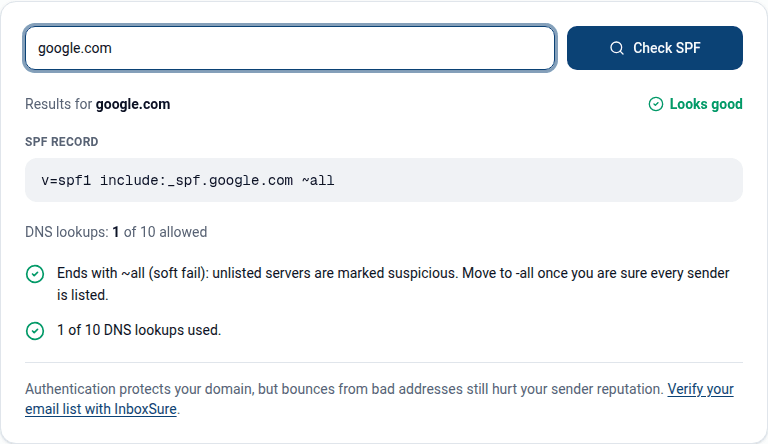
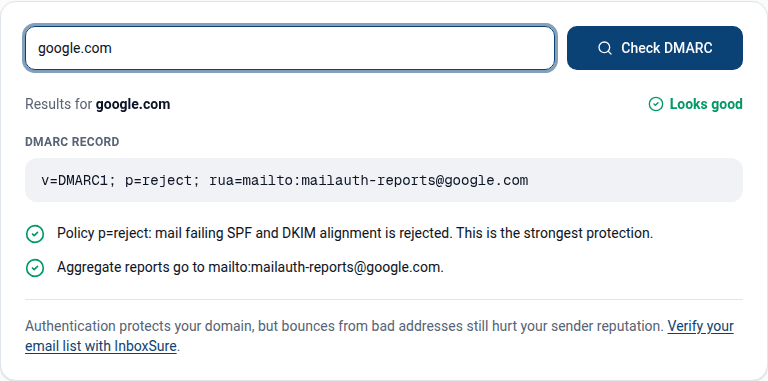
The percentage of your mail that passed SPF, DKIM and DMARC. Google notes that DKIM and DMARC are typically at 95% or higher when configured correctly, and that SPF often runs lower because of forwarding and third-party senders. A sudden drop usually means a new tool started sending as your domain, or a DNS record was edited. Confirm the records are live with the SPF checker and the DMARC checker, then find the sender in your DMARC reports.
Delivery errors
This chart shows what share of your authenticated mail Gmail rejected or temporarily failed, and why. The reasons Google lists include rate limit exceeded, suspected spam, possibly spammy content, bad or unsupported attachment, the sender's DMARC reject policy, low IP or domain reputation, a listing on a public blocklist, and a bad or missing PTR record. Temporary failures here are the same events your mail server logs as 421 4.7.x; match the day in the chart to your logs and use 421 4.7.0 try again later to decode the reply. For rate limits, Google's advice is to retry with exponential backoff and send more slowly.
Feedback loop and encryption
The Feedback loop dashboard stays empty unless you add a Feedback-ID header to your mail. It is built for email platforms and other large senders, and an identifier appears only after a minimum number of spam reports. The other providers' programmes are in email feedback loops. The Encryption dashboard shows the share of mail sent over TLS. Any hosted platform should be at 100%. Requiring TLS for mail coming in to your own domain is a separate job, covered in MTA-STS and TLS-RPT.
How to check domain reputation for Gmail
For years the answer was the Domain Reputation dashboard, with its High, Medium, Low and Bad ratings. Google's help page still documents it, and notes that it only counts mail from the exact domain used for DKIM and SPF. If you have it, High means very low spam rates and mail that is rarely marked as spam; the lower the rating, the more of your mail Gmail is likely to treat as spam.
Given the retirement notice, read reputation from the signals behind it (sources outside Google are in how to check your domain reputation):
- Compliance status with every row Compliant.
- Spam rate steady below 0.1%.
- Delivery errors near zero, with no "low reputation" reasons.
- Authentication at or near 100% for DKIM and DMARC.
A new domain has no history, good or bad. Building one is covered in email warm-up and sender reputation.
Limits of Postmaster Tools
- Personal Gmail only. Nothing about Workspace, Outlook.com, Yahoo or corporate mail servers.
- Delayed. Google says the data "isn't real-time"; it is typically updated within 24 hours and can take longer. You cannot watch a send as it happens.
- Nothing for low volume. Below Google's unpublished daily minimum, charts are blank.
- Dashboards can disagree. Google says they draw on different datasets and may differ from each other and from third-party reports.
Checking reputation at Outlook.com and Yahoo
- Microsoft SNDS (Smart Network Data Services) is based on IP addresses, not domains. Microsoft's postmaster services page describes it as a free service giving insight into how Outlook.com users rate mail from your IP space, including how many complained. Because it is organised by IP, it is mainly useful to whoever runs the sending IPs. On a shared platform IP, that is the platform.
- Yahoo Sender Hub at senders.yahooinc.com is domain-based. You verify a DKIM domain, enrol in the Complaint Feedback Loop, and can open an Insights view that Yahoo says "displays aggregated delivery statistics for your domain".
- Public blocklists are a separate check again; see how to check and remove a blacklist listing.
Where list quality fits in
Postmaster Tools tells you that something is wrong, not which addresses caused it. A climbing spam rate points at people who no longer want your mail. Climbing delivery errors often follow a send to old addresses. InboxSure helps with the second: it checks syntax, MX records and the mailbox over SMTP without sending an email, and flags catch-all, role and disposable addresses. It cannot predict who will press the spam button, and it does not monitor reputation or blocklists. Verify a list before a large send with the bulk email verifier (up to 50 addresses per list free, up to 10,000 per list on Pro at a flat $49 a month), then watch Postmaster Tools for the next two days.
Frequently asked questions
Related reading
Ready to clean your email list?
Upload a CSV or XLSX and get every address marked deliverable, risky, undeliverable or unknown, with the reason. Free for lists of up to 50, no card. Nothing is sent to your contacts.