How to Clean Your Mailchimp Audience (Step by Step)
Mailchimp removes an address from your sends only after it has bounced. Mailchimp's own About Bounces article puts it plainly: "Although we manage bounced addresses for maintenance purposes, Mailchimp is not a contact cleaning service." Cleaning the audience before the bounce happens is your job, and so is deciding what to do with subscribers who never open anything.
This guide covers both halves: dead addresses and silent subscribers. Every menu name below was checked against Mailchimp's help articles on 13 November 2026, and each article is linked next to the step in case a button has moved since.
What does "cleaned" mean in Mailchimp?
A cleaned contact in Mailchimp is an address that has hard bounced or repeatedly soft bounced, which Mailchimp treats as invalid and stops sending to. The definition comes from Mailchimp's About Cleaned Contacts article: "Cleaned contacts have email addresses that have hard bounced or repeatedly soft bounced, and are considered invalid."
The details are in Mailchimp's Soft vs. Hard Bounces article:
- Hard bounces. "In most cases, hard bounced email addresses are cleaned from your audience automatically and immediately." The About Bounces article adds one exception: a valid address that has recently engaged with your emails is not removed right away.
- Soft bounces. Mailchimp allows 7 soft bounces for an address with no subscriber activity and up to 15 for a contact with previous activity before it converts the soft bounce into a hard bounce.
So "cleaned" is a record of damage already done: each of those addresses bounced on a real campaign first (see soft bounce vs hard bounce). Cleaning the audience yourself finds the dead addresses without sending to them. Keeping bounced addresses blocked across tools is covered in email suppression list.
Which Mailchimp contacts count toward billing?
Subscribed, unsubscribed and non-subscribed contacts count toward your Mailchimp contact limit; cleaned, pending and archived contacts do not. That split is from Mailchimp's About Your Contacts article, as of November 2026.
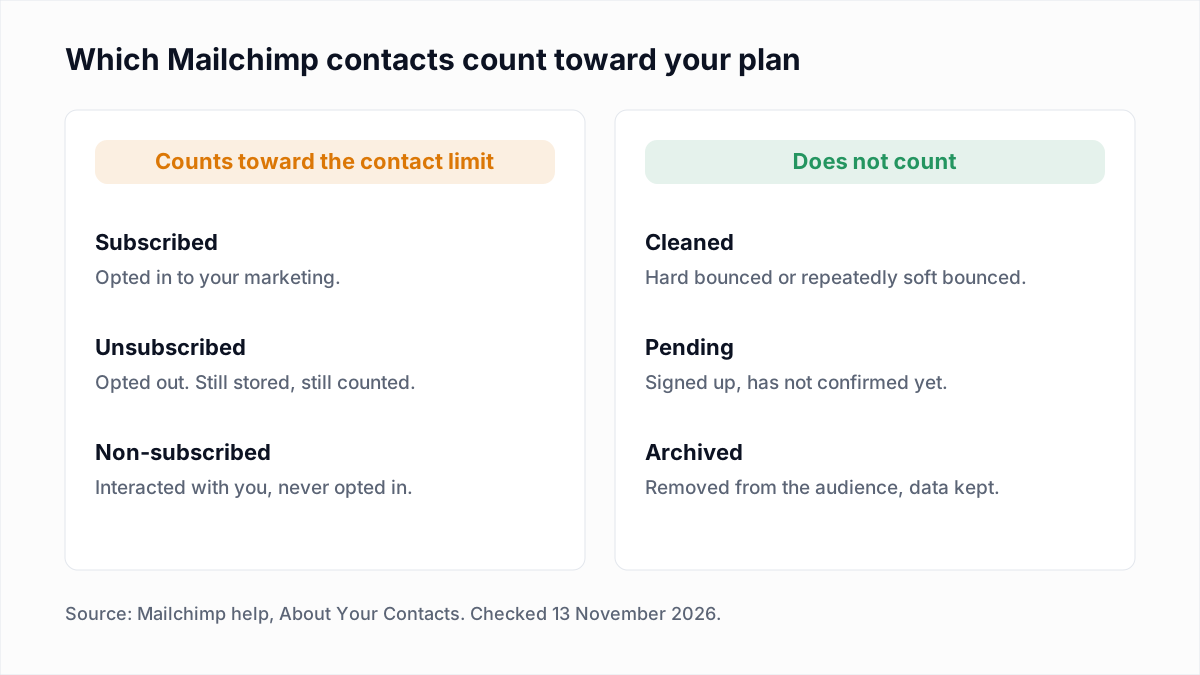
Two things follow. People who unsubscribed years ago are still part of the number you pay for until you archive them. And cleaned contacts cost nothing: the About Cleaned Contacts article confirms that "Mailchimp doesn't charge for cleaned addresses", so there is no billing reason to delete them.
Archiving also does not refund the current month. Mailchimp's Archive Inactive Contacts article says archiving "won't immediately reduce your current bill" but "can help lower your costs in future billing periods". Clean before a billing period starts.
Should you archive, unsubscribe or delete contacts in Mailchimp?
Archive contacts in Mailchimp in almost every cleaning case, because archiving stops the sends, removes the contact from billing, keeps the data and can be undone. Unsubscribing keeps the contact on your bill, and deleting cannot be reversed.
| Action | Counts toward billing? | Reversible? | Use it for |
|---|---|---|---|
| Archive | No. "Archived contacts don't count toward your billing tier." | Yes. An unarchived contact returns with its most recent subscription status. | Undeliverable addresses, inactive subscribers, old unsubscribes |
| Unsubscribe | Yes. Unsubscribed contacts count toward the contact limit. | Partly. You can resubscribe a contact you unsubscribed yourself; a person who unsubscribed themselves has to sign up again. | People who asked you directly to stop emailing them |
| Delete | No, the contact is gone. | No. "This action cannot be undone", and the contact can only return through your hosted Mailchimp signup form. | Privacy-law erasure requests only |
The quotes are from Mailchimp's Archive or Unarchive Your Contacts, Unsubscribe People from Your Marketing and Delete Contacts articles. The Delete Contacts article is direct about the last row: "Delete contacts for General Data Protection Regulation (GDPR) purposes only." The reverse also holds. The archive article warns that "archiving is not a legal substitute for deletion", so an erasure request needs a real delete.
How do you clean a Mailchimp audience step by step?
Cleaning a Mailchimp audience takes four moves: export the audience, verify the file outside Mailchimp, import the results back as tags, and archive the addresses that came back undeliverable. Nothing in your account changes until the import.
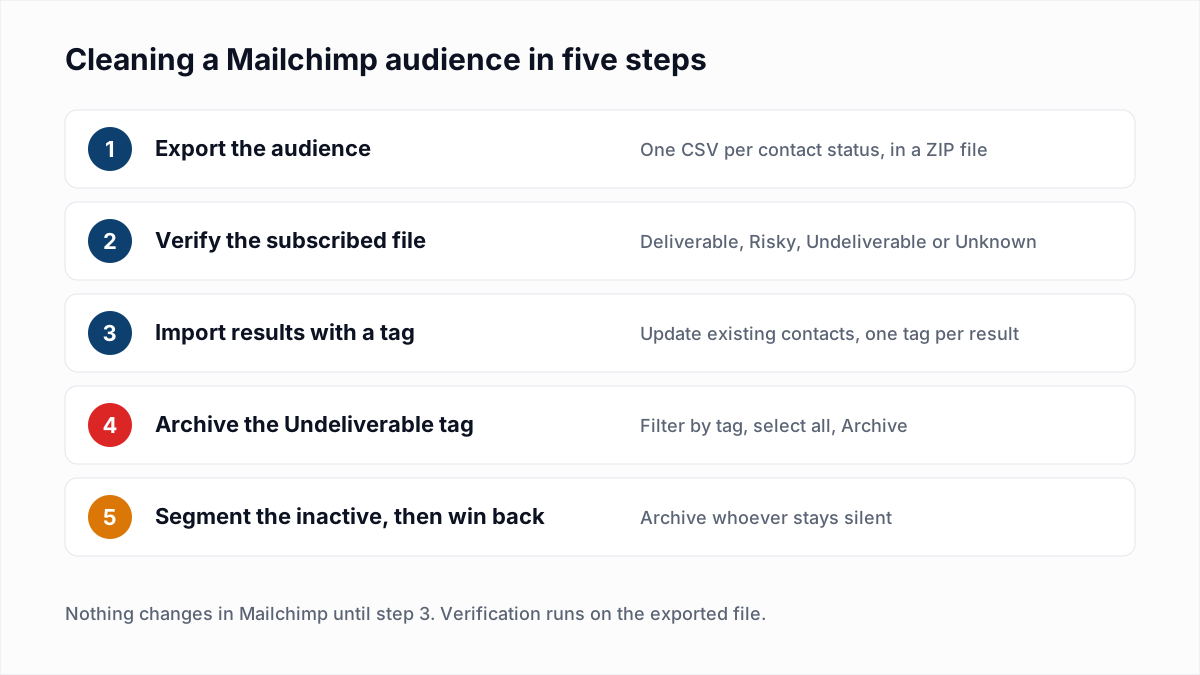
- Export the audience. Following Mailchimp's View or Export Contacts article: click Audience, pick the audience if you have more than one, click Export audience, then Export CSV in the pop-up. Mailchimp emails you when the file is ready. A full export can arrive as a ZIP with a separate CSV for subscribed, unsubscribed, non-subscribed and cleaned contacts. Keep the ZIP as your backup.
- Verify the subscribed file. Only the subscribed CSV needs checking: the cleaned file is already known to be dead and the unsubscribed file must not be mailed. Upload it to a verifier such as the InboxSure bulk email verifier. InboxSure checks syntax, DNS and MX records and the mailbox itself over SMTP without sending an email, and returns a CSV with a result for each address. The Pro plan takes lists of up to 10,000 addresses each, so split a larger audience into several files.
- Split the results into one file per result. In a spreadsheet, filter the result column and save a file for Undeliverable, one for Risky and one for Unknown. Keep only the email column in each file. Mailchimp's import article warns that "blank fields overwrite and erase existing email contact data", so a file with nothing but addresses has nothing to overwrite.
- Import each file with a tag. Following Mailchimp's Import Contacts to Mailchimp article: click Audience, open the Add contacts drop-down, choose Import contacts, then Upload a file. After selecting the file, check Update any existing contacts, click Continue to tag and create a tag such as
verify-undeliverable-2026-11. Continue through the match and subscribe screens and finish with Complete Import. The same article states that "imports won't update the marketing status of email contacts already in your Mailchimp account", so the import adds the tag and changes nothing else. - Archive the undeliverable tag. In the contact table, use the Filter by tags drop-down described in Mailchimp's Getting Started with Tags article to show only that tag. Select all, click Archive, type ARCHIVE in the pop-up and confirm, as the archive article describes.
What should you do with each verification result in Mailchimp?
Each verification result maps to one Mailchimp action: keep Deliverable contacts, archive Undeliverable ones, tag Risky ones and leave Unknown ones alone until a re-check. The four results are explained in email verification vs validation.
| InboxSure result | What it means | What to do in Mailchimp |
|---|---|---|
| Deliverable | The mail server confirmed the mailbox exists. | Keep subscribed. No import needed. |
| Undeliverable | The mailbox does not exist, the domain has no MX record, the syntax is bad or the domain is disposable. | Tag and archive before the next campaign. Do not wait for Mailchimp to clean it with a bounce. |
| Risky (catch-all) | The domain accepts every address, so the mailbox cannot be confirmed. | Tag and keep. If these contacts opted in and have engaged, keep sending. If they have never opened, move them into the inactive segment below. |
| Risky (role account) | A shared mailbox such as info@ or sales@. | Tag and keep if the address signed up itself. Watch complaints, since several people read one inbox. |
| Unknown | The server would not give a clear answer. | Tag and keep subscribed. Verify again in a few days. Do not archive on an Unknown. |
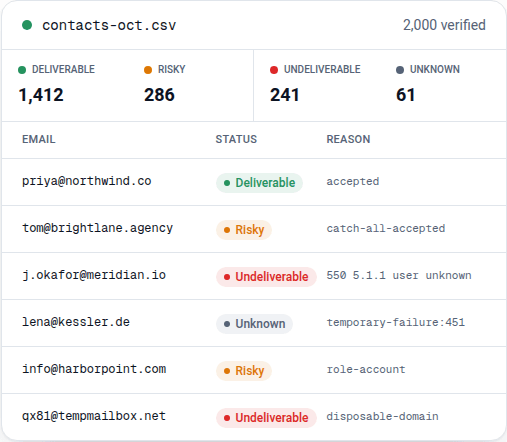
Expect a large Unknown group on a consumer audience. In InboxSure's own tests on 4 November 2026, Yahoo, AOL, Outlook.com and Hotmail refused the check before the mailbox could be tested, so those addresses come back Unknown today (the full results are here). For those providers, engagement is the better signal: a Yahoo address that clicked last month is alive. Catch-all handling is covered in is it safe to send to catch-all emails. A Deliverable result also has a limit: it says the mailbox exists, not that the person wants your email, and no mailbox check can detect a spam trap.
How do you find and remove inactive subscribers in Mailchimp?
Inactive subscribers in Mailchimp are found with a segment that combines Email subscription status is one of Subscribed with a Campaign interaction filter such as did not click all emails within the last 3 months. Mailchimp's Identify Inactive Subscribers article gives the steps:
- Click Audience, then Segments, then Create segment.
- Add the filter Email subscription status, is one of, Subscribed.
- Click + Add filter and choose Campaign interaction. Pick did not open or did not click, then a window. The options Mailchimp lists include "all of the last 5 emails" and "all emails within the last 3 months".
- Add Email Date added, is before, and a date ahead of your recent sends, so new subscribers who have not yet received anything are left out.
- Click Review segment, name it, then Use segment.
The same article offers a shortcut: Contact rating is 1 star. Prefer "did not click" over "did not open" where you can, because Apple Mail records opens that no person made (see Apple Mail Privacy Protection).
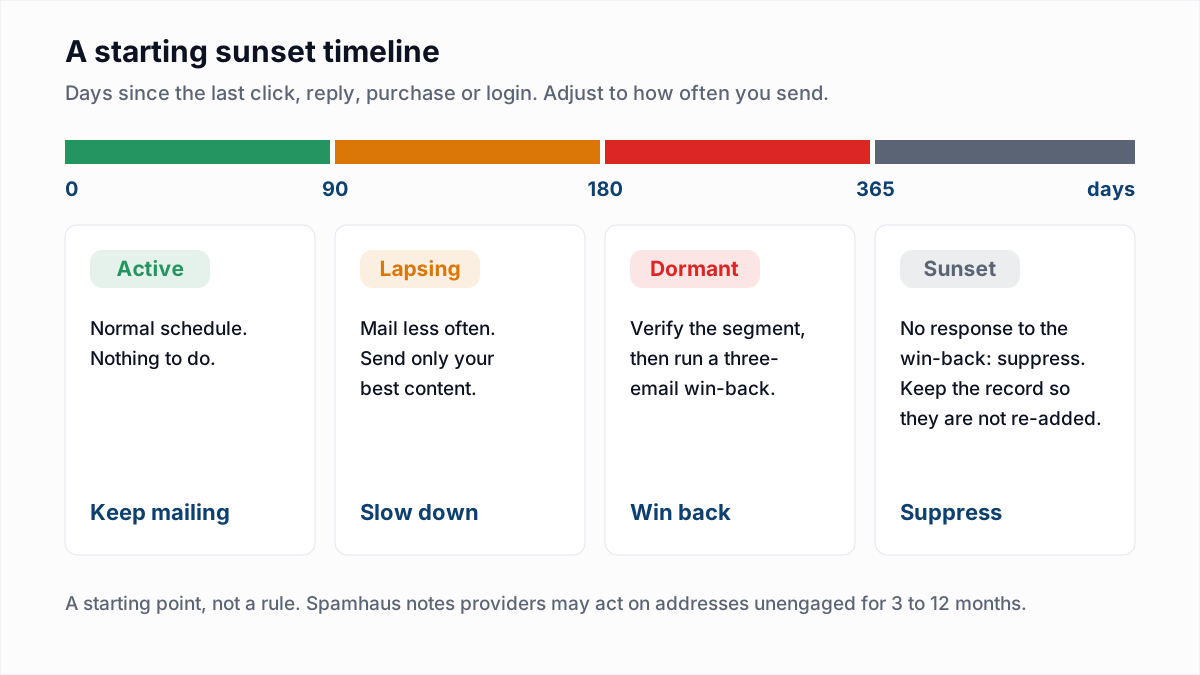
Do not archive the segment straight away. Mailchimp's Archive Inactive Contacts article suggests a re-engagement campaign first, then archiving the people who still do not respond. How long to wait, what the win-back emails should say and why opens are a weak signal are all covered in our email sunset policy guide. Verify the segment before the win-back, since it is the oldest part of your audience and holds the most dead addresses.
Can you re-add a cleaned address in Mailchimp?
A cleaned address in Mailchimp cannot be edited or brought back by import. The import article says Mailchimp "won't include any duplicate, bounced, or unsubscribed addresses that are already stored in the audience", and the update option works only on subscribed or non-subscribed contacts.
If the bounce was caused by a typo, the About Cleaned Contacts article says to add the corrected address as a new contact, "because cleaned contact information can't be edited". The help articles we checked do not describe a way for an account owner to flip a cleaned address back to subscribed, so if you are sure an address is valid, ask Mailchimp support. Two cautions:
- Keep cleaned contacts. Mailchimp says they "can be deleted, but we recommend that you archive them". The cleaned record is what stops the address being imported and mailed again.
- Audiences do not share bounce history. The import article says Mailchimp "can't detect duplicates, bounces, or unsubscribes across multiple audiences". An address cleaned in one audience will be mailed again if you import it into another.
Does Mailchimp publish bounce and complaint thresholds?
Mailchimp does not publish a numeric bounce or complaint limit in its help articles, as of November 2026. The articles say thresholds exist and describe what happens when you cross them, without giving a percentage.
- About Abuse Complaints: "Once abuse complaints exceed our threshold you will receive a warning notice." It adds that "account suspensions are automatic system actions triggered when a single send exceeds industry thresholds."
- About Suspension: "Most of the time, we'll issue a warning before we suspend an account."
- About Bounces: high bounce rates "could prompt a warning or suspension on your account". The article notes that mailbox providers do not publish their own limits either.
The published numbers that do exist come from mailbox providers, and they are covered in spam complaint rate and how to reduce your email bounce rate. Because the trigger is a single send, verify before the first campaign to an old or freshly imported audience.
Keep the audience clean
For an opt-in newsletter, a quarterly or twice-yearly pass is enough; the schedule by list type is in how often to clean your email list. Double opt-in keeps bad addresses from getting in at all. For the DNS side, see authenticating your domain in Mailchimp.
InboxSure is a flat price, so repeat passes cost nothing extra: the Free plan verifies lists of up to 50 addresses with no card, and Pro is $49 a month for any number of lists of up to 10,000 addresses each, with no credits. The export and import steps are summarised on the Mailchimp integration page. There is no native sync: you export a CSV, verify it, and import the results as shown above.
Frequently asked questions
Related reading
Ready to clean your email list?
Upload a CSV or XLSX and get every address marked deliverable, risky, undeliverable or unknown, with the reason. Free for lists of up to 50, no card. Nothing is sent to your contacts.