How to Authenticate Your Domain in Mailchimp (DKIM and DMARC)
Mailchimp domain authentication is the process of publishing DNS records that let Mailchimp sign your campaigns with your own domain instead of one of its own. As of November 2026 the whole job is three records: two CNAME records for DKIM and one TXT record for DMARC. There is no SPF record in Mailchimp's instructions, and this guide explains why that is not an oversight.
Every menu path and record name below comes from Mailchimp's own help articles, read on 13 November 2026 and linked where they are used. The theory is covered in SPF, DKIM and DMARC explained; this post is the Mailchimp-specific setup.
Why does Mailchimp ask you to authenticate your domain?
Mailchimp asks you to authenticate your domain because Gmail and Yahoo require it. Its About Email Domain Authentication article says both providers require custom authentication, plus a published DMARC record for anyone sending more than 5,000 emails to Gmail or Yahoo addresses in a 24-hour period.
That matches the providers' own pages. Google's email sender guidelines require senders of more than 5,000 messages a day to Gmail accounts to set up SPF, DKIM and DMARC, and say the domain in the From header "must be aligned with either the SPF domain or the DKIM domain". Yahoo's sender best practices ask bulk senders for "a valid DMARC policy with at least p=none" and add that DMARC must pass. Yahoo does not publish a number for "bulk". The full list is in Gmail, Yahoo and Outlook sender requirements.
What happens if you do not authenticate your domain in Mailchimp?
Mailchimp still sends campaigns from an unauthenticated domain, but its help center warns that "you may experience delivery issues". Mailchimp's articles describe two visible effects, and they depend on the kind of From address you use.
| Your From address | What Mailchimp's help says happens |
|---|---|
| Your own domain, not authenticated | Some email clients show "via" or "on behalf of" a Mailchimp domain next to your name. The domain usually contains mcsv.net, mcdlv.net, mailchimpapp.net or rsgsv.net (source). |
| A free address such as Gmail or Yahoo | Mailchimp rewrites the From address onto send.mailchimpapp.com or mail.mailchimpapp.com. Its example turns thepottedplanter@yahoo.com into thepottedplanter.yahoo.com@send.mailchimpapp.com. Free addresses cannot be authenticated at all (source). |
| Your own domain, authenticated | The email appears to come from your own servers in most clients. Mailchimp notes that Outlook may still display authentication information. |
Mailchimp's pages do not spell out the DMARC consequence, so here it is. An unauthenticated campaign is signed for a Mailchimp domain, not yours. If your domain publishes DMARC at p=quarantine or p=reject, that mail fails DMARC and is filtered or refused. The mechanics are in why DMARC fails when SPF and DKIM pass.
How do you verify a domain in Mailchimp?
You verify a domain in Mailchimp by having it email a link or code to an address at that domain. Verification proves you can receive mail there; it is a separate step that must come before authentication. These steps follow Mailchimp's Verify an Email Domain article.
- Click your profile icon and choose Account & billing.
- Click Domains.
- In the Email Domains section, click Add & Verify Domain.
- Enter an email address at the domain and click Send Verification Email.
- Open the email and click Verify Domain Access, or type the code into the pop-up and click Verify.
The link and code expire after seven days. Mailchimp says a subdomain must be verified separately from the main domain, so decide first whether campaigns will come from example.com or something like news.example.com. Our guide to email sending subdomains covers that choice.
How do you set up DKIM and DMARC in Mailchimp?
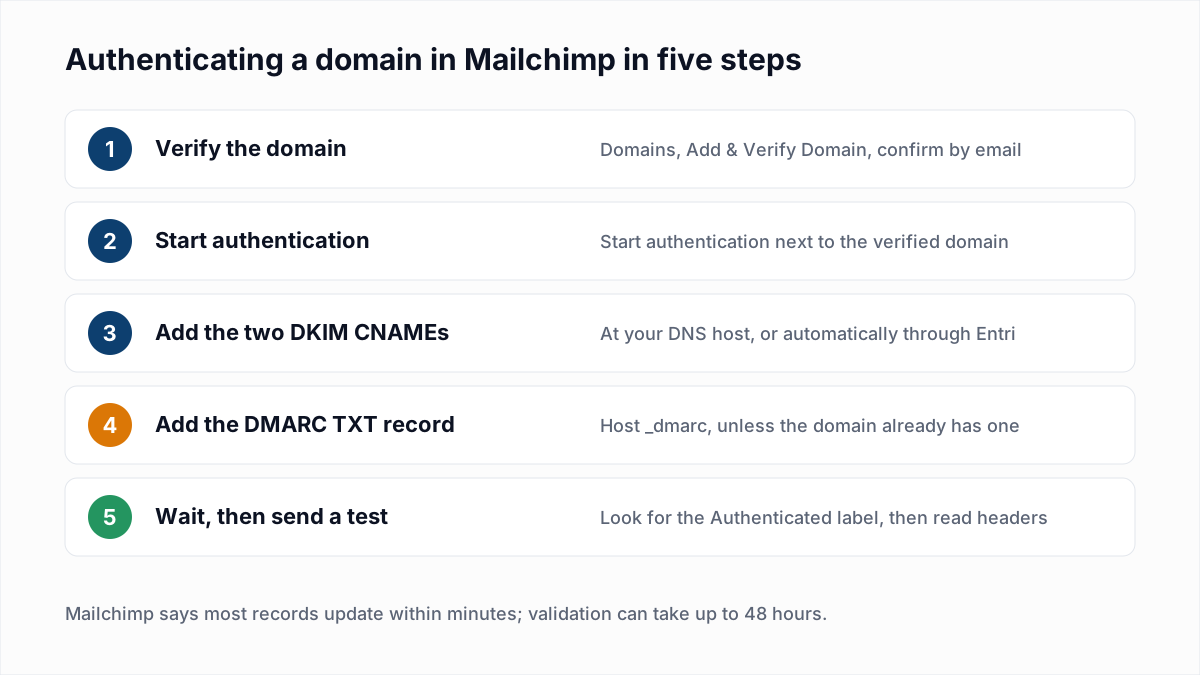
You set up DKIM and DMARC in Mailchimp from the Domains tab, by clicking Start authentication next to a verified domain and publishing the three records it shows. The steps are from Mailchimp's Set Up Email Domain Authentication article.
- Click your profile icon, choose Account & billing, then the Domains tab.
- Click Start authentication next to the verified domain.
- Choose the automatic route or the manual one. The automatic route uses a service called Entri: you log in to your DNS provider and it creates the records. For the manual route, click Or manually authenticate your domain, pick your provider (or Other) and click Next.
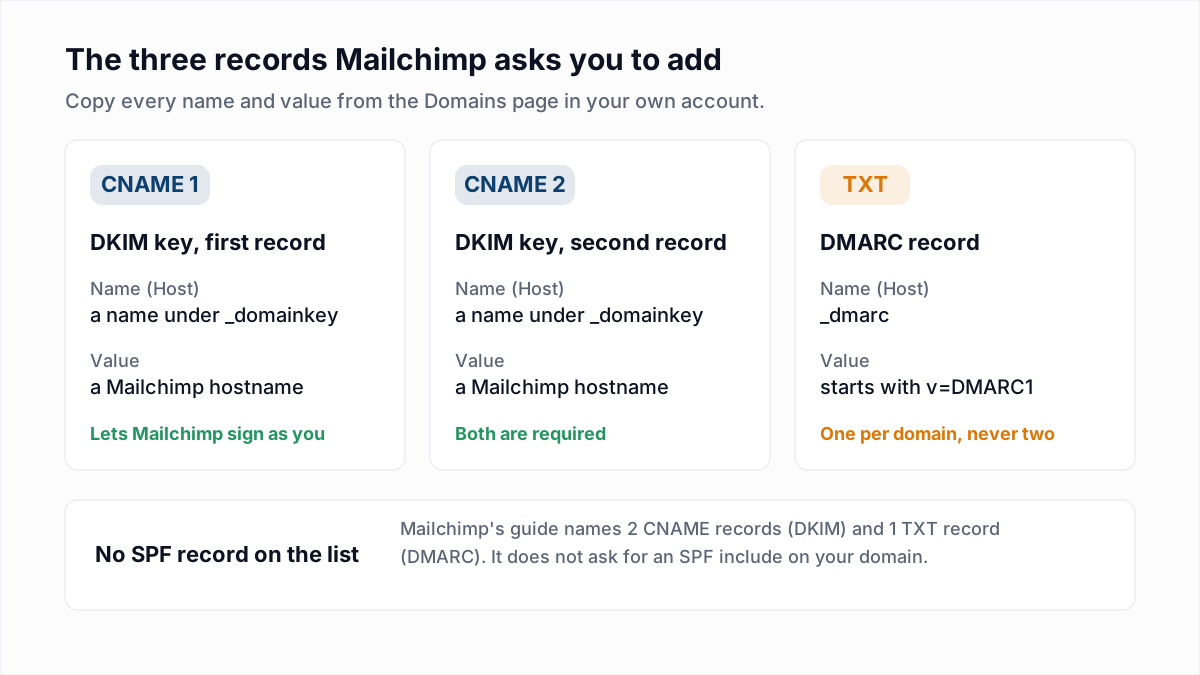
- At your DNS provider, create two CNAME records. Copy the Name (Host) and Value for CNAME 1 and CNAME 2 exactly as Mailchimp shows them. Go back to Mailchimp and click Next.
- Create one TXT record with the host
_dmarcand the value Mailchimp shows. Go back and click Next. - Wait for Mailchimp to validate the records.
What are the record names?
Mailchimp's article does not print the record names or values in its text, so copy them from your account. The only name the article shows is in its troubleshooting example, k2._domainkey. A record with that shape looks like this at a DNS host:
Type:   CNAME
Name:   k2._domainkey          (the host appends .example.com)
Value:  <the hostname Mailchimp shows for CNAME 1>
The first label, k2 here, is the DKIM selector. A CNAME is used so the public key stays on Mailchimp's side; our DKIM guide explains selectors and keys.
What if the domain already has a DMARC record?
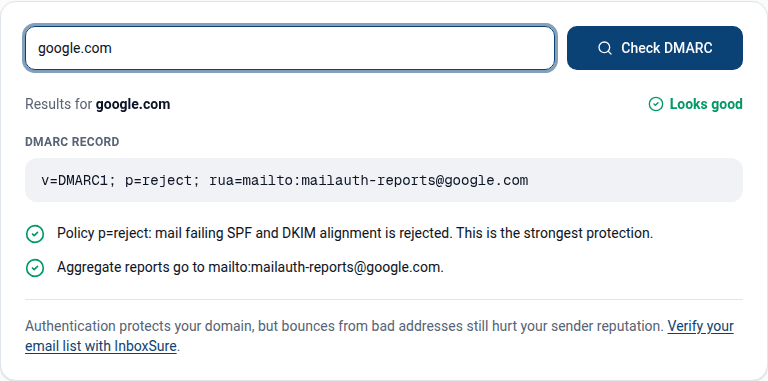
A domain can have only one DMARC record, so do not add a second TXT record at _dmarc. Mailchimp's article does not cover this case. The DNS rule is general: two records at _dmarc make receivers ignore both. Keep the record you have, confirm it with the free DMARC checker, and build a new one with the DMARC generator only if none exists. Policy choice is covered in DMARC p=none, quarantine and reject.
Does Mailchimp need an SPF record?
No, Mailchimp's setup guide does not ask for an SPF record or an SPF include on your domain. Its authentication articles name exactly "2 CNAME records (for DKIM) and 1 TXT record (for DMARC)", and neither article mentions SPF in its instructions.
The reason is where SPF looks. SPF is checked against the envelope sender, the address that ends up in the Return-Path, not against the From address your readers see. Mailchimp's article on mcsv.net says the sender address, "also called the Envelope From Address", is based on Mailchimp's sending servers. So receivers look up SPF on a Mailchimp domain, which Mailchimp maintains. A Mailchimp include in the SPF record of example.com would never be consulted for campaign mail.
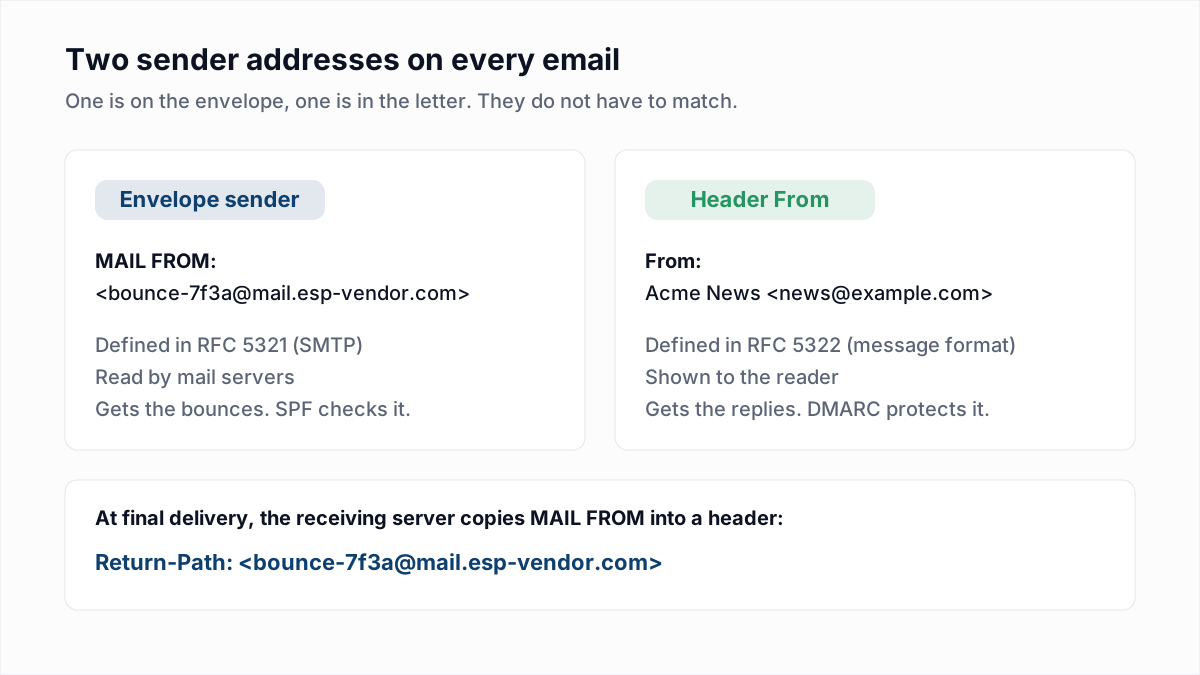
The honest consequence: SPF passes, but for Mailchimp's domain, so it is not aligned with your From domain and does not count toward DMARC. Your DMARC pass comes from DKIM alone. That satisfies Google's rule, which accepts alignment with either the SPF domain or the DKIM domain. It also means there is no second aligned pass to fall back on if a signature breaks in transit, which mostly matters for forwarded mail. On 13 November 2026 we found no Mailchimp Marketing help article describing a custom Return-Path domain. Many older tutorials tell you to add a Mailchimp include to your SPF record; Mailchimp's current guide does not, and each needless include spends one of SPF's 10 DNS lookups. If your SPF record already has one, see what an SPF record is before editing it.
How long does Mailchimp domain authentication take?
Mailchimp domain authentication usually completes within minutes and can take up to 48 hours. Mailchimp's setup article says most records update within a few minutes, that validation can take up to 48 hours, and that it emails you when validation finishes. While you wait, the Domains page shows "Authentication in progress". When it works, an "Authenticated" label appears next to the domain. If it fails, Mailchimp prompts you to Resolve or Restart authentication.
How do you check that Mailchimp authentication works?
You check Mailchimp authentication by sending a test campaign to a mailbox you control and reading its Authentication-Results header. Open the raw message (how to read email headers) or paste it into the email header analyzer. A working setup has this shape:
Authentication-Results: mx.google.com;
  dkim=pass header.i=@example.com header.s=<selector>;
  spf=pass smtp.mailfrom=<an address at a Mailchimp domain>;
dmarc=pass header.from=example.com- dkim=pass with your domain. A pass for a Mailchimp domain only means the new records are not in use yet.
- spf=pass for a Mailchimp domain. Expected, as explained above.
- dmarc=pass. The DKIM pass is aligned with
header.from.
You can also look up the key directly: enter your domain and the selector from the CNAME name in the DKIM checker.
Why is Mailchimp domain authentication not working?
Mailchimp domain authentication usually stalls because of how the CNAME name was typed at the DNS host. The first three rows below are from Mailchimp's setup article; the rest follow from the checks above.
| What you see | Likely cause | What to do |
|---|---|---|
| CNAME does not validate; a lookup shows the domain twice | The DNS host appended your domain to a name that already contained it, giving k2._domainkey.example.com.example.com | Enter only k2._domainkey in the Name field |
| Records look correct but the page still says Authentication in progress | DNS changes have not reached Mailchimp yet | Wait up to 48 hours, then contact your DNS provider |
| You need to change the CNAME records after authenticating | Editing live records can interfere with what Mailchimp has stored | Disable authentication on the Domains page, make the change, authenticate again |
| Gmail still shows "via" a Mailchimp domain | The campaign's From address is on a domain that is not authenticated | Check the From domain matches the authenticated one, subdomain included |
| The DMARC checker reports two records | Mailchimp's TXT record was added next to an existing one | Delete one so a single record remains at _dmarc |
| dkim=pass for your domain but mail lands in spam | Authentication is not the problem | Look at complaints, engagement and domain reputation |
What authentication does not fix
Authentication proves the mail is yours. It says nothing about whether the addresses on your audience still exist. Hard bounces and complaints still count against the domain you just authenticated, and now they count against it by name.
That part is list quality. InboxSure checks each address for syntax, MX records and whether the mailbox answers, without sending anything, and returns Deliverable, Risky, Undeliverable or Unknown. It has no native Mailchimp sync: you export a CSV, verify it and re-import, as described in how to clean a Mailchimp list and on the Mailchimp integration page. It cannot reliably check Yahoo, AOL or Outlook.com consumer addresses today; those come back Unknown. The Free plan covers lists of up to 50 addresses, and Pro is a flat $49 a month for lists of up to 10,000. Start with the bulk email verifier.
Frequently asked questions
Related reading
Ready to clean your email list?
Upload a CSV or XLSX and get every address marked deliverable, risky, undeliverable or unknown, with the reason. Free for lists of up to 50, no card. Nothing is sent to your contacts.