Gmail Promotions Tab: Why Emails Land There and What to Do
Most advice about the Promotions tab assumes it is a penalty. Google does not describe it that way, and Google's documentation for senders is about making mail look better inside the tab, not about leaving it. This guide separates what Google has said in writing, what practitioners have observed without confirmation, and what is myth.
One scope note first. Tabs appear only when a Gmail user has the "Default" inbox type switched on. People who use another inbox type do not see them.
What is the Gmail Promotions tab?
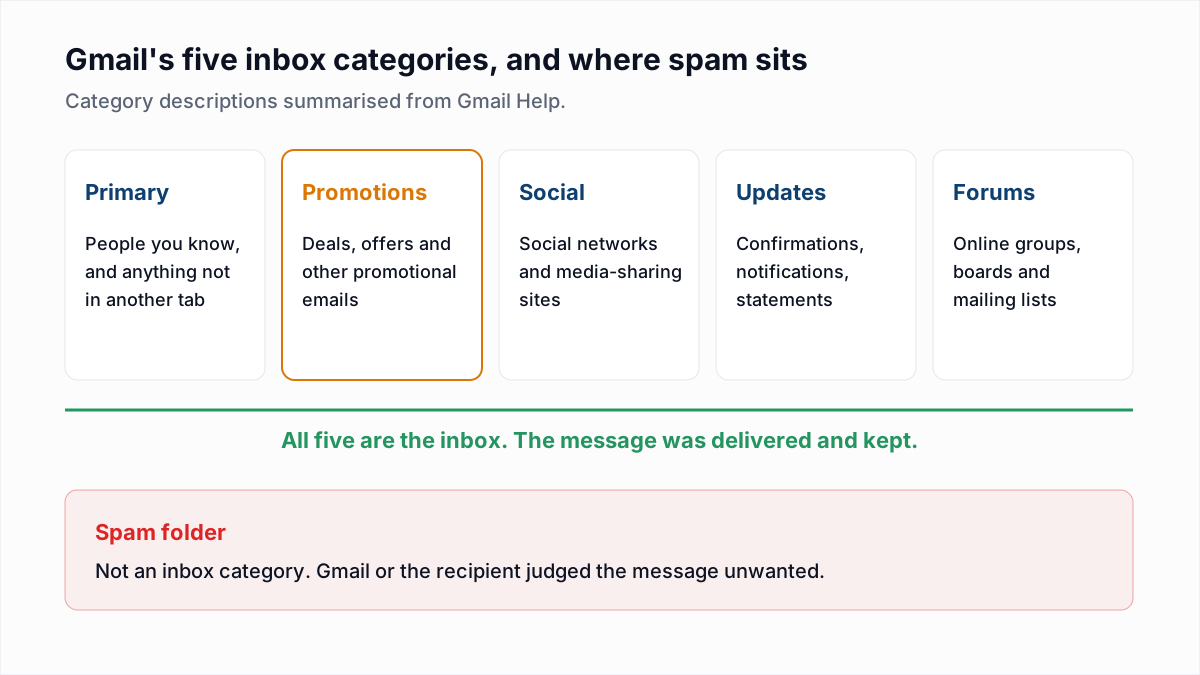
The Gmail Promotions tab is one of five inbox categories that Gmail uses to sort incoming mail automatically, and it holds what Gmail Help calls "deals, offers, and other promotional emails". The categories are listed on Google's Organize your emails into categories help page.
| Category | What Gmail Help says it contains |
|---|---|
| Primary | "Emails from people you know and messages that don't appear in other tabs." |
| Promotions | "Deals, offers, and other promotional emails." |
| Social | "Messages from social networks and media-sharing sites." |
| Updates | "Automated confirmations, notifications, statements, and reminders that may not need immediate attention." |
| Forums | "Messages from online groups, discussion boards, and mailing lists." |
Users choose which of these tabs are shown. The same page says "You can't create your own categories."
Is the Promotions tab spam?
No, the Gmail Promotions tab is not spam: it is a category inside the inbox, and a message filed there was accepted and kept by Gmail. The spam folder is separate, and it is where Gmail puts mail it judged unwanted.
| Promotions tab | Spam folder | |
|---|---|---|
| Part of the inbox | Yes. Gmail Help lists it as an inbox category | No |
| What the placement means | Gmail classed the message as a promotional email | Gmail or the recipient classed the message as unwanted |
| New mail notification | No. Gmail Help says "you only get notifications about messages in the 'Primary' category" | No |
| What a sender should do | Usually nothing, if the email is marketing | Fix authentication, reputation and list quality |
The one real cost of Promotions is in that table: no notification. How placement differs from delivery in general is covered in email delivery rate vs deliverability.
How does Gmail decide what goes to Promotions?
Gmail sorts mail into Promotions automatically with a classifier, and Google has not published the signals the classifier uses. What Google has said in writing, as of November 2026, comes to four statements.
- Sorting is automatic and by type of mail. Gmail Help says that with the Default inbox type, "Gmail automatically sorts your emails" into the five categories described above.
- The recipient can teach it. Of moving an email to another category, the same page says "Over time, this helps Gmail learn your preferences and sort your email more accurately."
- The sending subdomain plays a part. Google's developer troubleshooting page for Promotions annotations says "Sending from less recognized subdomains can confuse the Gmail tab classifier".
- Annotation markup does not. Google's annotations FAQ says "The annotation has no effect on the Gmail tab classifier."
Google's email sender guidelines do not mention tabs at all. They do say "Don't mix different types of content in the same message", with promotions inside sales receipts as the example, and that "Messages of the same category should have the same From: email address".
Practitioner observations, not confirmed by Google
Email marketers report the following from their own tests. Google has confirmed none of it, and we have not tested it ourselves.
- Mail sent through bulk marketing platforms tends to be filed in Promotions.
- Designed HTML templates with several images, buttons and many links tend to be filed in Promotions more often than plain messages.
- Offer language such as prices, discounts and coupon codes points the same way.
- A recipient who has replied to a sender, or added the address to contacts, is more likely to see that sender in Primary.
How do I move an email from Promotions to Primary?
To move an email from Promotions to Primary in Gmail on a computer, drag the email from the Promotions tab and drop it on the Primary tab. Only the recipient can do this; a sender cannot do it for them. Gmail Help gives the steps:
- Open Gmail on a computer and click the Promotions tab.
- Drag the email and drop it on the Primary tab.
- Look at the bottom left for the confirmation message. Click Undo there if you moved the wrong email.
- If the notification asks whether to do this for future messages from the sender, click Yes.
- For a fixed rule, create a filter for the sender's address. Gmail Help says a filter can direct a sender's email to a specific category. The steps for each mail app are in how to whitelist an email address.
A caution on step 4. The "do this for future messages" prompt is widely described in third-party guides, but the Gmail Help page we read on 13 November 2026 mentions only the confirmation message and Undo. Treat the prompt as something you may or may not be shown.
To hide the tab altogether, open Settings, find Inbox type in Quick settings, choose Default, click Customize, untick Promotions and save. Because Primary holds "messages that don't appear in other tabs", promotional mail then arrives there.
How can senders avoid the Promotions tab?
Senders cannot reliably keep marketing email out of the Gmail Promotions tab, because the decision is made by Gmail's classifier and by each recipient's own settings and behaviour. A few steps are reasonable. Most of the popular tricks are myths.
| Advice | Verdict | Why |
|---|---|---|
| Send receipts and account notices from a different From address than marketing | Reasonable | Google's sender guidelines ask for one From address per category of message and no mixed content |
| Ask new subscribers to drag your first email to Primary or reply to it | Reasonable | Gmail Help says moving mail teaches Gmail that person's preference. It works one recipient at a time |
| Send from a consistent, established subdomain | Reasonable | Google's troubleshooting page says less recognized subdomains can confuse the tab classifier |
| Remove the unsubscribe link or the List-Unsubscribe header | Harmful myth | Google requires one-click unsubscribe on marketing mail from bulk senders. Removing it leaves the spam button as the only way out |
| Avoid "trigger words" such as free or sale | Myth | No provider publishes a word list; see do spam trigger words still matter? |
| Add Promotions annotations to escape the tab | Myth | Google's FAQ says the annotation has no effect on the tab classifier |
| Strip a newsletter down to plain text with one link | Unproven | A practitioner observation only. It can change the tab for some recipients and it changes what the email can do for all of them |
The unsubscribe requirement is set out in Gmail, Yahoo and Outlook sender requirements, and the header itself in the List-Unsubscribe header explained.
What are Gmail annotations and deal cards?
Gmail annotations are optional markup in a marketing email that lets Gmail show a deal badge, a deal card, or product images for that email in the Promotions tab. They are documented at developers.google.com/workspace/gmail/promotab. The overview page shows a last-updated date of 11 September 2025, and the documentation was live and unchanged in scope when we checked it on 13 November 2026.
Google's documentation describes these features:
- Deal annotation. A badge next to the subject line that can show an offer, a discount code and an expiry date.
- Deal card. A summary card Gmail generates from the details you supply. Google says deal cards "can appear in the Promotions tab and within the email itself".
- Single image preview and product carousel. One image, or up to 10 product images, shown with the email in the tab.
The markup goes in the <head> of the email's HTML as JSON-LD or Microdata. A deal annotation uses the DiscountOffer type. This example uses the property names from Google's documentation with made-up values:
<script type="application/ld+json">
[{
  "@context": "http://schema.org/",
  "@type": "DiscountOffer",
  "description": "20% off",
  "discountCode": "SAVE20",
  "availabilityStarts": "2026-11-20T08:00:00-08:00",
  "availabilityEnds": "2026-11-30T23:59:59-08:00"
}]
</script>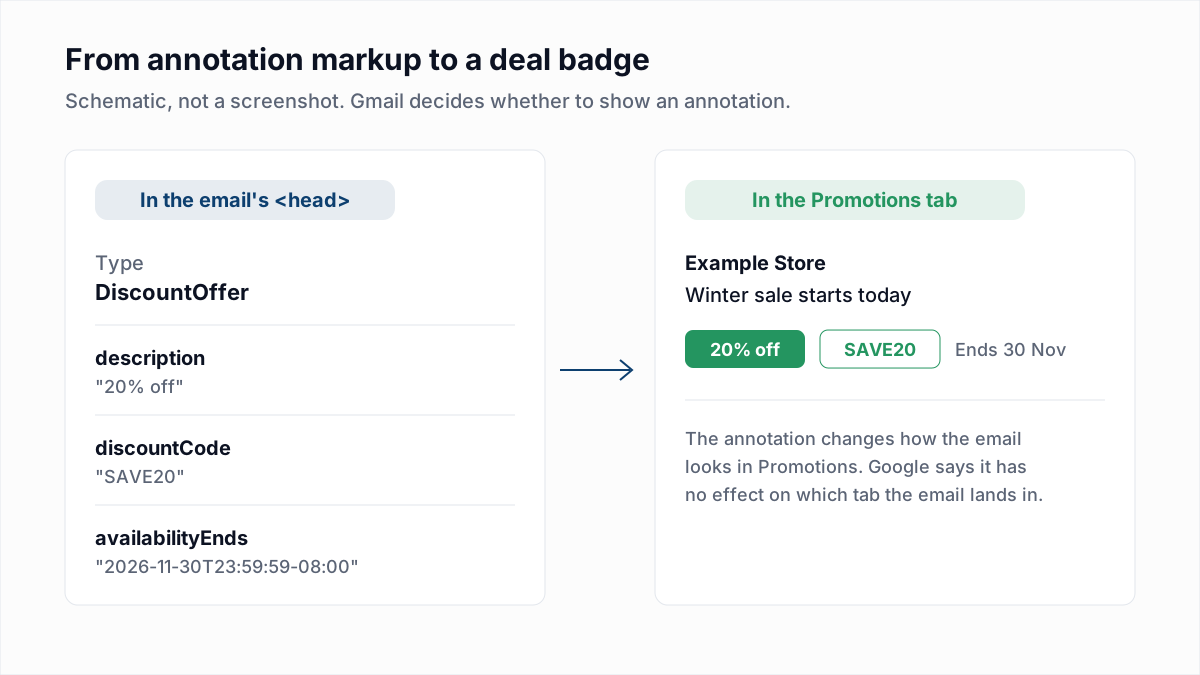
Four things to know before spending time on annotations:
- Display is not guaranteed. Google's documentation says "Your annotations might not be visible to all users who receive the email."
- Annotations are free. The FAQ says bundles and rich previews "are for organic email, so they're free".
- Annotations show in Promotions only. The FAQ says "The feature displays only in the Promotions tab." Google's documentation adds that it does not affect Google Workspace users.
- Expired dates count against you. Google's best practices say "Don't leave an expired date in the annotation, because Gmail treats it as an old offer".
Google also changed how the tab is ordered. In a Gmail blog post dated 11 September 2025, Google said users would be able to sort Promotions by "most relevant", favouring senders "you engage with the most", rolling out on mobile for personal Google accounts.
Should you try to get out of the Promotions tab?
For marketing email, trying to get out of the Gmail Promotions tab is usually not worth the effort, because Promotions is inbox placement and it is where recipients expect to find offers. That is our view, not a measured result, and here is the reasoning.
- People who open the Promotions tab are looking at offers by choice. A sales email among personal mail in Primary is easier to resent, and the spam button is one click away.
- The tactics that do shift the tab remove images, links and design, which are the parts of a marketing email that sell.
We are not quoting open rates by tab. Gmail does not publish them, and open tracking is unreliable anyway, as explained in Apple Mail Privacy Protection and open rates. Judge marketing mail by clicks and sales.
The exception is mail that is not promotional: receipts, password resets, account alerts and personal correspondence. If those are filed in Promotions, separate them from marketing by From address and content, as Google's guidelines ask.
Does cold email go to the Promotions tab?
Cold one-to-one email is rarely the Promotions tab's business: a plain message sent from an ordinary mailbox to one person looks like correspondence, and the realistic risk for cold email is the spam folder. That first half is a practitioner observation, not a Google statement.
Cold email drifts toward Promotions when it stops looking one-to-one: a designed template, many tracked links and the same text sent to thousands. If cold mail is missing from Primary, check the spam folder before the Promotions tab, then work through why cold emails go to spam.
To see which tab or folder a message reaches, send it to a Gmail account that has never interacted with you. That is a one-mailbox seed test, with the limits described in how to test email deliverability before you send.
What should you do about Promotions, by situation?
What to do about the Gmail Promotions tab depends on the kind of mail and on whether it is in Promotions or in spam.
| If you see | Do this |
|---|---|
| Your newsletter or offer is in Promotions | Leave it. Consider annotations, and measure clicks and sales |
| Receipts or password resets are in Promotions | Send them from a separate From address and remove promotional content from them |
| A sender you want to read is in Promotions in your own Gmail | Drag one of their emails to Primary, or create a filter |
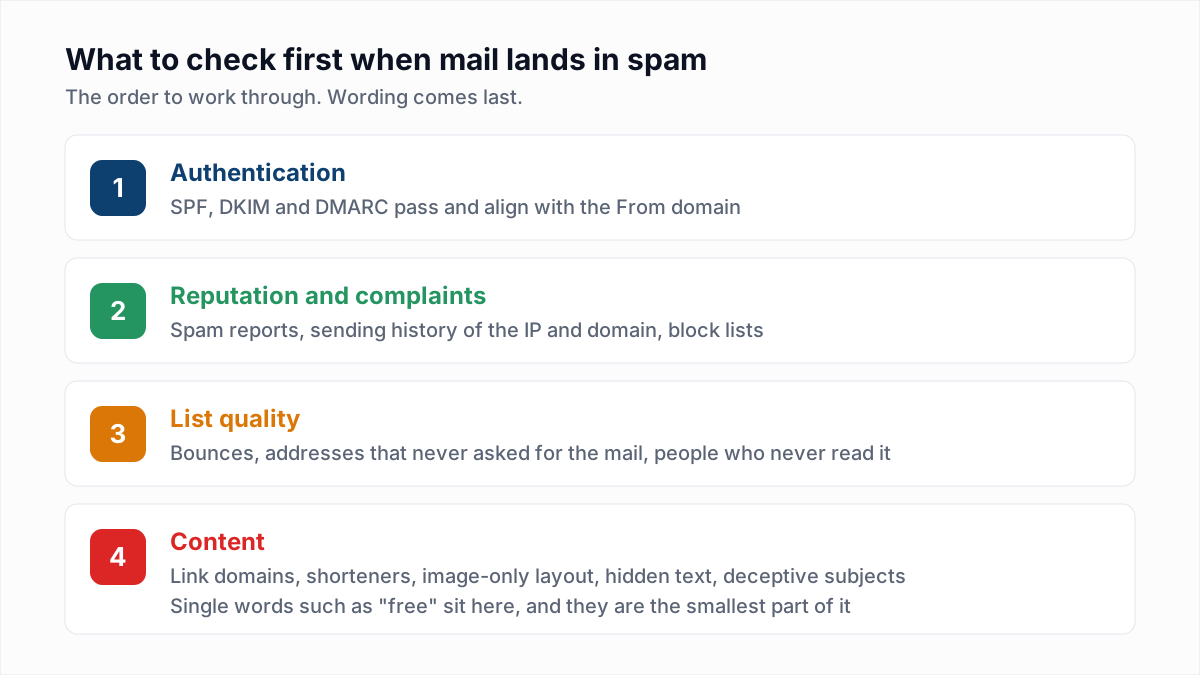
| Your email is in the spam folder | Treat it as a deliverability problem: check SPF, DKIM and DMARC, then complaints, then list quality |
| Your email bounced | The address or your sending setup is the problem, not a tab. Read the code in email bounce codes |
Where InboxSure fits, and where it does not
InboxSure has no effect on which Gmail tab an email lands in, and it does not test inbox placement. InboxSure verifies that the addresses on a list exist, which lowers bounces. That matters one step earlier than tabs: a message has to be accepted before Gmail chooses a tab for it.
Before a campaign to a list you have not mailed recently, run it through the bulk email verifier. The Free plan checks lists of up to 50 addresses with no card. Then let the marketing mail land in Promotions.
Frequently asked questions
Related reading
Ready to clean your email list?
Upload a CSV or XLSX and get every address marked deliverable, risky, undeliverable or unknown, with the reason. Free for lists of up to 50, no card. Nothing is sent to your contacts.