How to Test Email Deliverability Before You Send
To test email deliverability before you send, check six things in order: that SPF, DKIM and DMARC pass on a real test message, that the sending IP has reverse DNS and is not on a block list, that the message does not trip a rule-based spam filter, where a copy lands in a few mailboxes you control, what real recipients' providers reported about your last sends, and whether the addresses on the list exist. No single test covers all six, and no test can promise the inbox. Each one rules out a specific cause. For a longer list, see the email deliverability checklist.
One thing up front: InboxSure does not offer inbox placement testing or spam scoring. We verify email addresses, which is the last of the six layers. Everything else here uses free methods, your own mailboxes and the providers' own tools.
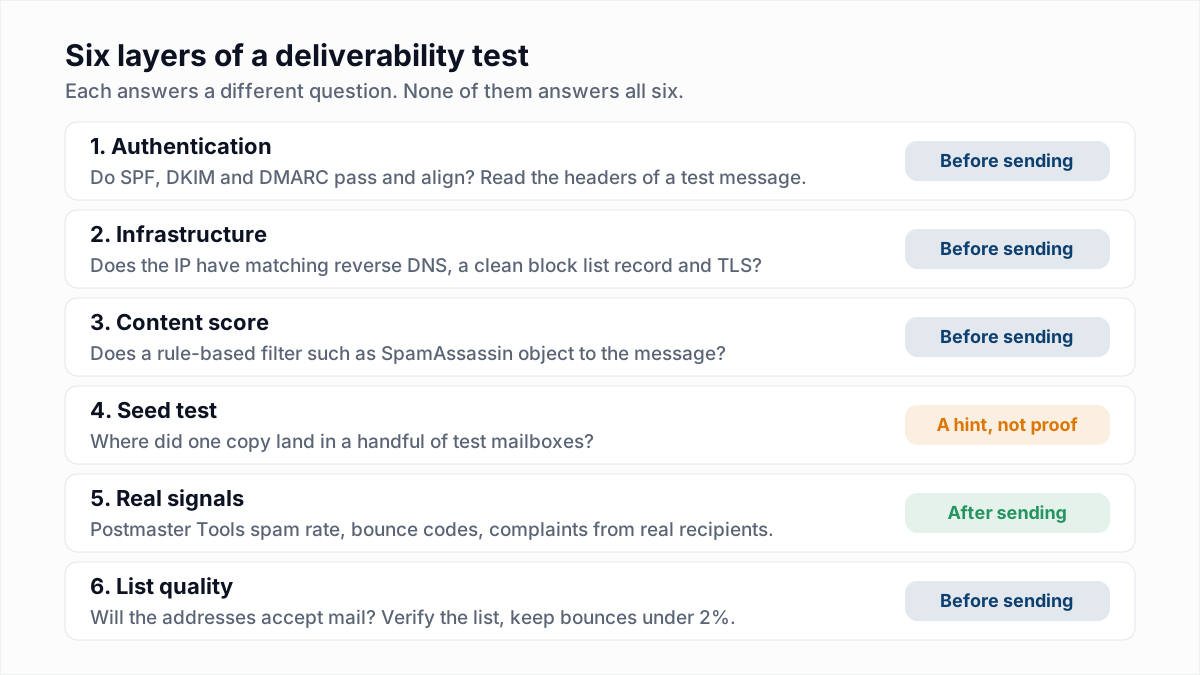
What an email deliverability test can tell you
Delivery and deliverability are different things. A message is delivered when the receiving server accepts it with a 250 reply. Deliverability is about what happens next: inbox, a tab (see the Gmail Promotions tab), or the spam folder. That decision is made per recipient, by a filter whose rules are not published, using history you cannot see from outside. So a pre-send test is a set of checks on the inputs you control, plus a look at the signals providers do share. Treat anything that claims to predict inbox placement as an estimate.
1. Test authentication: SPF, DKIM and DMARC
This is the test with a clear pass or fail, and the one to run first. Send the real campaign message, from the real sending tool, to a Gmail address you own. Then, following Google's instructions, open the message, click More next to Reply, and choose Show original. Gmail shows a summary with SPF, DKIM and DMARC lines at the top, and the raw header below. The line to read is Authentication-Results:
Authentication-Results: mx.google.com;
   dkim=pass header.i=@example.com header.s=s1;
   spf=pass (google.com: domain of bounce@mail.example.com
     designates 203.0.113.10 as permitted sender)
     smtp.mailfrom=bounce@mail.example.com;
   dmarc=pass (p=QUARANTINE sp=QUARANTINE dis=NONE)
     header.from=example.com
Check four things in it:
spf=pass, and the domain aftersmtp.mailfrom=. That is the return-path domain, which is often your sending tool's and not yours.dkim=pass, and the domain afterheader.i=. This is the domain that signed the message.dmarc=pass, and thatheader.from=is your domain.- Alignment. DMARC passes only if the SPF domain or the DKIM domain matches the From domain. In the example,
mail.example.comandexample.comshare an organisational domain, so both align. Ifheader.i=shows your sending tool's domain, you are relying on SPF alone, and a forwarded message will fail.
Repeat with an Outlook.com and a Yahoo address; both expose the same header through their "view source" options, and the email header analyzer reads a pasted header from any of them. Then check the DNS records behind the result with the SPF checker, the DMARC checker and, to confirm the domain can receive replies and bounces, the MX lookup.
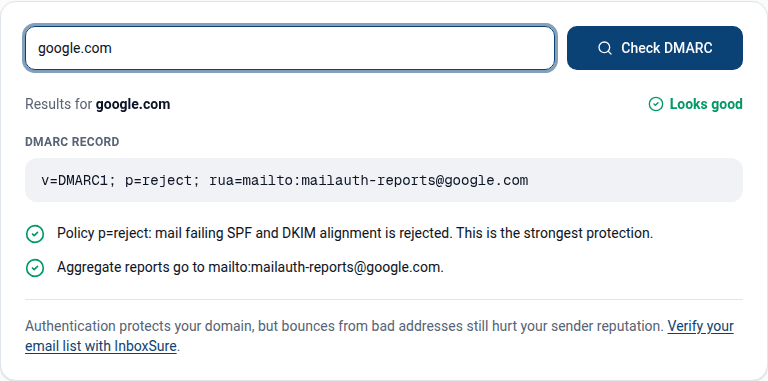
2. Test infrastructure: reverse DNS, block lists and TLS
If you send through Google Workspace, Microsoft 365 or a large email service, the IPs are theirs and this layer is mostly handled. If you run your own SMTP server or a dedicated IP, test three things.
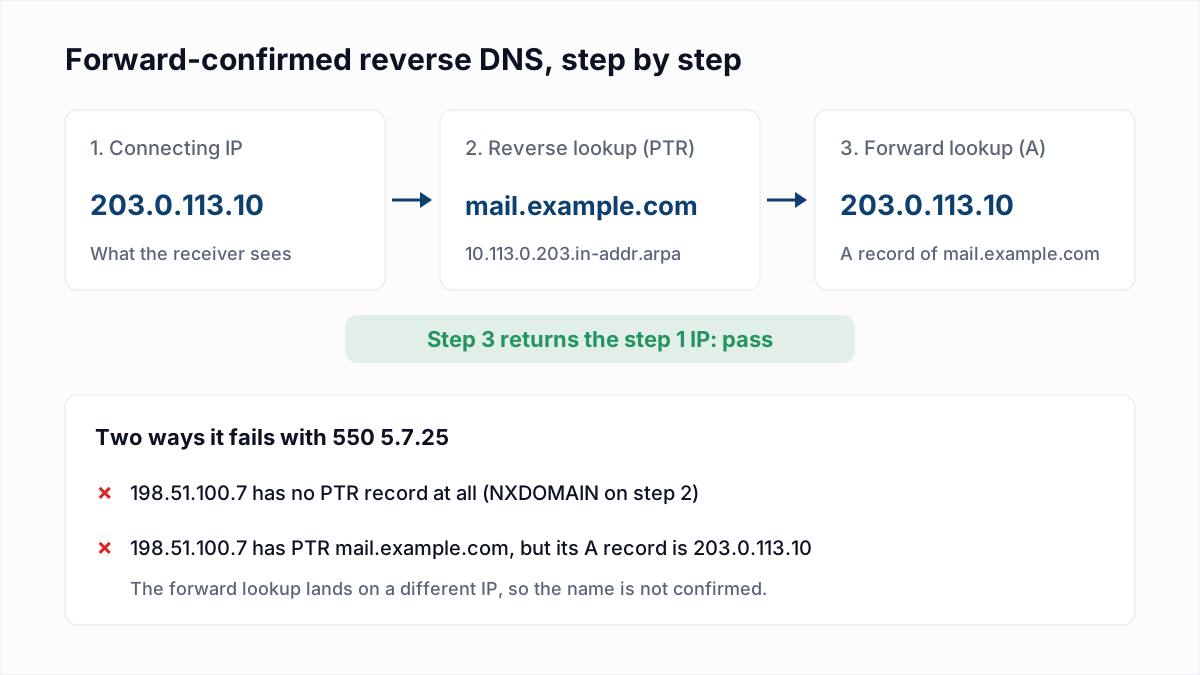
- Reverse DNS (PTR). Google's sender guidelines require that the sending IP "must have a corresponding PTR record that resolves to a hostname", and that the hostname resolves back to the same IP. Run
dig -x 203.0.113.10 +shortwith your IP, thendigthe hostname it returns. Yahoo enforces this at the door: in InboxSure's research on 4 November 2026, Yahoo and AOL answered a connection that failed the check with550 5.7.25 Forward-confirmed reverse DNS failed. The fix is in SMTP error 550 5.7.25 and reverse DNS. - Block lists. Look up the sending IP and the domains in your links on the main public lists; the blacklist check does a one-time lookup. A clean result on public lists does not cover the private lists Microsoft and others keep; those show up only as bounces. Which lists matter and how to get off them is in email blacklist check and removal.
- TLS. Google's guidelines say to "use a TLS connection for transmitting email". In the Show original view of your test message, the
Receivedline from your server should include a TLS version and cipher. In the Gmail inbox, a red open-lock icon on the message means it arrived unencrypted.
3. Run an email spam test on the content
Content tests send your message through a rule-based filter and show which rules fired. The filter is nearly always Apache SpamAssassin, which adds up points per matching rule and marks a message as spam when the total reaches a threshold. Its documentation gives the default threshold as 5, so lower is better and anything near 5 needs work.
The best-known free tool of this kind is mail-tester.com. According to its FAQ, it generates a random address for you to send to, analyses "your message, your mail server, your sending IP", and shows a report with a score out of 10. It runs a default SpamAssassin install and reverses the number, so on mail-tester a high score is good. The FAQ says three tests per 24 hours are free and results stay available for seven days.
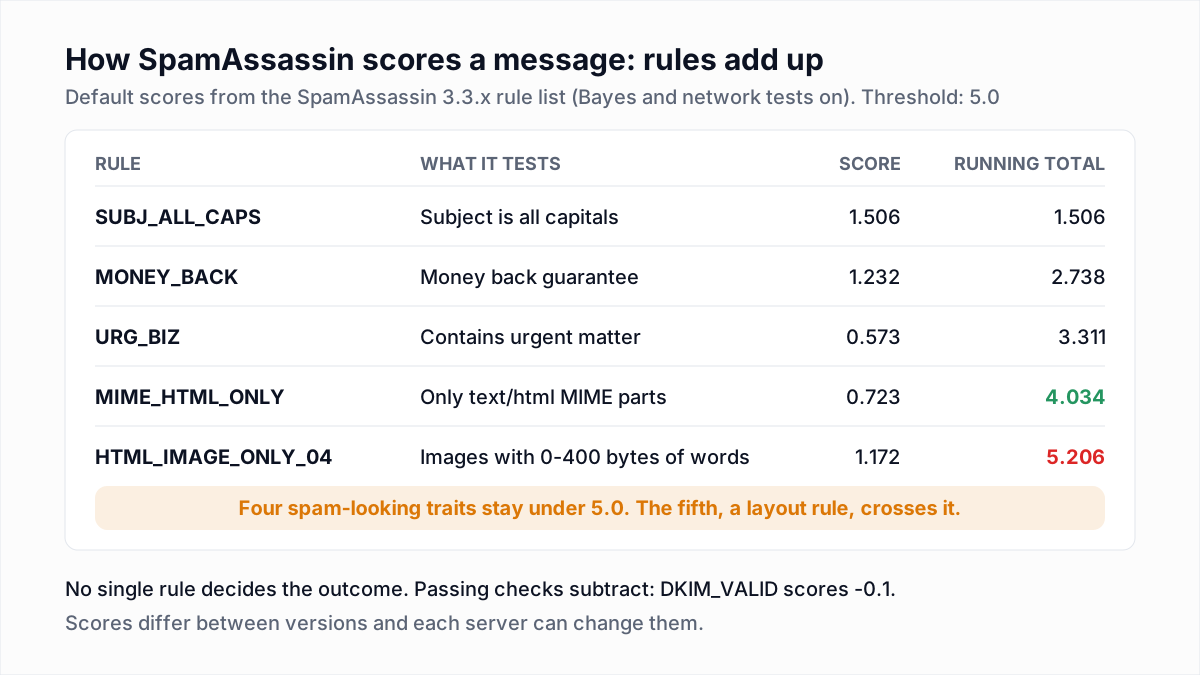
Use the report as a lint check. The useful lines name specific problems: no plain-text part, an image with almost no text beside it, a linked domain on a block list. What it cannot tell you is how Gmail or Outlook.com will treat the message. Those providers do not run a stock SpamAssassin, and they weigh your sending history, which a test address has never seen. A perfect score with a poor reputation still goes to spam. How much wording counts is covered in do spam trigger words still matter.
4. Inbox placement tests with seed addresses
An inbox placement test sends your message to a set of test mailboxes, called a seed list, spread across providers, then logs in to each and records where the message landed. Commercial tools automate this with dozens of seeds. You can do a small version free: open accounts at Gmail, Outlook.com and Yahoo, send the campaign to them from the real sending setup, and look.
The result is worth having, as long as you know its limits:
- Seed accounts have no history with you. Filtering is partly personal. Yahoo's sender best practices say the way to be delivered is to send "to an active and engaged audience". A seed mailbox has never opened, replied to or reported anything, so it shows how you are treated by a stranger.
- Results vary by recipient. Two real people at the same provider can get the same message in different folders. A seed result is one sample.
- Your own test accounts are biased. If you have ever moved your mail to the inbox or added the sender to contacts in that account, it has learned from you. Use fresh accounts, or accept that the result is optimistic.
- Business mail is underrepresented. Seeds are mostly consumer mailboxes. Company domains sit behind gateways with their own rules and private block lists.
Read seed results as a direction. Spam at every Gmail seed is a real warning. Inbox at every seed is not a guarantee. Providers do not publish how closely seed placement tracks real placement, so we will not put a number on it.
5. Read the real signals after you send
The most accurate deliverability test is your last campaign. Three sources report what actually happened.
- Google Postmaster Tools. Google's own dashboard for mail sent to Gmail, including the user-reported spam rate that its guidelines tell senders to keep "below 0.10%" and never let reach "0.30% or higher". Setup and how to read each chart are in Google Postmaster Tools.
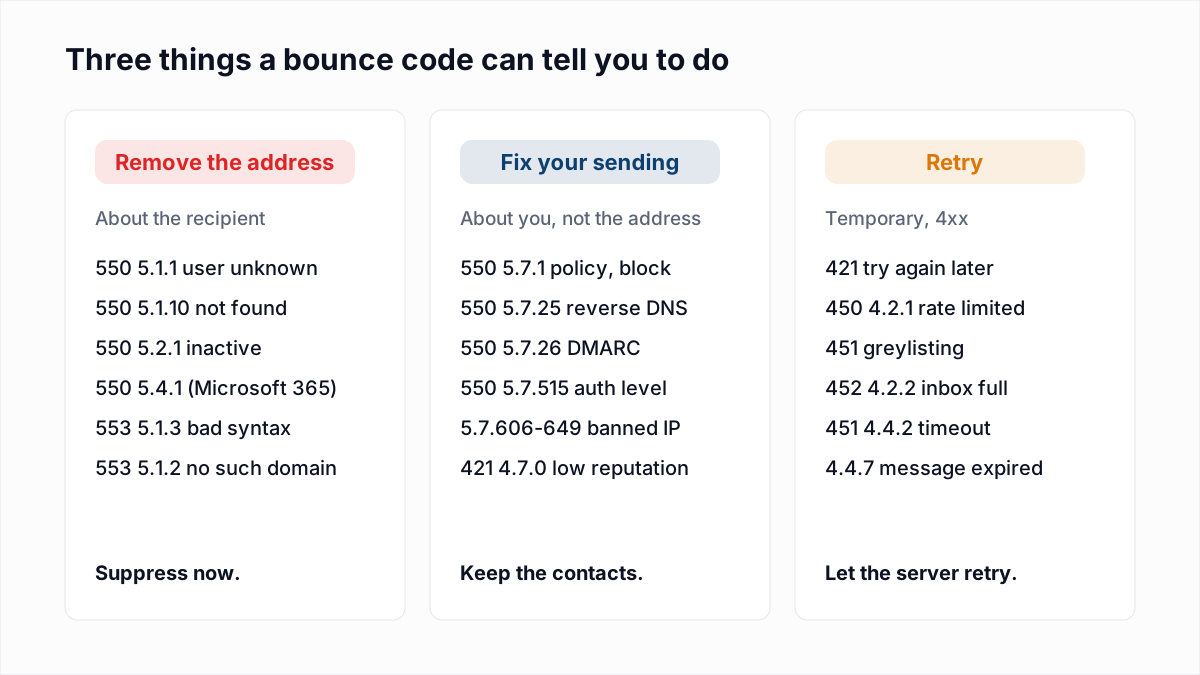
- Bounce codes. The SMTP reply on each bounce says whether the address was bad or you were blocked. A run of
550 5.7.1or421 4.7.0is a provider telling you about your reputation in plain text. The full table is in email bounce codes. - Complaint rate. Yahoo's complaint feedback loop and Microsoft's JMRP and SNDS programs report complaints for their users. What counts as a complaint and how the rate is worked out is in spam complaint rate.
6. Test the list itself
Every layer above tests the sender and the message. The list is the other half. Addresses that do not exist bounce, and a high bounce rate lowers the reputation that every other test depends on. Providers do not publish a bounce-rate limit; the common working target is under 2% per campaign. Put your last campaign's numbers into the bounce rate calculator to see where you stand.
Verification is the pre-send test for this layer. A verifier checks syntax, the domain's MX records and the mailbox itself over SMTP without sending a message, and sorts addresses into Deliverable, Risky, Undeliverable and Unknown. It tells you whether an address accepts mail. It does not tell you whether the person wants yours, and it cannot see spam traps, so it is no substitute for consent.
Pre-send deliverability checklist
| Check | Tool | Pass looks like | Fix if it fails |
|---|---|---|---|
| SPF | Gmail Show original; SPF checker | spf=pass; one record, 10 lookups or fewer | Add the sending service to the record; merge duplicate records |
| DKIM | Gmail Show original | dkim=pass with header.i= on your domain | Turn on custom DKIM in the sending tool and publish its key |
| DMARC | Gmail Show original; DMARC checker | dmarc=pass; a record exists at _dmarc | Publish a record; fix alignment of the DKIM or return-path domain |
| Reverse DNS | dig -x on the sending IP | PTR hostname resolves back to the same IP | Ask the host or ISP that owns the IP to set the PTR |
| Block lists | Public list lookups for IP and link domains | Not listed | Fix the cause, then request removal from each list |
| TLS | Received header in the test message | TLS version and cipher shown | Enable STARTTLS on the sending server |
| Content | A SpamAssassin-based tester | Well under 5 in SpamAssassin terms; no rule about links or structure | Fix the named rule: add a text part, add real text, replace the flagged link |
| Placement sample | Your own fresh Gmail, Outlook.com and Yahoo accounts | Inbox at each | Go back up this table; then check reputation in Postmaster Tools |
| Spam rate | Google Postmaster Tools | Below 0.10% | Tighten targeting, make unsubscribing easy, drop unengaged recipients |
| List | Email verifier; bounce rate calculator | Undeliverable addresses removed; last bounce rate under 2% | Verify the list and suppress addresses that hard-bounced |
What each test can and cannot tell you
| Test | Can tell you | Cannot tell you |
|---|---|---|
| Header check | Whether SPF, DKIM and DMARC pass and align for this sending path | Anything about reputation or content |
| DNS record checkers | Whether the published records are valid | Whether your sending tool is signing with them |
| PTR and block list lookups | Whether the IP will be refused at connection by servers that check them | Listings on private provider lists; domain reputation at Gmail |
| SpamAssassin score | Structural and link problems a rule-based filter objects to | How Gmail, Yahoo or Outlook.com will filter; any effect of your history |
| Seed or inbox placement test | Where one copy landed in mailboxes with no relationship to you | Where it lands for engaged or annoyed real recipients; corporate gateways |
| Postmaster Tools, bounces, complaints | What providers concluded from your real mail | Anything in advance; they report after sending |
| Email verification | Whether each mailbox exists and accepts mail | Whether the recipient wants the email, or which folder it lands in |
Start with the list
Authentication and infrastructure you set up once and re-test when something changes. The list changes with every campaign, so it is the test to repeat each time. Upload it to the bulk email verifier before you send: the Free plan covers lists of up to 50 addresses with no card, and Pro is a flat $49 a month for lists of up to 10,000 addresses with no credits. Remove the Undeliverable results, send to Deliverable first, and let the real signals from that send tell you the rest.
Frequently asked questions
Related reading
Ready to clean your email list?
Upload a CSV or XLSX and get every address marked deliverable, risky, undeliverable or unknown, with the reason. Free for lists of up to 50, no card. Nothing is sent to your contacts.