Microsoft SNDS: How to Set Up and Read Smart Network Data Services
One limit decides whether Microsoft SNDS is useful to you at all: SNDS only shows data for IP addresses you can prove you control. If you send through a shared pool at an email platform, the platform holds the SNDS account for those IPs, and your work is the list and the authentication, not the portal.
Microsoft SNDS (Smart Network Data Services) is a free Microsoft portal that shows the owner of a sending IP address how Outlook.com treated the mail that came from it. It is the closest thing Microsoft has to Google Postmaster Tools, with one big difference: SNDS is organised by IP address, not by domain.
A note on sources. On 13 November 2026 the old address, sendersupport.olc.protection.outlook.com/snds/, answered our request with a permanent redirect to the new SNDS portal. The new portal did not finish loading for our automated request, and its services page returned a server error, so we could not read Microsoft's SNDS pages or FAQ that day. Where this guide describes what is inside the portal, it says "widely reported": that means long-standing public descriptions of SNDS that we did not verify against Microsoft's page on that date. Statements attributed to Microsoft Learn or Microsoft Tech Community come from pages we did read.
What is Microsoft SNDS and who can use it?
Microsoft SNDS is a reporting portal for people who run sending IP addresses: email platforms, hosting companies, and businesses with their own mail servers or dedicated IPs. It covers mail sent to Microsoft's consumer mailboxes, which a Microsoft Tech Community post lists as the hotmail.com, live.com and outlook.com domains.
Microsoft expects senders to do this kind of monitoring. Its Microsoft Learn reference on policies, practices and guidelines says senders, ISPs and other service providers "should actively manage the reputation of your outbound IP addresses". SNDS is the tool Microsoft offers for doing that at Outlook.com.
| How you send | Can you use SNDS? |
|---|---|
| Your own mail server on a static IP | Yes. Request access for that IP. |
| A dedicated IP rented from an email platform | Usually through the platform, which controls the range. Ask its support team. |
| A shared IP pool at an email platform | No. The platform monitors the pool. |
| Google Workspace or Microsoft 365 mailboxes | No. Those IPs belong to Google and Microsoft. |
If you are not sure which row you are in, read dedicated vs shared IPs first.
How do you request SNDS access for an IP range?
You request SNDS access by signing in to the portal, entering the IP addresses you send from, and proving you are responsible for them. The steps below are the widely reported flow. We could not walk through it on 13 November 2026, so expect the screens to differ.
- List your sending IPs. Take them from your mail server configuration, or from the
Receivedlines of a message you sent (see how to read email headers). - Sign in to the SNDS portal with a Microsoft account your team will keep. Use a shared mailbox, not one person's address.
- Request access for a single IP or a whole range.
- Prove control. Microsoft is widely reported to send an authorisation email to a contact address tied to the range, such as the one in the IP registration record. If that mailbox belongs to your hosting company, ask the host to approve the request or to add you.
- Wait for data. The portal shows activity day by day, and days with very little mail to Outlook.com are widely reported to show nothing.
- Set up JMRP from the same account once access is granted.
Third-party write-ups from 2026 say the move to the new portal changed sign-in and automated data access. We could not confirm those details on a Microsoft page, so check any saved links or scripts.
What do the SNDS data columns mean?
The SNDS data view is widely reported to show one row per IP address per day, with counts of what the IP tried to send and how Microsoft judged it. We did not read Microsoft's column definitions on 13 November 2026, so treat this table as a guide to check against the portal's own FAQ.
| Column (as widely reported) | What it is said to show | What to look for |
|---|---|---|
| Activity period | The time window in which the IP sent mail that day. | Sending at hours when your systems should be idle. |
| RCPT commands | How many recipients the IP asked for with RCPT TO. | A count far above message recipients means many addresses were refused. |
| DATA commands and message recipients | How many messages were sent, and to how many recipients. | Volume that does not match your own sending logs. |
| Filter result | A green, yellow or red mark for the share of mail given a spam verdict. | Any change of colour from one week to the next. |
| Complaint rate | The share of delivered mail that users marked as junk. | A rising trend, even while the filter result is green. |
| Trap hits | Messages sent to Microsoft's spam trap addresses. | Anything above zero. |
| Sample HELO and MAIL FROM | One example of how the IP introduced itself and the sender address used. | A hostname or sender you do not recognise. |
The colour thresholds usually quoted are green below 10% spam verdicts, yellow from 10% to 90%, and red above 90%. Those figures are widely reported as coming from Microsoft's SNDS FAQ, and our domain reputation guide repeats them from search-indexed copies, but we have not verified them on Microsoft's page. The same FAQ is reported to say the filter result does not directly show inbox or junk placement.
One thing Microsoft Learn does confirm: complaints matter most. Its troubleshooting article for external senders, written about Microsoft 365, says "one of the principal factors in driving down a sender's reputation and their ability to deliver email is their junk email complaint rate."
What is the difference between SNDS, JMRP and the delist forms?
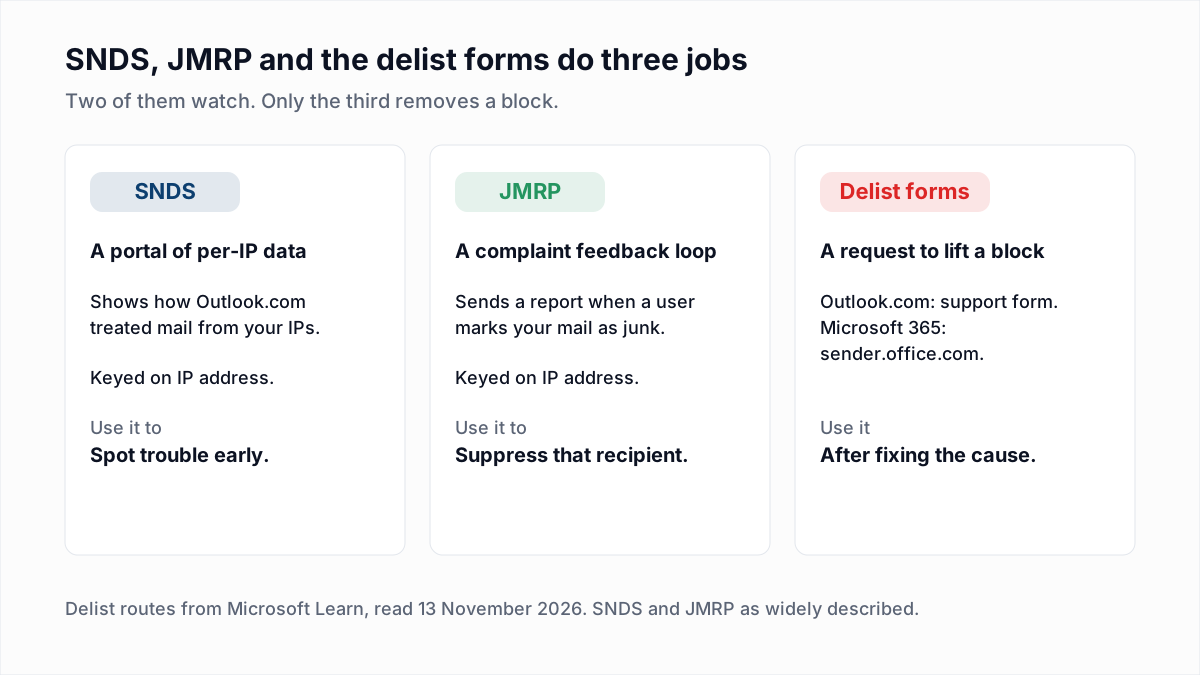
SNDS shows per-IP data, JMRP sends a report for each junk complaint, and the delist forms ask Microsoft to lift a block. The first two are monitoring. Only the forms change how Microsoft treats your IP.
| Tool | What it does | When to use it |
|---|---|---|
| SNDS | Shows daily data for each IP you control. | Every week, and before and after a large send. |
| JMRP (Junk Email Reporting Program) | Emails you a report when an Outlook.com user marks your message as junk. | Always on. Suppress each reported recipient. |
| Outlook.com support form | Asks Microsoft to review a block on mail to consumer mailboxes, such as 550 5.7.1 with code S3140. | After you have fixed the cause. |
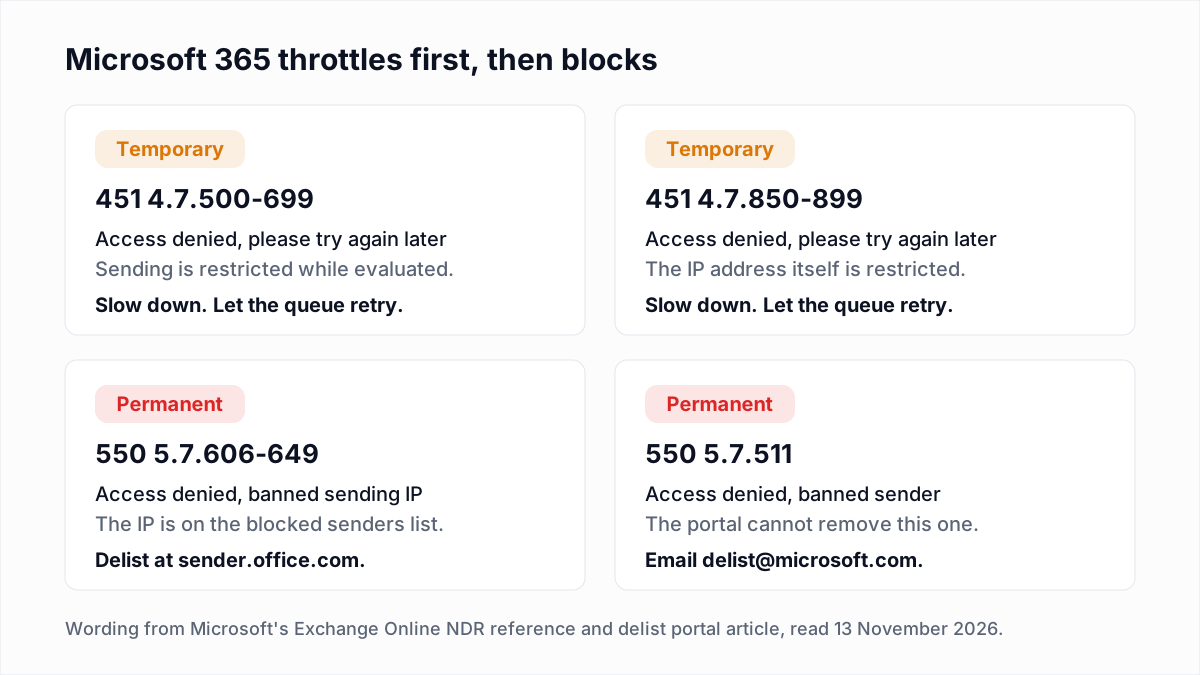
| sender.office.com | Removes an IP from the Microsoft 365 blocked senders list (550 5.7.606-649). | When the bounce names that portal. |
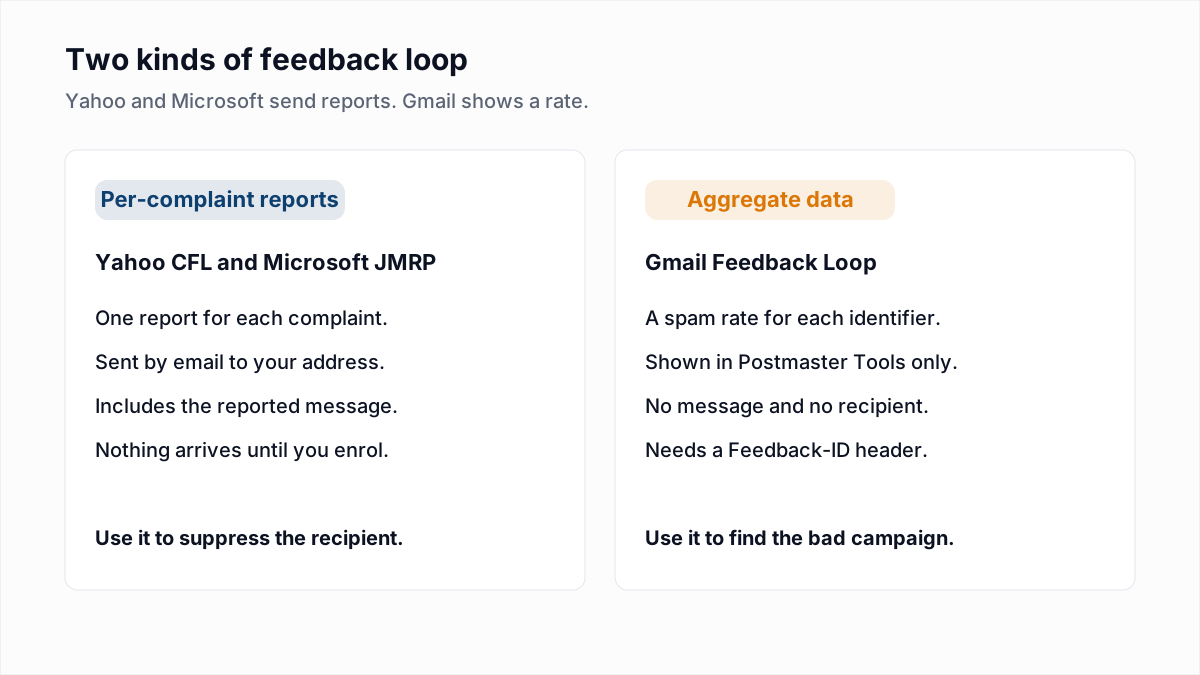
The two delist routes are confirmed by Microsoft Learn. Its delist portal article covers sender.office.com for Microsoft 365, warns that removal "might take up to 24 hours or longer", and links a separate delisting form for Outlook.com, the consumer service. The Outlook.com route is covered step by step in emails bouncing from Outlook with 550 5.7.1, and JMRP enrolment in email feedback loops.
What can SNDS not tell you?
SNDS cannot tell you your domain reputation, how Microsoft 365 business tenants treat your mail, or whether one message reached the inbox. SNDS reports on IP addresses at Outlook.com and nothing else. For how it compares with a third-party score, see Sender Score explained.
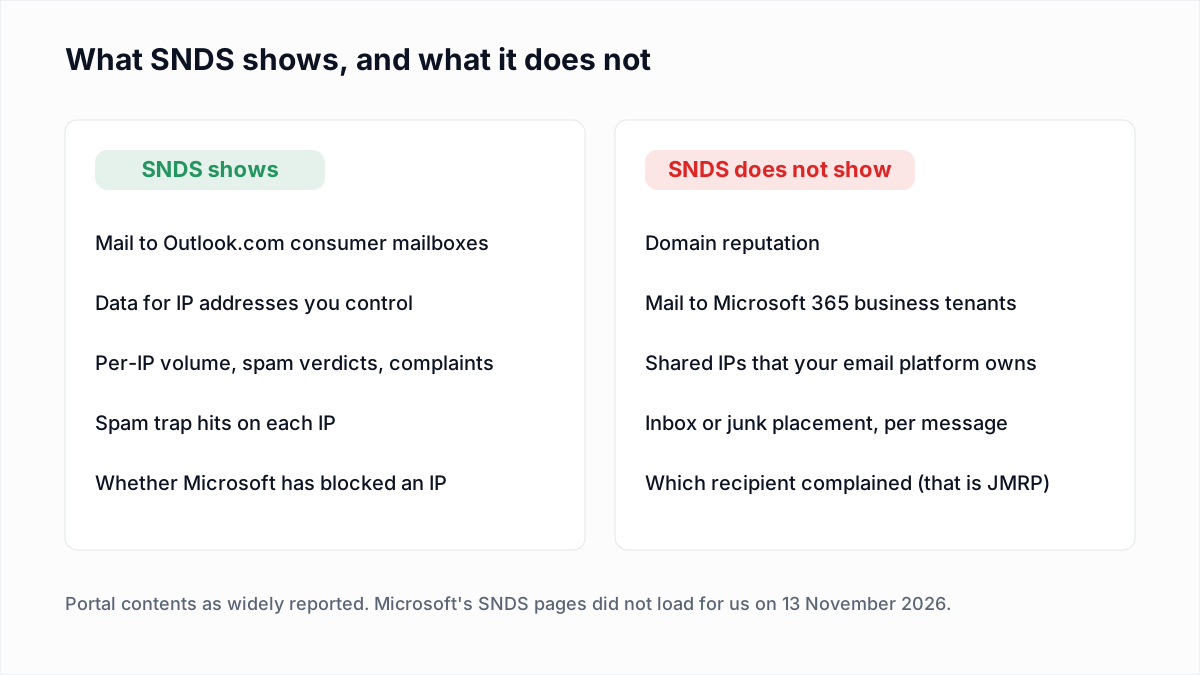
- Domain reputation and authentication. A bounce such as
550 5.7.515 Access denied, sending domain [SendingDomain] does not meet the required authentication levelis about SPF, DKIM and DMARC. The fix is in our 550 5.7.515 guide, not in SNDS. - Microsoft 365 business mail. Companies on Microsoft 365 are filtered by a separate system with its own throttling and block codes, explained in 451 4.7.500 Server busy. A clean SNDS page says nothing about those recipients.
- Other providers. Gmail and Yahoo have their own tools.
How often should you check SNDS?
Check SNDS once a week in normal times, and daily while warming up a new IP or recovering from a block. A weekly look is enough to catch a trend before it becomes a bounce.
- Open the data view for the last seven days.
- Compare volume with your own logs. Mail you did not send points to a compromised machine or an open relay.
- Note the filter result colour for each IP and whether it changed.
- Check the complaint rate trend against the JMRP reports you received.
- Look for trap hits.
- Check whether any IP is shown as blocked.
- Write down the date and what you saw. Trends matter more than one day.
New IPs need the daily version. Microsoft Learn says IP addresses that have never sent email "typically don't have any reputation in our systems", and that a new IP can expect to be fully ramped "within a couple of weeks or less depending on volume, list accuracy, and junk email complaint rates". A schedule is in our IP warm-up guide.
What should you do for each SNDS signal?
Each SNDS signal points to a different fix: complaints point to consent and content, trap hits to list sources, refused recipients to invalid addresses, and a block to the support form. The signals below use the widely reported columns, so match them to what your portal shows.
| If SNDS shows | Do this |
|---|---|
| Green filter result, low complaints | Nothing. Keep the weekly check. |
| Yellow filter result | Find which mail stream changed. Send to recently engaged Outlook.com recipients first and slow the rest. |
| Red filter result | Pause bulk mail to Outlook.com from that IP. Check authentication, list source and recent content before sending again. |
| Rising complaint rate | Suppress every JMRP-reported recipient and review the campaign they complained about. See spam complaint rate. |
| Trap hits | Stop mailing old, bought or unconfirmed addresses. See spam traps explained. |
| RCPT commands far above message recipients | Many addresses were refused. Remove invalid addresses before the next send. |
| An IP shown as blocked | Fix the cause, then file the Outlook.com support form once. |
| An unfamiliar HELO or sender | Treat it as a security incident. Find what else is sending from that IP. |
| No data for an IP | Usually low volume to Outlook.com that day. No data is not a bad rating. |
Where does list quality fit in?
Two SNDS signals come straight from the list: refused recipients and trap hits. Refused recipients are addresses that no longer exist. InboxSure checks syntax, DNS and the mailbox itself without sending a message, and marks each address Deliverable, Risky, Undeliverable or Unknown.
Two limits apply. As of November 2026, Outlook.com and Hotmail consumer addresses come back Unknown, because Microsoft refuses the check before the recipient step (our research has the replies). So the refused recipients SNDS counts are the ones verification cannot pre-check: suppress those from your own bounce logs. InboxSure also does not detect spam traps and does not monitor SNDS, reputation or blocklists. What verification does is remove dead addresses at every other domain on the list. The Free plan takes lists of up to 50 addresses with no card, and Pro is $49 a month for lists of up to 10,000 addresses. Start with the bulk email verifier.
Frequently asked questions
Related reading
Ready to clean your email list?
Upload a CSV or XLSX and get every address marked deliverable, risky, undeliverable or unknown, with the reason. Free for lists of up to 50, no card. Nothing is sent to your contacts.