How to Send Bulk Email Without Landing in Spam
Bulk email is one message sent to many recipients at once, such as a newsletter, an announcement or a promotion. No checklist guarantees the inbox, because mailbox providers decide message by message and do not publish how. What the providers do publish is a set of requirements and limits, and a sender who meets all of them in the right order removes the usual reasons for being filtered or blocked.
The nine steps below are in the order to do them. Each one is a summary that links to the full guide. Provider figures were read from the providers' own pages on 13 November 2026.
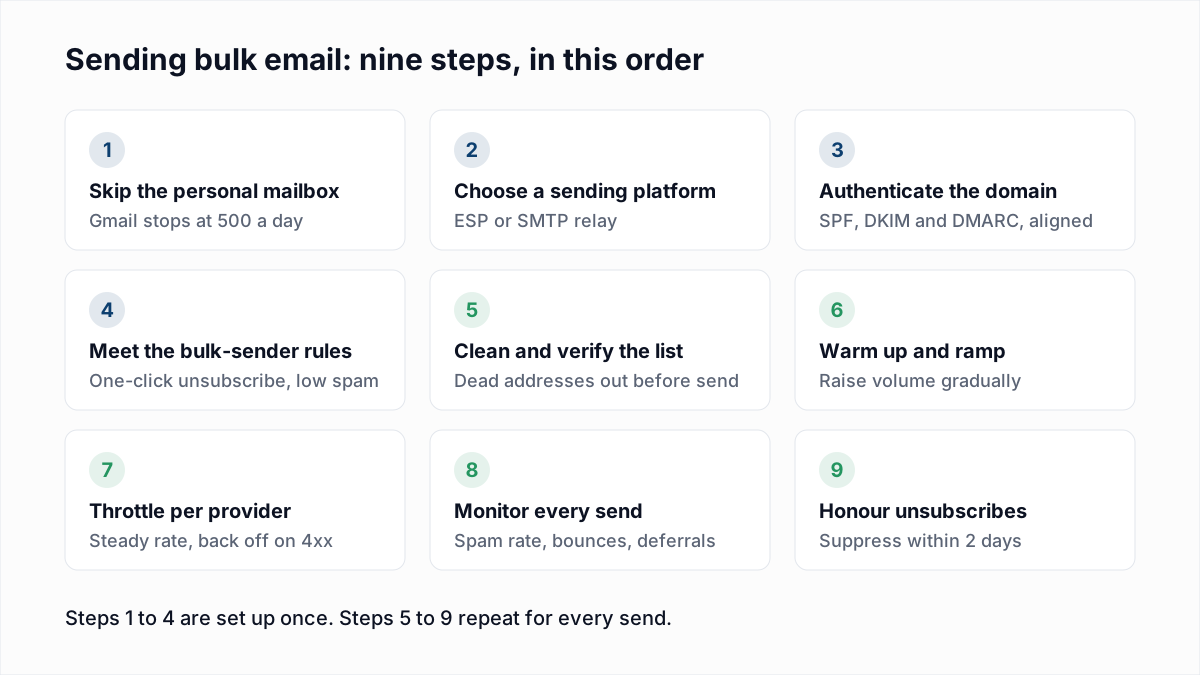
- Do not send bulk email from a personal mailbox.
- Choose a sending platform.
- Authenticate the domain with SPF, DKIM and DMARC.
- Meet the bulk-sender rules at Gmail, Yahoo and Outlook.com.
- Clean and verify the list before the first send.
- Warm up and increase volume gradually.
- Throttle per mailbox provider.
- Monitor spam rate, bounces and deferrals.
- Handle unsubscribes and suppressions.
1. Can you send bulk email from Gmail or Outlook?
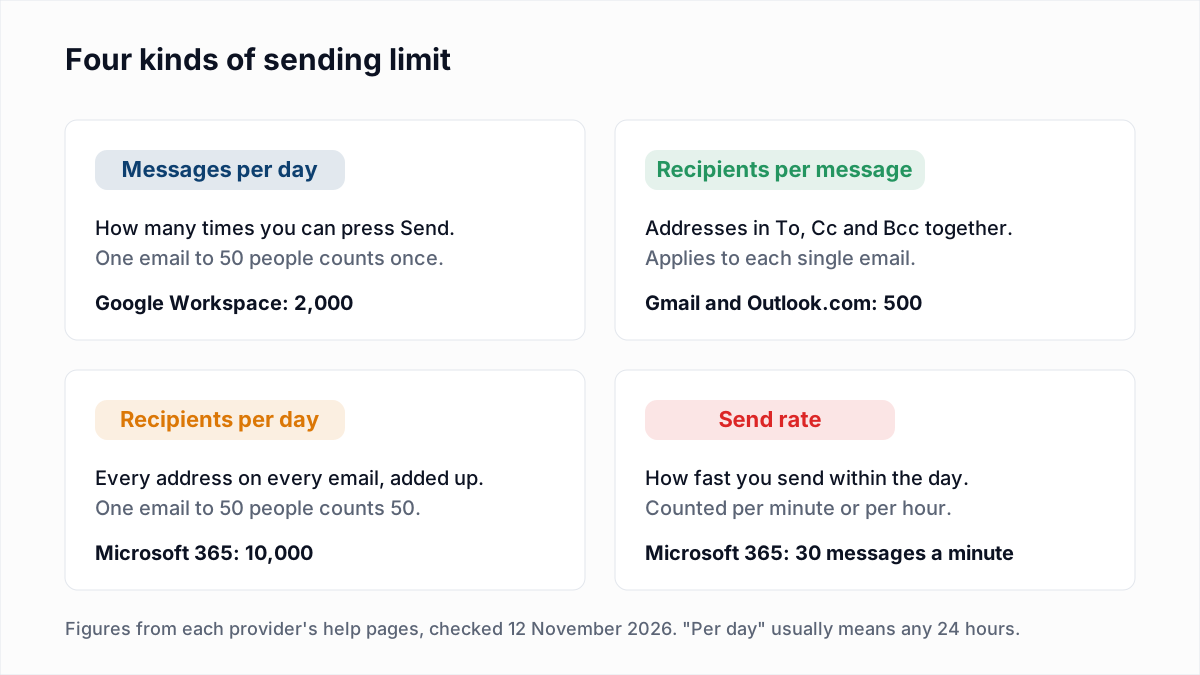
No, a personal Gmail or Outlook mailbox is not built for bulk email, and its sending limit stops a mass send partway through. Google's Gmail help page says the "You have reached a limit for sending mail" error appears after more than 500 recipients in a single email or more than 500 emails in a day. Microsoft's Outlook.com limits page gives Microsoft 365 subscribers 5,000 daily recipients, of which 1,000 can be people they have never emailed, and says limits are lower for non-subscribers. Work mailboxes are no better suited: Microsoft's Exchange Online limits page says customers who need to send bulk commercial email "should use third-party providers that specialize in these services." Every provider's figure is in email sending limits by provider.
2. What should you use to send bulk email?
Send bulk email through an email service provider (ESP) or an SMTP relay, which are built to process bounces, unsubscribes and complaints for a list. An ESP such as Mailchimp, Klaviyo or Brevo gives you an editor and list management; an SMTP relay such as Amazon SES or SendGrid sends what your own software hands it. Most senders start on the platform's shared IP addresses, and dedicated vs shared IP explains when your own IP is worth having. If the same domain also sends receipts and password resets, keep those on a separate stream, as described in transactional vs marketing email. A platform changes who enforces the limits, not whether there are any: ESPs suspend accounts with high bounce or complaint rates.
3. What authentication does bulk email need?
Bulk email needs SPF and DKIM that both pass, and a DMARC record of at least p=none with the From domain aligned to one of them. Most platforms sign with their own domain until you add the DNS records for custom domain authentication, so do that before the first send. Check the result with the SPF checker, DKIM checker and DMARC checker. The concepts are in SPF, DKIM and DMARC explained, and there are setup walkthroughs for Google Workspace, Microsoft 365, Mailchimp and Klaviyo. A marketing subdomain needs its own records; see email sending subdomains.
4. What are the bulk sender rules at Gmail, Yahoo and Outlook?
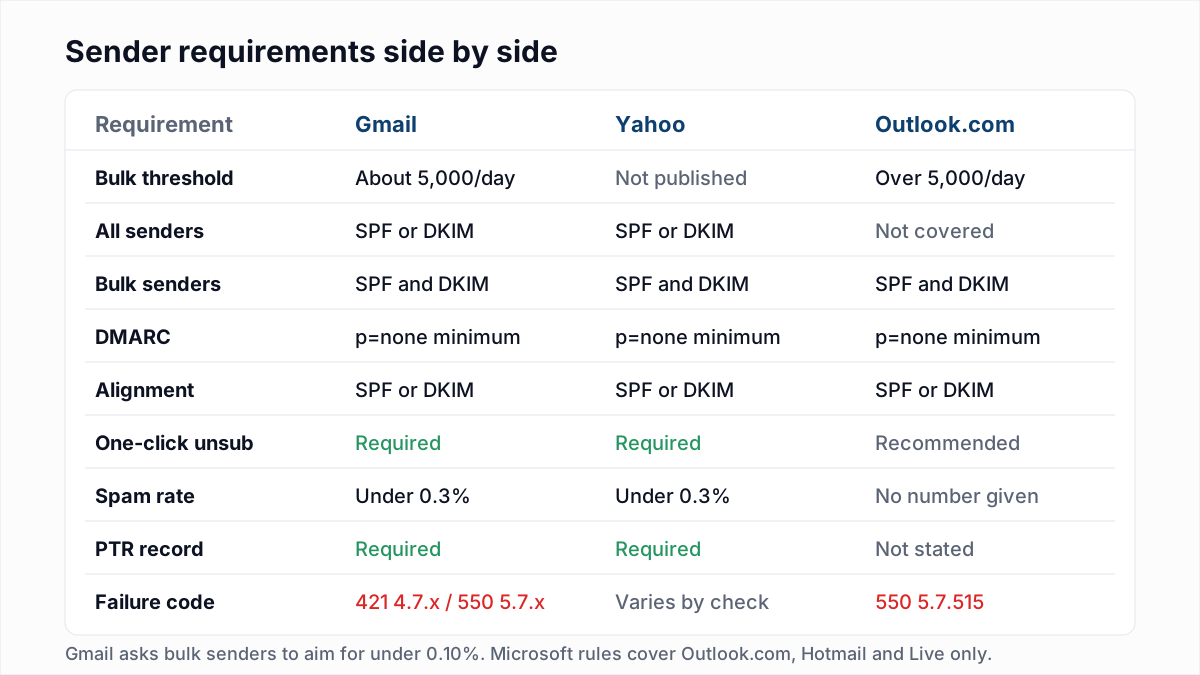
Gmail, Yahoo and Outlook.com require bulk senders to authenticate with SPF, DKIM and DMARC, and Gmail and Yahoo also require one-click unsubscribe on marketing mail and a spam rate below 0.3%. Google's sender guidelines FAQ defines a bulk sender as one that sends "close to 5,000 messages or more to personal Gmail accounts within a 24-hour period", counted across the whole primary domain, and the status is permanent once reached. Google's Email sender guidelines tell senders to keep spam rates "below 0.10% and avoid ever reaching a spam rate of 0.30% or higher." Yahoo's Sender Hub best practices ask for the same authentication, one-click unsubscribe and a spam rate below 0.3%, without giving a volume threshold. Microsoft's rules for Outlook.com apply above 5,000 emails a day. The side-by-side comparison is in Gmail, Yahoo and Outlook sender requirements.
5. Should you verify an email list before a bulk send?
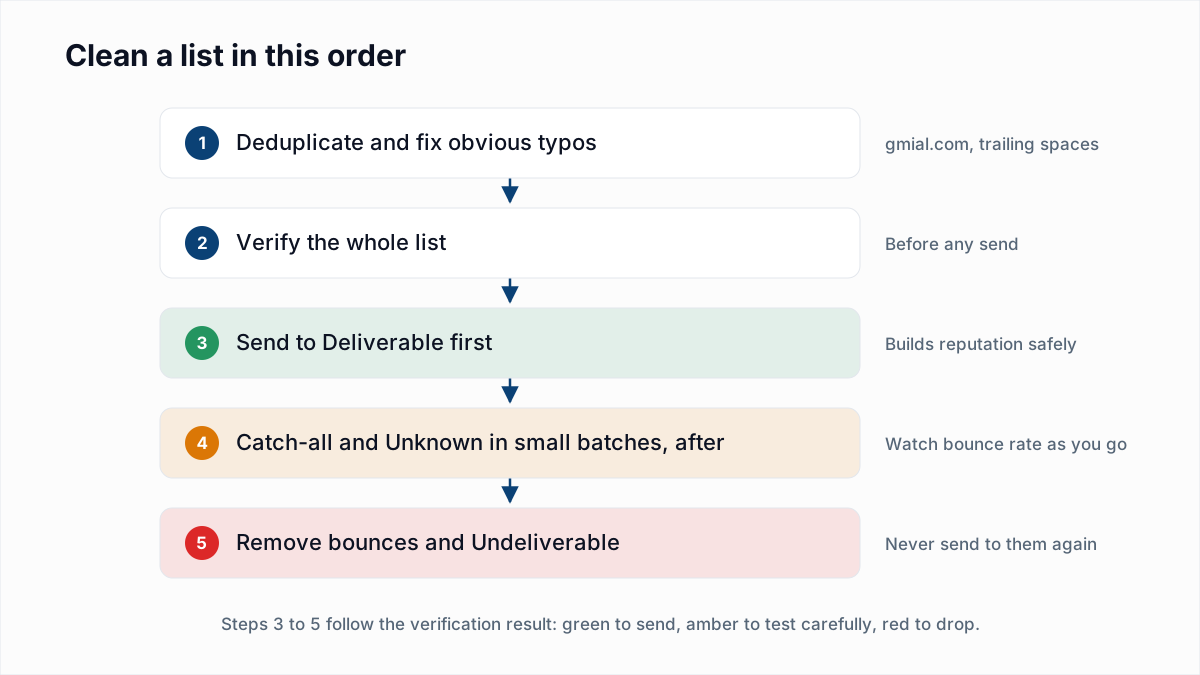
Yes, verify an email list before a bulk send, because addresses that no longer exist hard bounce, and a first send carries every dead address the list has collected. Google publishes no bounce limit. The published figures come from elsewhere: Spamhaus sender guidance says to stay below 5% overall, and Amazon SES reviews accounts at a 5% hard bounce rate; sources are in email bounce rate benchmarks. Start with where the list came from. Google's guidelines say: "Don't purchase email addresses from other companies" (see buying email lists). Then remove duplicates, verify, and send to confirmed addresses first. The routine is in email list hygiene.
This is the step InboxSure covers. It checks syntax, MX records and the mailbox over SMTP without sending an email, and returns Deliverable, Risky, Undeliverable or Unknown for each address. Two limits apply. Verification says nothing about consent, so it does not make a bought list safe. And Yahoo, AOL, Outlook.com and Hotmail addresses currently come back Unknown because those providers refuse the check.
6. How fast can you increase bulk email volume?
Increase bulk email volume gradually, because providers limit senders they have not seen at that volume before, and no provider publishes a schedule. Google's Email sender guidelines say: "The more email that you send, the more slowly you should increase sending volume", and warn that "immediately doubling previously sent volumes suddenly could result in rate limiting or reputation drops." This applies to a new domain, a new subdomain and a new dedicated IP alike. Send first to the people who opened or clicked most recently, then widen the audience send by send. The schedules that ESPs publish are compared in IP warm-up schedule, and domain warm-up is covered in email warm-up and sender reputation.
7. How do you throttle a bulk send per provider?
Throttle a bulk send by limiting how many messages go to each mailbox provider per hour, so that Gmail, Yahoo and Outlook each receive a steady stream instead of one burst. Google's guidelines say: "Send email at a consistent rate. Avoid sending email in bursts." Yahoo's best practices page says Yahoo "accepts a limited number of messages per SMTP connection" and does not give the number. On a hosted ESP the platform manages connections for you, and your control is batch or scheduled sending. When a provider answers with temporary 4xx replies, slow down and let the queue retry. Do not resend. Settings and reply codes are in email throttling.
8. What should you monitor after a bulk send?
After a bulk send, monitor the spam complaint rate, the bounce rate and the deferral rate for each mailbox provider, not only the totals. Three sources cover most of it:
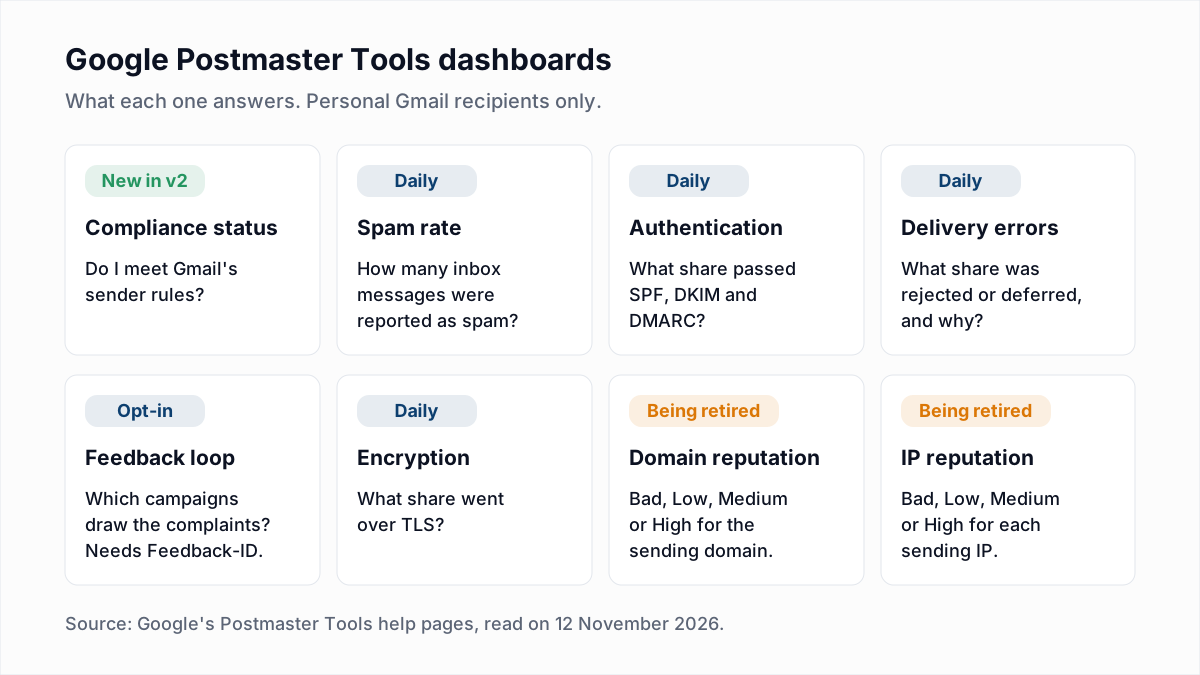
- Google Postmaster Tools shows the spam rate Gmail measures and whether you meet the bulk-sender rules. Setup is in the Postmaster Tools guide, and the thresholds in spam complaint rate.
- Your platform's bounce report, read by SMTP code. The email bounce codes reference says which replies mean a dead address and which mean a block.
- Complaint feedback from Yahoo and Microsoft, explained in email feedback loops.
Google's instruction for trouble is direct: "If messages start bouncing or start being deferred, reduce the sending volume until the SMTP error rate decreases."
9. How do you handle unsubscribes and suppressions?
Handle every unsubscribe, hard bounce and spam complaint by adding the address to a suppression list that is applied automatically before each send. Marketing mail needs the one-click List-Unsubscribe headers and a visible link in the body; the List-Unsubscribe header guide shows both. Google's FAQ recommends acting on requests within 48 hours, and Yahoo's page says to honour them within 2 days. The legal outer limit in the US is 10 business days under the FTC's CAN-SPAM compliance guide. Suppress, do not delete, so the address cannot return in a later import; see email suppression lists.
What changes at 500, 5,000 and more emails a day?
Two published thresholds change what a sender must do: 500 emails a day, the cap on a free Gmail account, and about 5,000 messages a day to one provider's consumer mailboxes, where the bulk-sender rules start at Gmail and Outlook.com.
| Daily volume | What the providers publish | What changes for you |
|---|---|---|
| Under 500 a day | A free Gmail account allows up to 500 emails a day. Gmail's rules for all senders still apply: SPF or DKIM, and a spam rate below 0.3%. | A mailbox can carry the volume, but it gives you no unsubscribe or bounce handling. Use a platform for anything sent to a list. |
| 500 to 5,000 a day | Above the free Gmail cap. A Google Workspace mailbox allows 2,000 messages a day, and Outlook.com gives Microsoft 365 subscribers 5,000 recipients a day. | Send through an ESP or SMTP relay. Set up SPF, DKIM and DMARC now, because the next tier requires all three. |
| Over 5,000 a day | Close to 5,000 messages in 24 hours to personal Gmail accounts makes you a bulk sender at Gmail permanently. Outlook.com applies its rules to domains sending over 5,000 emails a day. | SPF, DKIM, DMARC and alignment are mandatory, as is one-click unsubscribe on marketing mail at Gmail. Keep the spam rate below 0.10%. |
The 5,000 figure counts mail to one provider's consumer mailboxes, not your total send, and Yahoo publishes no number at all. Since Google counts the whole primary domain and never removes the label, the practical advice is to meet the top tier from the start.
How do you send 10,000 emails at once?
Send 10,000 emails through an ESP or SMTP relay from an authenticated domain, and on a first send split the list over several days instead of sending it in one batch. At 500 emails a day, a free Gmail account would need 20 days and would still lack unsubscribe handling. A first send of this size from a domain with no history is the sudden jump that Google's guidelines warn about, so:
- Authenticate the domain and confirm a test message shows SPF, DKIM and DMARC pass.
- Verify the list and remove the Undeliverable addresses.
- Send to the most recently engaged segment on the first day.
- Check the bounce report and Postmaster Tools the next day.
- If both are clean, send to a larger segment; if not, stop and fix the cause.
- Suppress every bounce, unsubscribe and complaint before the next batch.
No provider publishes how large each day's segment may be, so let deferrals and complaints set the pace. If the mail still lands in spam after all nine steps, work through the email deliverability checklist and, for outreach, why cold emails go to spam.
For step 5, InboxSure's bulk email verifier takes a CSV and returns one with a result for every address. The Free plan covers lists of up to 50 addresses with no card, and Pro is a flat $49 a month for lists of up to 10,000 addresses, with no credits. A 10,000-address list fits in one Pro upload.
Frequently asked questions
Related reading
Ready to clean your email list?
Upload a CSV or XLSX and get every address marked deliverable, risky, undeliverable or unknown, with the reason. Free for lists of up to 50, no card. Nothing is sent to your contacts.